
To summarize and report results from separate worksheets, you can consolidate data from each sheet into a master worksheet. The sheets can be in the same workbook as the master worksheet, or in other workbooks. When you consolidate data, you assemble data so that you can more easily update and aggregate as necessary.
For example, if you have an expense worksheet for each of your regional offices, you might use consolidation to roll these figures into a master corporate expense worksheet. This master worksheet might also contain sales totals and averages, current inventory levels, and highest selling products for the entire enterprise.
Tip: If you frequently consolidate data, it might help to create new worksheets from a worksheet template that uses a consistent layout. To learn more about Templates, see: Create a template. This is also an ideal time to set up your template with Excel tables.
There are two ways to consolidate data, either by position or category.
Consolidation by position: The data in the source areas has the same order, and uses the same labels. Use this method to consolidate data from a series of worksheets, such as departmental budget worksheets that have been created from the same template.
Consolidation by category: When the data in the source areas is not arranged in the same order but uses the same labels. Use this method to consolidate data from a series of worksheets that have different layouts but have the same data labels.
-
Consolidating data by category is similar to creating a PivotTable. With a PivotTable, however, you can easily reorganize the categories. Consider creating a PivotTable if you need more flexible consolidation by category.
Note: The examples in this article were created with Excel 2016. Though your view may differ if you're using another version of Excel, the steps are the same.
Follow these steps to consolidate several worksheets into a master worksheet:
-
If you haven't already, set up the data in each constituent sheet by doing the following:
-
Ensure that each range of data is in list format. Each column must have a label (header) in the first row and contain similar data. There must be no blank rows or columns anywhere in the list.
-
Put each range on a separate worksheet, but don't enter anything in the master worksheet where you plan to consolidate the data. Excel will do this for you.
-
Ensure that each range has the same layout.
-
-
In the master worksheet, click the upper-left cell of the area where you want the consolidated data to appear.
Note: To avoid overwriting existing data in the master worksheet, ensure that you leave enough cells to the right and below this cell for the consolidated data.
-
Click Data>Consolidate (in the Data Tools group).

-
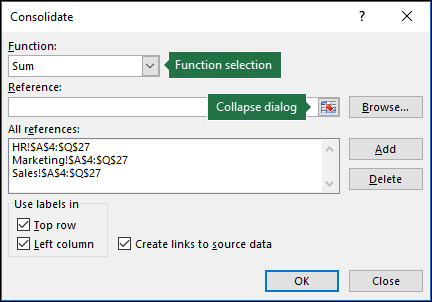
In the Function box, click the summary function that you want Excel to use to consolidate the data. The default function is SUM.
Here is an example in which three worksheet ranges have been chosen:
-
Select your data.
Next, in the Reference box, click the Collapse button to shrink the panel and select the data in the worksheet.

Click the worksheet that contains the data you want to consolidate, select the data, and then click the Expand Dialog button on the right to return to the Consolidate dialog.
If a worksheet containing data that you need to consolidate is in another workbook, click Browse to locate that workbook. After locating and clicking OK, Excel will enter the file path in the Reference box and append an exclamation point to that path. You can then continue to select other data.Here is an example in which three worksheet ranges have been chosen selected:
-
In the Consolidate popup window, click Add. Repeat this to add all of the ranges that you consolidate.
-
Automatic vs. Manual updates: If you want Excel to update your consolidation table automatically when the source data changes, simply check the Create links to source data box. If this box remains unchecked, you can update the consolidation manually.
Notes:
-
You cannot create links when source and destination areas are on the same sheet.
-
If you need to change the extent of a range—or replace a range—click the range in the Consolidate popup and update it using the steps above. This will create a new range reference, so you’ll need to delete the previous one before you consolidate again. Simply choose the old reference and press the Delete key.
-
-
Click OK, and Excel will generate the consolidation for you. Optionally, you can apply formatting. It's only necessary to format once, unless you rerun the consolidation.
-
Any labels that don't match up with labels in the other source areas result in separate rows or columns in the consolidation.
-
Ensure that any categories that you don't want to consolidate have unique labels that appear in only one source range.
-
If the data to consolidate is in different cells on different worksheets:
Enter a formula with cell references to the other worksheets, one for each separate worksheet. For example, to consolidate data from worksheets named Sales (in cell B4), HR (in cell F5), and Marketing (in cell B9), in cell A2 of the master worksheet, you would enter the following:
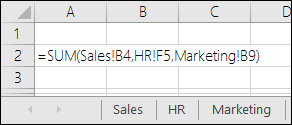
Tip: To enter a cell reference—such as Sales!B4—in a formula without typing, type the formula up to the point where you need the reference, then click the worksheet tab, and then click the cell. Excel will complete the sheet name and cell address for you. NOTE: formulas in such cases can be error-prone, since it’s very easy to accidentally select the wrong cell. It can also be difficult to spot a mistake after entering a complex formula.
If the data to consolidate is in the same cells on different worksheets:
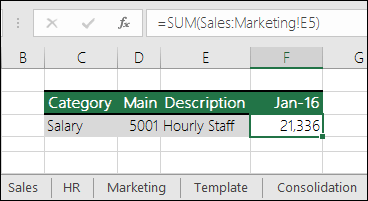
Enter a formula with a 3-D reference that uses a reference to a range of worksheet names. For example, to consolidate data in cells A2 from Sales through Marketing inclusive, in cell E5 of the master worksheet you would enter the following:
Need more help?
You can always ask an expert in the Excel Tech Community or get support in Communities.
See Also
Find and correct errors in formulas
Excel keyboard shortcuts and function keys








