

Summary
This article shows different methods so that any user can easily change the size of desktop icons and their spacing, as desired.
Resolution
To adjust the spacing between icons, follow these steps:
-
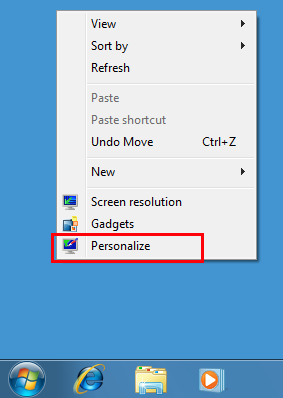
Right-click on any empty space on the desktop and select Personalize from the drop-down menu
-
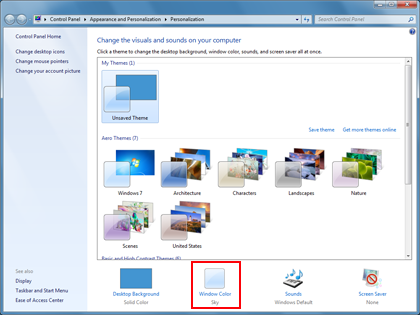
In the Personalization window, click Window Color option.
-
Then, click Advanced appearance settings... in the following dialog box.
Note:In some versions of Windows 7, it is likely that when you complete step 2, the Window Color and Appearance window will appear immediately (in this case, skip to step 3).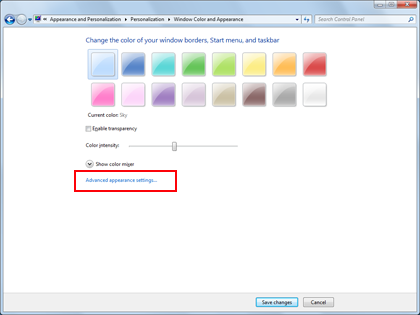
Go back to Adjust icon size using advanced appearance settings -
In the Window Color and Appearance window, select the Icon Spacing option from the Item drop-down menu.
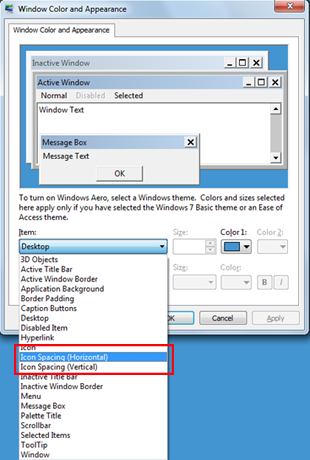
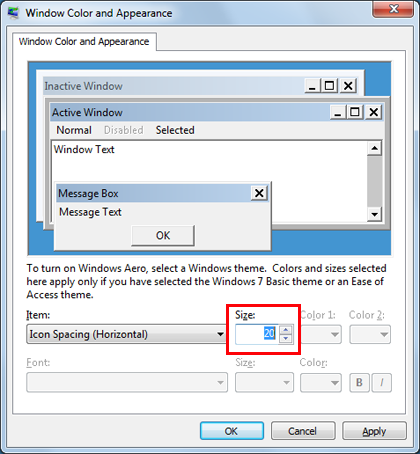
Note: The Icon Spacing (Horizontal) option determines the spacing of icons placed side by side, while the Icon Spacing (Vertical) option determines the spacing of icons from top to bottom. -
Select the new icon spacing size.
-
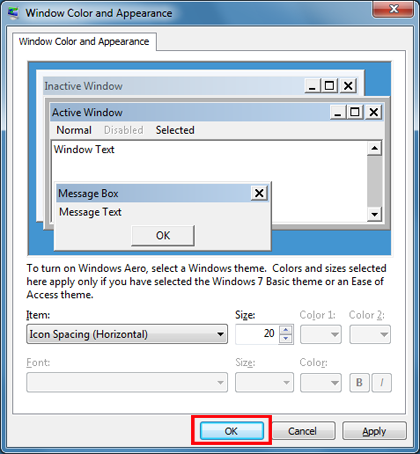
Click OK to return to the desktop.
-
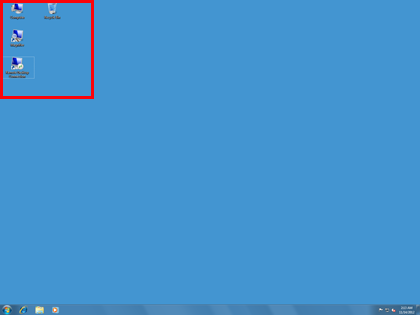
You can now see the changes made to the icons on the desktop.
Adjust icon size using the drop-down menu on the desktop
-
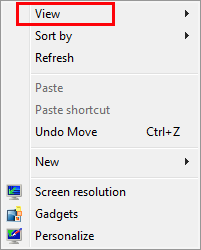
Right-click on any empty space on the desktop and select the View option from the drop-down menu.
-
Select the desired option:Large, medium or small icons. The default option is Medium Icons.
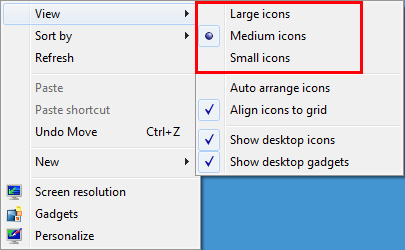
The desktop will be adjusted according to your selection.
Adjust icon size by scrolling
-
Click on any empty space on the desktop. Then press and hold Ctrl on the keyboard. Then, scroll up or down until you get the required size.
Note: This method requires a mouse with central or side scroll wheel.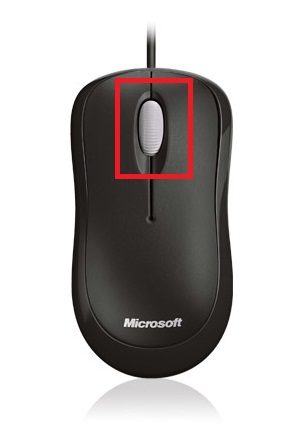
Adjust icon size using advanced appearance settings
-
Follow steps 1 through 3 desscribed on Adjust icon spacing.
-
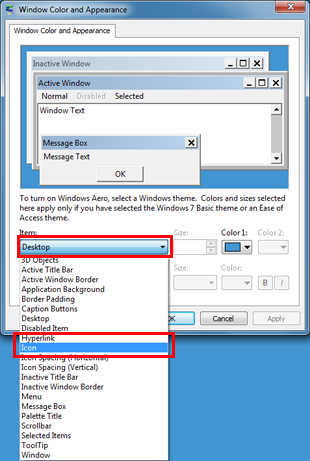
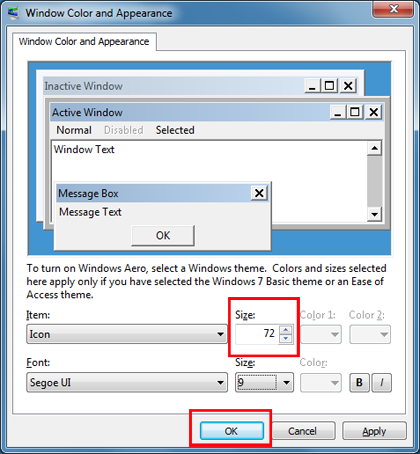
In the Window Color and Appearance window, select the Icon option from the Item drop-down menu.
-
Select the desired size and then click OK to return to the desktop.
-
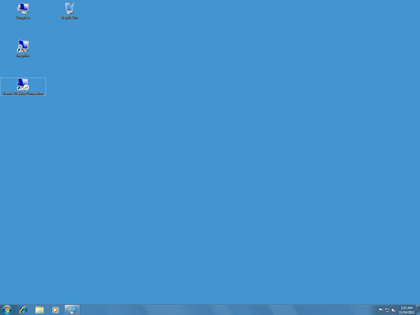
You now can see the changes made to the icons on the desktop.
References
Personalizing your computer
Make the text size on your screen larger or smaller
Change your screen resolution
Fonts: frequently asked questions
Your opinion is important to us: Send your opinion on these articles using the comments field at the bottom. You'll be helping us to improve the content. Thank you very much!
Note This is a "FAST PUBLISH" article created directly from within the Microsoft support organization. The information contained herein is provided as-is in response to emerging issues. As a result of the speed in making it available, the materials may include typographical errors and may be revised at any time without notice. See Terms of Use for other considerations.








