GT-I8700
GT-I8700Solutions & Tips
-
Lock
I can't unlock my Samsung Galaxy device
I can't unlock my Samsung Galaxy device
-
Application
What is the Secure Folder and how do I use it?
What is the Secure Folder and how do I use it?
-
How to use
How do I use an SD card with my Galaxy device?
How do I use an SD card with my Galaxy device?
-
How to use
How to set Generative wallpaper on Galaxy devices
How to set Generative wallpaper on Galaxy devices
-
Multimedia
How to use Quick Share to share a file between phones
How to use Quick Share to share a file between phones
-
Camera
Enhanced zoom and Nightography on Galaxy devices
Enhanced zoom and Nightography on Galaxy devices
-
Samsung Apps
Use the Samsung Find app to share your location with your friends, child, family, and other contacts
Use the Samsung Find app to share your location with your friends, child, family, and other contacts
-
Samsung Apps
Use the Samsung Find app to locate a lost device
Use the Samsung Find app to locate a lost device
-
Samsung Apps
Features of the Samsung Find app
Features of the Samsung Find app
-
How to Set Up Curve Card on Samsung Pay+
How to Set Up Curve Card on Samsung Pay+
-
How to Use Samsung Pay+
How to Use Samsung Pay+
-
Cashback with Samsung Pay+
Cashback with Samsung Pay+
-
Troubleshoot NFC issues on Galaxy devices
Troubleshoot NFC issues on Galaxy devices
-
How to use
Errors When Registering a Card in Samsung Wallet
Errors When Registering a Card in Samsung Wallet
-
Call & Contacts
eSIM Contact saving function support discontinued
eSIM Contact saving function support discontinued
-
Hardware
Specifications for the new Galaxy S23 FE
Specifications for the new Galaxy S23 FE
-
How to use
How do I find my SmartTag?
How do I find my SmartTag?
-
How to use
Professional Photography with Galaxy Expert RAW App
Professional Photography with Galaxy Expert RAW App
-
Network & WiFi
Samsung phone frozen - how to soft reset or hard reboot
Samsung phone frozen - how to soft reset or hard reboot
-
Camera
How do I take a screenshot on my Samsung Galaxy device?
How do I take a screenshot on my Samsung Galaxy device?
-
How to use
Galaxy eSIM and supported network carriers
Galaxy eSIM and supported network carriers
-
Hardware
Third-party products causing paint to peel off Galaxy devices
Third-party products causing paint to peel off Galaxy devices
-
Multimedia
How do I transfer photos from my smartphone to my PC?
How do I transfer photos from my smartphone to my PC?
-
How to use
What are Multi Windows and how do I use them?
What are Multi Windows and how do I use them?
-
How to use
How to self-repair your phone screen
How to self-repair your phone screen
-
How to use
How to self-repair your charging port
How to self-repair your charging port
-
Camera
A look at the Under Display Camera (UDC) on the Galaxy Z Fold4 and Fold5
A look at the Under Display Camera (UDC) on the Galaxy Z Fold4 and Fold5
-
How to use
How to clean your Samsung Galaxy device
How to clean your Samsung Galaxy device
-
Software Upgrade
Simplified app names in Galaxy One UI 6
Simplified app names in Galaxy One UI 6
-
How to use
Protect your Galaxy device with the new Auto Blocker feature
Protect your Galaxy device with the new Auto Blocker feature
-
How to use
What is Samsung Care+ and how does it work?
What is Samsung Care+ and how does it work?
-
Software Upgrade
How can I check what version of Android I have on my device?
How can I check what version of Android I have on my device?
-
Backup & Restore
How do I perform a factory reset on my mobile device?
How do I perform a factory reset on my mobile device?
-
How to use
Troubleshooting a problem when using Smart View
Troubleshooting a problem when using Smart View
-
How to use
I smashed my screen and can't use the touchscreen. Is there any way to access my data?
I smashed my screen and can't use the touchscreen. Is there any way to access my data?
-
Lock
My fingerprint scanner isn't working
My fingerprint scanner isn't working
-
Hardware
What is the warranty status of my Samsung mobile device?
What is the warranty status of my Samsung mobile device?
-
Battery
What to do if your phone is not charging
What to do if your phone is not charging
-
Hardware
What to do if the screen on your device is flickering
What to do if the screen on your device is flickering
-
Audio
What to do if the sound on your Galaxy smartphone is not working properly
What to do if the sound on your Galaxy smartphone is not working properly
-
Hardware
Is there something wrong with my Samsung mobile device if it often gets hot?
Is there something wrong with my Samsung mobile device if it often gets hot?
-
How to use
How to get your mobile device repaired
How to get your mobile device repaired
-
How to use
How to apply Galaxy Z Flip 5 screen protector
How to apply Galaxy Z Flip 5 screen protector
-
How to use
How to apply Galaxy Z Fold 5 screen protector
How to apply Galaxy Z Fold 5 screen protector
-
Backup & Restore
How do I transfer my data from my old Android phone to my new one?
How do I transfer my data from my old Android phone to my new one?
-
How to use
How do I backup my smartphone to my PC or Mac?
How do I backup my smartphone to my PC or Mac?
-
How to use
How do I turn on the Developer Options menu on my Samsung Galaxy device?
How do I turn on the Developer Options menu on my Samsung Galaxy device?
-
Lock
I inserted a new SIM card and now it is asking me for a PIN or unlock code to unlock it
I inserted a new SIM card and now it is asking me for a PIN or unlock code to unlock it
-
Application
How do I use the Smart Manager application to check for malware or viruses?
How do I use the Smart Manager application to check for malware or viruses?
-
Application
How to back up or restore WhatsApp data
How to back up or restore WhatsApp data
-
How to use
Navigate your Galaxy phone and Galaxy tablet using Multi control
Navigate your Galaxy phone and Galaxy tablet using Multi control
-
Power
Causes and solutions for when your Samsung Galaxy device gets warm
Causes and solutions for when your Samsung Galaxy device gets warm
-
How to use
Remove the case or cover on the Galaxy Z Flip and Z Fold series
Remove the case or cover on the Galaxy Z Flip and Z Fold series
-
Application
Galaxy device slows down, freezes, or displays ads after installing third-party apps
Galaxy device slows down, freezes, or displays ads after installing third-party apps
-
How to use
How to insert a USIM card into the Galaxy Z Flip5 and Z Fold5
How to insert a USIM card into the Galaxy Z Flip5 and Z Fold5
-
Camera
How to take a selfie with the Samsung Galaxy Z Flip5 FlexCam
How to take a selfie with the Samsung Galaxy Z Flip5 FlexCam
-
Network & WiFi
5G Network Carriers for Galaxy phones & tablets
5G Network Carriers for Galaxy phones & tablets
-
Network & WiFi
How to run eSIM self-diagnostics for the Galaxy Watch series
How to run eSIM self-diagnostics for the Galaxy Watch series
-
Battery
Why isn’t Samsung including earphones and a charger plug in the box?
Why isn’t Samsung including earphones and a charger plug in the box?
-
How to use
Use two hands with your Samsung Galaxy devices for maximum productivity
Use two hands with your Samsung Galaxy devices for maximum productivity
-
How to use
How to customise the accessibility settings on your smartphone
How to customise the accessibility settings on your smartphone
-
How to use
How to download and use the Netflix app on your Samsung Galaxy smartphone or tablet
How to download and use the Netflix app on your Samsung Galaxy smartphone or tablet
-
How to use
How to activate or deactivate auto rotate on you Galaxy smartphone or tablet
How to activate or deactivate auto rotate on you Galaxy smartphone or tablet
-
Samsung Apps
How to use My Files
How to use My Files
-
Battery
How to optimise the battery life on a Galaxy smartphone
How to optimise the battery life on a Galaxy smartphone
-
Call & Contacts
How to turn off Emergency SOS on your Galaxy phone
How to turn off Emergency SOS on your Galaxy phone
-
Camera
How to capture an image from a video frame
How to capture an image from a video frame
-
Setting
How to solve screenshot errors on devices with Android 13 OS
How to solve screenshot errors on devices with Android 13 OS
-
How to use
How to record, edit and share videos in 8K with your Galaxy device
How to record, edit and share videos in 8K with your Galaxy device
-
How to use
How to self-diagnose your Samsung Galaxy
How to self-diagnose your Samsung Galaxy
-
Camera
How to use Samsung Video editor
How to use Samsung Video editor
-
How to use
How to use Galaxy Wearable Self Diagnostics
How to use Galaxy Wearable Self Diagnostics
-
How to use
How to use your Smartphone to control your Samsung Smart TV
How to use your Smartphone to control your Samsung Smart TV
-
Application
How do I copy and paste on my Samsung Galaxy smartphone?
How do I copy and paste on my Samsung Galaxy smartphone?
-
How to use
How to prevent the overheating of your Galaxy device
How to prevent the overheating of your Galaxy device
-
Application
What does Vodafone’s RCS termination mean for my galaxy device?
What does Vodafone’s RCS termination mean for my galaxy device?
-
Samsung Apps
How do I connect my mobile device to a screen using DeX?
How do I connect my mobile device to a screen using DeX?
-
Setting
How to update quick settings panel menu on Galaxy phone
How to update quick settings panel menu on Galaxy phone
-
Bluetooth
How to fix Bluetooth connection problems with your phone or tablet
How to fix Bluetooth connection problems with your phone or tablet
-
How to use
My device is shattered and there is a crack on my screen
My device is shattered and there is a crack on my screen
-
How to use
What is Other storage on your Galaxy phone
What is Other storage on your Galaxy phone
-
Setting
How to find & delete duplicate files on your Galaxy phone
How to find & delete duplicate files on your Galaxy phone
-
Setting
My device displays a water drop icon and will not charge
My device displays a water drop icon and will not charge
-
Application
What are cookies, and how do I enable or disable them on my Samsung Galaxy device?
What are cookies, and how do I enable or disable them on my Samsung Galaxy device?
-
Setting
How do I use the Smart Manager application?
How do I use the Smart Manager application?
-
Application
How do I set up gmail or Hotmail on my Samsung Galaxy device?
How do I set up gmail or Hotmail on my Samsung Galaxy device?
-
Backup & Restore
How do I clear up memory space on my device?
How do I clear up memory space on my device?
-
Application
How do I get Fortnite on my Samsung Galaxy device?
How do I get Fortnite on my Samsung Galaxy device?
-
Hardware
What phones are compatible with the Galaxy Watch?
What phones are compatible with the Galaxy Watch?
-
Samsung Apps
What is Smart Switch and how do I use it?
What is Smart Switch and how do I use it?
-
How to use
How do I pair and set up my Galaxy Buds?
How do I pair and set up my Galaxy Buds?
-
How to use
How can I connect and use my device with a computer or tablet?
How can I connect and use my device with a computer or tablet?
-
How to use
Samsung Smart Switch
Samsung Smart Switch
-
How to use
How do I use the Voice Recorder app?
How do I use the Voice Recorder app?
-
How to use
how-to-shoot-videos-with-galaxy-supersteady-mode
how-to-shoot-videos-with-galaxy-supersteady-mode
-
How to use
How to automatically optimise your Galaxy device
How to automatically optimise your Galaxy device
-
How to use
Emergency Alerts
Emergency Alerts
-
Camera
How do I take a photo with the S Pen?
How do I take a photo with the S Pen?
-
Message
How do I use text messages on my device?
How do I use text messages on my device?
-
Samsung Apps
How do I set up or log into my Samsung Account?
How do I set up or log into my Samsung Account?
-
Network & WiFi
How do I check my APN (mobile internet) settings?
How do I check my APN (mobile internet) settings?
-
Application
How do I record my steps or other exercise using the S Health app?
How do I record my steps or other exercise using the S Health app?
-
Samsung Apps
What to do if Google Play Store will not load or download apps
What to do if Google Play Store will not load or download apps
-
Battery
What to do if the battery of my new phone seems to be draining faster?
What to do if the battery of my new phone seems to be draining faster?
-
Power
How to use Super fast charging
How to use Super fast charging
-
Battery
Why isn’t Samsung including earphones and a charger plug in the box?
Why isn’t Samsung including earphones and a charger plug in the box?
-
Camera
How Samsung Galaxy Cameras Combine Super Resolution Technologies with AI to Produce High-Quality Images of the Moon
How Samsung Galaxy Cameras Combine Super Resolution Technologies with AI to Produce High-Quality Images of the Moon
-
How to use
How to adjust the font size and style on your Galaxy phone
How to adjust the font size and style on your Galaxy phone
-
Multimedia
How do I load music files onto my Samsung Galaxy device from my Windows PC?
How do I load music files onto my Samsung Galaxy device from my Windows PC?
-
Hardware
What size memory card does my Galaxy smartphone accept?
What size memory card does my Galaxy smartphone accept?
-
Bluetooth
What are the different types of USB cables?
What are the different types of USB cables?
-
Network & WiFi
How do I turn international data roaming on or off on my Samsung Galaxy device?
How do I turn international data roaming on or off on my Samsung Galaxy device?
-
How to use
How to troubleshoot Camera app errors
How to troubleshoot Camera app errors
-
Battery
Issues with wired charging
Issues with wired charging
-
How to use
How to locate your Galaxy devices
How to locate your Galaxy devices
-
Setting
How do I enable and disable Voice Assistant (TalkBack) on my Samsung Galaxy smartphone?
How do I enable and disable Voice Assistant (TalkBack) on my Samsung Galaxy smartphone?
-
How to use
How do I use the Samsung reminder app?
How do I use the Samsung reminder app?
-
Application
How do I use the Samsung Members App?
How do I use the Samsung Members App?
-
Network & WiFi
How do I manually select a network on my Samsung Galaxy device?
How do I manually select a network on my Samsung Galaxy device?
-
Call & Contacts
How do I set a music file as a ringtone on my Samsung Galaxy smartphone?
How do I set a music file as a ringtone on my Samsung Galaxy smartphone?
-
Application
What is S Finder and how do I use it?
What is S Finder and how do I use it?
-
Setting
What do the notification light colours mean on my Samsung Galaxy smartphone?
What do the notification light colours mean on my Samsung Galaxy smartphone?
-
Setting
What does the Unified Daemon app do?
What does the Unified Daemon app do?
-
Audio
Can I download free music to my Samsung Galaxy device?
Can I download free music to my Samsung Galaxy device?
-
Network & WiFi
How do I set up my Google account on my Samsung Galaxy device?
How do I set up my Google account on my Samsung Galaxy device?
-
Application
How do I use my Samsung Galaxy device as a torch or flashlight?
How do I use my Samsung Galaxy device as a torch or flashlight?
-
Application
How do I get the WhatsApp Messenger app on my Samsung Galaxy device?
How do I get the WhatsApp Messenger app on my Samsung Galaxy device?
-
Application
How do I download the Outlook app for my Samsung Galaxy device?
How do I download the Outlook app for my Samsung Galaxy device?
-
Application
How do I get the Facebook Messenger app on my Samsung Galaxy device?
How do I get the Facebook Messenger app on my Samsung Galaxy device?
-
How do I change the theme on my Galaxy smartphone?
How do I change the theme on my Galaxy smartphone?
-
Setting
How do I turn off iMessage on my old iPhone before I switch to my new Samsung device?
How do I turn off iMessage on my old iPhone before I switch to my new Samsung device?
-
Network & WiFi
How do I check data usage on my Samsung Galaxy device?
How do I check data usage on my Samsung Galaxy device?
-
How to use
My screen isn't rotating when I move my device onto its side
My screen isn't rotating when I move my device onto its side
-
Setting
What is Smart Lock and how do I use it?
What is Smart Lock and how do I use it?
-
Network & WiFi
How do I enable or disable mobile data?
How do I enable or disable mobile data?
-
Application
How do I install the Facebook app on my Samsung Galaxy device?
How do I install the Facebook app on my Samsung Galaxy device?
-
Setting
How do I clear the cache on my device?
How do I clear the cache on my device?
-
Audio
How do I set my Samsung Galaxy device to vibrate?
How do I set my Samsung Galaxy device to vibrate?
-
Application
Where can I find the Google Play Store on my Samsung Galaxy device?
Where can I find the Google Play Store on my Samsung Galaxy device?
-
Software Upgrade
How to update the software on a Galaxy smartphone or tablet
How to update the software on a Galaxy smartphone or tablet
-
Application
Why does my music keep playing after I close the app?
Why does my music keep playing after I close the app?
-
Application
What is a VPN and how do I add one to my device?
What is a VPN and how do I add one to my device?
-
Multimedia
Where can I find downloaded files on my Samsung Galaxy smartphone?
Where can I find downloaded files on my Samsung Galaxy smartphone?
-
How to use
Where is the apps button on my Home screen? How do I find all my apps?
Where is the apps button on my Home screen? How do I find all my apps?
-
Power
My device is charging slowly, not switching on or keeps restarting
My device is charging slowly, not switching on or keeps restarting
-
Multimedia
Why are there ads on my lock screen and how can I get rid of them?
Why are there ads on my lock screen and how can I get rid of them?
-
Application
How to use Android Auto on Samsung device
How to use Android Auto on Samsung device
-
Hardware
How much will it cost to repair my phone screen?
How much will it cost to repair my phone screen?
-
Network & WiFi
How do I change the name of my device?
How do I change the name of my device?
-
Application
What is NFC and how do I use it?
What is NFC and how do I use it?
-
Application
What are the different camera modes and how do I use them?
What are the different camera modes and how do I use them?
-
Setting
How do I change the font size on my device?
How do I change the font size on my device?
-
How to use
What is the S Pen and how do I use it?
What is the S Pen and how do I use it?
-
How to use
What lock methods can I use on my Samsung Galaxy device?
What lock methods can I use on my Samsung Galaxy device?
-
Camera
Why do lines, dots, or lights appear in my photos after using the camera app?
Why do lines, dots, or lights appear in my photos after using the camera app?
-
Hardware
How do I install a SIM or memory card in my Galaxy device?
How do I install a SIM or memory card in my Galaxy device?
-
Application
What is Bixby and how do I use it?
What is Bixby and how do I use it?
-
Application
How do I manage my apps?
How do I manage my apps?
-
Call & Contacts
How do I use the call functions on my device?
How do I use the call functions on my device?
-
Message
Customer Warning - Samsung Lottery and Samsung Job Offer Scams
Customer Warning - Samsung Lottery and Samsung Job Offer Scams
-
How to use
How do I manage notifications on my device?
How do I manage notifications on my device?
-
Battery
What is Emergency Mode and how do I use it?
What is Emergency Mode and how do I use it?
-
Camera
What is Panorama mode and how do I use it?
What is Panorama mode and how do I use it?
-
Camera
What is AR (Augmented Reality) Emoji and how do I use it?
What is AR (Augmented Reality) Emoji and how do I use it?
-
Battery
How to use Wireless PowerShare
How to use Wireless PowerShare
-
Application
What is Samsung Pass and how do I use it?
What is Samsung Pass and how do I use it?
-
Battery
Charging your smartphone or tablet
Charging your smartphone or tablet
-
Backup & Restore
How do I set up my new smartphone?
How do I set up my new smartphone?
-
Backup & Restore
How do I transfer my data from my iOS device to my new Samsung Galaxy?
How do I transfer my data from my iOS device to my new Samsung Galaxy?
-
How to use
What is Device Care and how do I use it?
What is Device Care and how do I use it?
-
Application
How do I use my watch and phone to locate each other?
How do I use my watch and phone to locate each other?
-
Camera
What is Slow Motion and how do I use it?
What is Slow Motion and how do I use it?
-
Camera
What is Telephoto mode and how do I use it?
What is Telephoto mode and how do I use it?
-
Message
How do I use the keyboard on my phone?
How do I use the keyboard on my phone?
-
Setting
How do I use the Do not Disturb feature
How do I use the Do not Disturb feature
-
Camera
What is the Hyperlapse camera mode and how do I use it?
What is the Hyperlapse camera mode and how do I use it?
-
Camera
How do I use the basic functions of my smartphone camera?
How do I use the basic functions of my smartphone camera?
-
How to use
How do I enable Always On Display?
How do I enable Always On Display?
-
How to use
How do I set up Dual Messenger?
How do I set up Dual Messenger?
-
Samsung Apps
What is Link to Windows?
What is Link to Windows?
-
Hardware
SIM cards and expandable storage on the Galaxy Note10
SIM cards and expandable storage on the Galaxy Note10
-
Call & Contacts
How do I manage my contacts?
How do I manage my contacts?
-
How to use
How do I use the Samsung Internet app?
How do I use the Samsung Internet app?
-
How to use
What is Call & Message Continuity and how do I use it?
What is Call & Message Continuity and how do I use it?
-
Bluetooth
How to pair Galaxy devices via Bluetooth
How to pair Galaxy devices via Bluetooth
-
How to use
How do I navigate my Galaxy smartphone?
How do I navigate my Galaxy smartphone?
-
How to use
What is Bluetooth and how do I use it?
What is Bluetooth and how do I use it?
-
How to use
How to change the language on a Galaxy device
How to change the language on a Galaxy device
-
Setting
How to start my Galaxy device in Safe mode
How to start my Galaxy device in Safe mode
-
How to use
How do I connect to Wi-FI?
How do I connect to Wi-FI?
-
Samsung Apps
How to remove accounts and change unlock method on a Galaxy smartphone
How to remove accounts and change unlock method on a Galaxy smartphone
-
Application
How to remove or disable embedded apps
How to remove or disable embedded apps
-
How to use
How do I change the date and time on my Galaxy device?
How do I change the date and time on my Galaxy device?
-
How to use
What is Edge Lighting and how do I use it?
What is Edge Lighting and how do I use it?
-
How to use
How can I connect my Galaxy device to a car?
How can I connect my Galaxy device to a car?
-
How to use
How do I use the Quick Settings panel?
How do I use the Quick Settings panel?
-
How to use
How do I use the Samsung Music app?
How do I use the Samsung Music app?
-
How to use
How do I use the Gallery app on my Galaxy device?
How do I use the Gallery app on my Galaxy device?
-
Audio
What to do if Spotify stops playing when the screen is locked
What to do if Spotify stops playing when the screen is locked
-
Hardware
How to check the battery of the S Pen
How to check the battery of the S Pen
-
Application
Where does the Google app save downloaded images?
Where does the Google app save downloaded images?
-
Application
How to remove ads from a Galaxy smartphone
How to remove ads from a Galaxy smartphone
-
Call & Contacts
What is the small blinking light on my phone screen?
What is the small blinking light on my phone screen?
-
Samsung Apps
How to add a Yahoo calendar to the Calendar app
How to add a Yahoo calendar to the Calendar app
-
How to use
How to stop the screen from dimming on your Galaxy smartphone
How to stop the screen from dimming on your Galaxy smartphone
-
How to use
Will Samsung Pay Card be available on all devices?
Will Samsung Pay Card be available on all devices?
-
Application
How to fix apps that keep crashing or freezing
How to fix apps that keep crashing or freezing
-
Network & WiFi
How to activate Wi-Fi Calling on a Galaxy smartphone
How to activate Wi-Fi Calling on a Galaxy smartphone
-
Battery
Which charger should I use for my Galaxy phone or tablet?
Which charger should I use for my Galaxy phone or tablet?
-
Power
What to do if your water-resistant phone or tablet detects moisture in the charging port
What to do if your water-resistant phone or tablet detects moisture in the charging port
-
Message
How to remove voicemail notifications
How to remove voicemail notifications
-
Multimedia
How to deactivate text message delivery reports
How to deactivate text message delivery reports
-
How to use
How to optimise the performance of a Galaxy smartphone
How to optimise the performance of a Galaxy smartphone
-
How to use
How to use the camera on a Galaxy smartphone
How to use the camera on a Galaxy smartphone
-
Call & Contacts
How to use or manage dual SIM cards
How to use or manage dual SIM cards
-
Samsung Apps
I cant access my Yahoo email account through the Samsung Email app
I cant access my Yahoo email account through the Samsung Email app
-
How to use
How do I connect my SmartTag to my phone?
How do I connect my SmartTag to my phone?
-
How to use
How to activate SOS messages on your Samsung Galaxy Devices
How to activate SOS messages on your Samsung Galaxy Devices
-
Software Upgrade
Why are some Android apps crashing
Why are some Android apps crashing
-
How to use
How can I use Dual audio to share media on multiple devices?
How can I use Dual audio to share media on multiple devices?
-
How to use
Record and capture your Galaxy phone screen
Record and capture your Galaxy phone screen
-
How to use
What to do if your Galaxy phone's touch screen doesn't work properly
What to do if your Galaxy phone's touch screen doesn't work properly
-
How to use
How to resize a photo in the Gallery app on your Galaxy phone
How to resize a photo in the Gallery app on your Galaxy phone
-
How to use
How to use 5G on your Galaxy phone
How to use 5G on your Galaxy phone
-
How to use
What to do if your Galaxy phone won’t power on properly?
What to do if your Galaxy phone won’t power on properly?
-
How to use
How to disable the Dynamic Lock screen on your Galaxy phone
How to disable the Dynamic Lock screen on your Galaxy phone
-
How to use
Registering your Samsung product
Registering your Samsung product
-
How to use
Make sure that the protective film on your new Galaxy phone is completely removed
Make sure that the protective film on your new Galaxy phone is completely removed
-
How to use
How to troubleshoot the microphone of your Galaxy phone when it does not recognise a voice well
How to troubleshoot the microphone of your Galaxy phone when it does not recognise a voice well
-
How to use
How can I recover deleted photo?
How can I recover deleted photo?
-
How to use
My Galaxy device is not fast charging how do I fix it?
My Galaxy device is not fast charging how do I fix it?
-
Software Upgrade
How to update latest software for your Galaxy mobile device
How to update latest software for your Galaxy mobile device
-
How to use
How to remove unwanted objects from photos on your Galaxy phone
How to remove unwanted objects from photos on your Galaxy phone
-
How to use
What to do when your phone heats up
What to do when your phone heats up
-
Setting
How do I delete all of my personal information from my device?
How do I delete all of my personal information from my device?
-
How to use
How to troubleshoot software update issues
How to troubleshoot software update issues
-
Battery
Issues with wireless charging
Issues with wireless charging
-
How to use
I dropped my device in water
I dropped my device in water
-
Network & WiFi
How to troubleshoot Mobile data issues
How to troubleshoot Mobile data issues
-
Backup & Restore
How to troubleshoot when your device doesn't detect an SD card
How to troubleshoot when your device doesn't detect an SD card
-
Audio
How to troubleshoot poor sound quality during a phone call
How to troubleshoot poor sound quality during a phone call
-
How to use
How to use an eSIM with your Galaxy phone
How to use an eSIM with your Galaxy phone
-
How to use
What to do if your S Pen is often disconnected from your Galaxy phone
What to do if your S Pen is often disconnected from your Galaxy phone
-
How to use
How to set the display refresh rate on your Galaxy phone
How to set the display refresh rate on your Galaxy phone
-
Battery
How to show or hide the battery percentage on your Samsung phone
How to show or hide the battery percentage on your Samsung phone
-
How to use
what is the secure wifi feature and how do i enable or use it
what is the secure wifi feature and how do i enable or use it
-
How to use
Know what the green dot at the top of your screen means
Know what the green dot at the top of your screen means
-
How to use
How to scan QR code on your Galaxy phone or tablet
How to scan QR code on your Galaxy phone or tablet
-
How to use
How to use the Galaxy Z Fold4 Taskbar
How to use the Galaxy Z Fold4 Taskbar
-
How to use
How to use S Pen Pro on my Galaxy Z Fold4
How to use S Pen Pro on my Galaxy Z Fold4
-
How to use
How to attach the protective film to the Galaxy Z Fold4
How to attach the protective film to the Galaxy Z Fold4
-
Battery
How can I optimise and extend the battery life on my Samsung Galaxy smartphone?
How can I optimise and extend the battery life on my Samsung Galaxy smartphone?
-
Setting
How do I change the wallpaper on my Samsung Galaxy smartphone?
How do I change the wallpaper on my Samsung Galaxy smartphone?
-
How to use
How can I personalise and turn predictive text on and off on my Samsung Galaxy device?
How can I personalise and turn predictive text on and off on my Samsung Galaxy device?
-
Bluetooth
How do I connect a Bluetooth headset to my Samsung Galaxy smartphone or tablet?
How do I connect a Bluetooth headset to my Samsung Galaxy smartphone or tablet?
-
How to use
How to use the Multi Window function in Android Pie
How to use the Multi Window function in Android Pie
-
How to use
How to backup and restore contacts on your Samsung Galaxy smartphone
How to backup and restore contacts on your Samsung Galaxy smartphone
-
How to use
How to enable and disable app notifications on your Samsung Galaxy smartphone
How to enable and disable app notifications on your Samsung Galaxy smartphone
-
How to use
How to force reboot your Samsung Galaxy smartphone
How to force reboot your Samsung Galaxy smartphone
-
How to use
How to use the ‘call recording’ feature on your Samsung Galaxy smartphone
How to use the ‘call recording’ feature on your Samsung Galaxy smartphone
-
How to use
How to set a custom ringtone for a contact on your Samsung Galaxy smartphone
How to set a custom ringtone for a contact on your Samsung Galaxy smartphone
-
How to use
How to check for and schedule software updates on your Samsung Galaxy smartphone
How to check for and schedule software updates on your Samsung Galaxy smartphone
-
How to use
How to use the ‘Battery and device care’ feature of your Samsung Galaxy smartphone
How to use the ‘Battery and device care’ feature of your Samsung Galaxy smartphone
-
How to use
How to import and export contacts on your Samsung Galaxy smartphone
How to import and export contacts on your Samsung Galaxy smartphone
-
How to use
How to set a picture or video as the ‘call background’ on your Samsung Galaxy smartphone
How to set a picture or video as the ‘call background’ on your Samsung Galaxy smartphone
-
How to use
How to use custom flash notifications on your Samsung smartphone
How to use custom flash notifications on your Samsung smartphone
-
How to use
How to use the ‘screen recording’ feature on your Samsung Galaxy smartphone
How to use the ‘screen recording’ feature on your Samsung Galaxy smartphone
-
How to use
How to enable ‘Dolby Atmos’ sound on your Samsung Galaxy smartphone
How to enable ‘Dolby Atmos’ sound on your Samsung Galaxy smartphone
-
How to use
How to enable/disable the ‘call forwarding’ feature in your Samsung Galaxy Smartphone
How to enable/disable the ‘call forwarding’ feature in your Samsung Galaxy Smartphone
-
How to use
How to enable/disable the ‘call waiting’ feature in your Samsung Smartphone
How to enable/disable the ‘call waiting’ feature in your Samsung Smartphone
-
How to use
How to ensure seamless performance of your Galaxy smartphone
How to ensure seamless performance of your Galaxy smartphone
-
How to use
How to update software
How to update software
-
How to use
How to ensure optimum charging
How to ensure optimum charging
-
How to use
How to optimize your smartphone’s performance and avoid heating
How to optimize your smartphone’s performance and avoid heating
-
How to use
How to optimize network connectivity
How to optimize network connectivity
-
How to use
How to optimize charging of your Galaxy smartphone
How to optimize charging of your Galaxy smartphone
-
How to use
Get complete diagnostic support for your smartphone on the Samsung Members app
Get complete diagnostic support for your smartphone on the Samsung Members app
-
How to use
What is this Proximity Sensor on your Samsung smartphone
What is this Proximity Sensor on your Samsung smartphone
-
How to use
How to take screenshots using the edge panel of your Samsung smartphone
How to take screenshots using the edge panel of your Samsung smartphone
-
How to use
How to take screenshots with a ‘palm swipe’ on your Samsung smartphone
How to take screenshots with a ‘palm swipe’ on your Samsung smartphone
-
How to use
How to check the battery percentage on your Galaxy smartphone
How to check the battery percentage on your Galaxy smartphone
-
How to use
How to create a Samsung account
How to create a Samsung account
-
How to use
How to transfer data from an iPhone or iPad to a new Galaxy device with Smart Switch
How to transfer data from an iPhone or iPad to a new Galaxy device with Smart Switch
-
How to use
How to connect your Galaxy device to other devices using Connected Devices
How to connect your Galaxy device to other devices using Connected Devices
-
How to use
How to use your Galaxy camera to add and edit a watermark for your photos
How to use your Galaxy camera to add and edit a watermark for your photos
-
How to use
How to automatically refresh the Samsung Galaxy weather widget through movement
How to automatically refresh the Samsung Galaxy weather widget through movement
-
How to use
How to select and view only the albums you want to see in Galaxy gallery
How to select and view only the albums you want to see in Galaxy gallery
-
How to use
How to change the language settings of each app in your Galaxy device
How to change the language settings of each app in your Galaxy device
-
How to use
How to use Galaxy device in an emergency to contact emergency contacts and view important medical information
How to use Galaxy device in an emergency to contact emergency contacts and view important medical information
-
How to use
Safety precautions when using a Galaxy device
Safety precautions when using a Galaxy device
-
Application
How to set up email app on Samsung phone or tablet
How to set up email app on Samsung phone or tablet
-
How to use
How to keep your Galaxy mobile device from slowing down
How to keep your Galaxy mobile device from slowing down
-
How to use
What is the difference between Galaxy Z Fold3 and Galaxy Z Fold4?
What is the difference between Galaxy Z Fold3 and Galaxy Z Fold4?
-
How to use
What is the difference between Galaxy Z Flip3 and Galaxy Z Flip4?
What is the difference between Galaxy Z Flip3 and Galaxy Z Flip4?
-
How to use
How to improve the Galaxy Z Flip4 battery life
How to improve the Galaxy Z Flip4 battery life
-
Samsung Apps
How to change your Samsung Account mobile number using two-step phone verification
How to change your Samsung Account mobile number using two-step phone verification
-
Camera
Phenomena that may occur when using Note20 camera
Phenomena that may occur when using Note20 camera
-
Setting
What to do if the location information is inaccurate on my smartphone
What to do if the location information is inaccurate on my smartphone
-
How to use
What do the different indicator icons mean on your Galaxy phone
What do the different indicator icons mean on your Galaxy phone
-
How to use
How to clear up storage space on your smartphone
How to clear up storage space on your smartphone
-
Call & Contacts
What to do when your Galaxy device is unable to make or receive calls
What to do when your Galaxy device is unable to make or receive calls
-
Samsung Apps
What to do if you have lost your Galaxy device
What to do if you have lost your Galaxy device
-
Battery
Should I use non-Samsung batteries in my Samsung device?
Should I use non-Samsung batteries in my Samsung device?
-
Application
What is the S Health app?
What is the S Health app?
-
How to use
How do I get ready for a Mobile & Tablet Remote Management session?
How do I get ready for a Mobile & Tablet Remote Management session?
-
Application
How do I stop my children from making in-app purchases on my Samsung Galaxy device?
How do I stop my children from making in-app purchases on my Samsung Galaxy device?
-
Application
How can I use the Smart Tutor app to get support for my device?
How can I use the Smart Tutor app to get support for my device?
-
Hardware
Can I get my Samsung Galaxy or Gear device wet?
Can I get my Samsung Galaxy or Gear device wet?
-
What can I do with the Air Command feature?
What can I do with the Air Command feature?
-
How to use
What is a modified product?
What is a modified product?
-
Camera
What is Live broadcast and how do I use it?
What is Live broadcast and how do I use it?
-
Network & WiFi
What is 5G and how do I use it?
What is 5G and how do I use it?
-
Audio
How to activate Dolby Atmos on your Galaxy smartphone
How to activate Dolby Atmos on your Galaxy smartphone
-
How to use
Dolby Atmos on the Galaxy Fold
Dolby Atmos on the Galaxy Fold
-
How to use
How to set-up Bixby on the Galaxy Fold
How to set-up Bixby on the Galaxy Fold
-
Camera
How to use the Galaxy A80 rotating camera
How to use the Galaxy A80 rotating camera
-
Camera
How to record steady videos on the Galaxy A80
How to record steady videos on the Galaxy A80
-
Camera
How to create videos like a pro with Live focus on the Galaxy A80
How to create videos like a pro with Live focus on the Galaxy A80
-
How to use
I can't upload photos to Facebook. What can I do to fix it?
I can't upload photos to Facebook. What can I do to fix it?
-
Hardware
How to identify counterfeit accessories
How to identify counterfeit accessories
-
Samsung Apps
How can I play PC games on my mobile device?
How can I play PC games on my mobile device?
-
How to use
What is True Single SKU?
What is True Single SKU?
-
Software Upgrade
What's changed with One UI 2?
What's changed with One UI 2?
-
How to use
How can I stop my phone from getting hot in the sun?
How can I stop my phone from getting hot in the sun?
-
How to use
Is my money safe with curve?
Is my money safe with curve?
-
Hardware
How to prevent accidental touches on your Galaxy smartphone
How to prevent accidental touches on your Galaxy smartphone
-
Multimedia
How to control media and devices using your Galaxy smartphone
How to control media and devices using your Galaxy smartphone
-
Samsung Apps
What is Samsung Flow and how do I use it?
What is Samsung Flow and how do I use it?
-
How to use
Key features of the Knox Suite
Key features of the Knox Suite
-
How to use
How to use SmartThings
How to use SmartThings
-
How to use
Syncing my Reminders with Microsoft on my Samsung Phone
Syncing my Reminders with Microsoft on my Samsung Phone
-
How to use
Galaxy Gear end of service
Galaxy Gear end of service
-
How to use
How do I control my Smart Home devices using my SmartTag?
How do I control my Smart Home devices using my SmartTag?
-
How to use
Useful audio settings on the Galaxy phone including Separate app sound
Useful audio settings on the Galaxy phone including Separate app sound
-
How to use
How to check the date and time in the Samsung Gallery app
How to check the date and time in the Samsung Gallery app
-
How to use
How to sync your contacts on a Galaxy phone to your Google account and view the synced contacts
How to sync your contacts on a Galaxy phone to your Google account and view the synced contacts
-
How to use
Precautions when using the Galaxy foldable devices
Precautions when using the Galaxy foldable devices
-
How to use
Enjoy the Galaxy Z Fold3 5G camera with unique foldable experience
Enjoy the Galaxy Z Fold3 5G camera with unique foldable experience
-
How to use
How to use the versatile multi window experience with Galaxy Z Fold3 5G
How to use the versatile multi window experience with Galaxy Z Fold3 5G
-
How to use
The first ever S Pen integration on Galaxy Z Fold3 5G
The first ever S Pen integration on Galaxy Z Fold3 5G
-
How to use
Check out the new and enhanced features of Galaxy Z Flip3 5G
Check out the new and enhanced features of Galaxy Z Flip3 5G
-
How to use
Unique camera experiences with Flex mode on Galaxy Z Flip3 5G
Unique camera experiences with Flex mode on Galaxy Z Flip3 5G
-
How to use
How to make a video call with the Duo app on a Galaxy phone
How to make a video call with the Duo app on a Galaxy phone
-
How to use
Do you hear a small noise from inside of the device when shaking your Galaxy phone?
Do you hear a small noise from inside of the device when shaking your Galaxy phone?
-
How to use
Restart your Galaxy phone regularly to prevent it from slowing down or freezing
Restart your Galaxy phone regularly to prevent it from slowing down or freezing
-
How to use
Check the SIM card when phone calls and mobile data is not available
Check the SIM card when phone calls and mobile data is not available
-
Samsung Apps
How to set up and use the Bixby Routines feature on your Galaxy phone
How to set up and use the Bixby Routines feature on your Galaxy phone
-
Audio
How to remove external factors that affect the sound of mobile device
How to remove external factors that affect the sound of mobile device
-
Application
What to do when GPS is not working properly on Android mobile device
What to do when GPS is not working properly on Android mobile device
-
How to use
How can I purchase an app on the Google Play Store and Galaxy Store?
How can I purchase an app on the Google Play Store and Galaxy Store?
-
How to use
Will device NFC work if equipped with LED cover?
Will device NFC work if equipped with LED cover?
-
How to use
Why is my phone slowing down and how can I speed it up?
Why is my phone slowing down and how can I speed it up?
-
How to use
The GPS location on my smartphone is inaccurate. How do I fix it?
The GPS location on my smartphone is inaccurate. How do I fix it?
-
How to use
How to set up Call settings on Android phone
How to set up Call settings on Android phone
-
How to use
What is Smart Lock feature and how do I set it on?
What is Smart Lock feature and how do I set it on?
-
How to use
How to protect your financial data on your Galaxy phone
How to protect your financial data on your Galaxy phone
-
How to use
How to use the TalkBack feature
How to use the TalkBack feature
-
How to use
How to activate the Always On Display feature on your Galaxy phone
How to activate the Always On Display feature on your Galaxy phone
-
How to use
How to use Diagnostics in the Samsung Members app on your Galaxy phone
How to use Diagnostics in the Samsung Members app on your Galaxy phone
-
How to use
Tips to make the most out of your Galaxy phone's battery
Tips to make the most out of your Galaxy phone's battery
-
How to use
How to reduce eye strain by using Dark mode on your Galaxy phone
How to reduce eye strain by using Dark mode on your Galaxy phone
-
Setting
Remove accounts from your Galaxy phone or tablet
Remove accounts from your Galaxy phone or tablet
-
SNS
Poor picture quality when sharing pictures to Instagram
Poor picture quality when sharing pictures to Instagram
-
Audio
What to do when there is no sound in my wired headphones
What to do when there is no sound in my wired headphones
-
Bluetooth
How to troubleshoot when Bluetooth headset audio is unstable
How to troubleshoot when Bluetooth headset audio is unstable
-
Setting
The proximity sensor is not working properly
The proximity sensor is not working properly
-
Network & WiFi
What to do when calls disconnect or there’s no network signal on your Galaxy device
What to do when calls disconnect or there’s no network signal on your Galaxy device
-
Samsung Apps
The display isn't working properly
The display isn't working properly
-
How to use
How to clean your Galaxy device
How to clean your Galaxy device
-
How to use
There is a gap between the screen and frame of my device
There is a gap between the screen and frame of my device
-
How to use
What's new in ONE UI 4.0?
What's new in ONE UI 4.0?
-
How to use
How to reboot a frozen Galaxy device
How to reboot a frozen Galaxy device
-
How to use
How to protect your Galaxy device from malware
How to protect your Galaxy device from malware
-
How to use
What to do if my Galaxy phone camera does not focus on the subject?
What to do if my Galaxy phone camera does not focus on the subject?
-
How to use
How to change the screen mode or adjust the display colour to your preference
How to change the screen mode or adjust the display colour to your preference
-
How to use
What to do if the screen turns off while using the Galaxy phone?
What to do if the screen turns off while using the Galaxy phone?
-
How to use
How to set a music file as a notification sound for apps on your Galaxy phone
How to set a music file as a notification sound for apps on your Galaxy phone
-
Battery
What to do if your S Pen is not fully charged even though it is inserted into the S Pen slot for quite a long time
What to do if your S Pen is not fully charged even though it is inserted into the S Pen slot for quite a long time
-
How to use
How to find the S Pen Pro connected to your Galaxy Z Fold3 using SmartThings
How to find the S Pen Pro connected to your Galaxy Z Fold3 using SmartThings
-
Hardware
Why earphones and a charger plug are not included as in-box items
Why earphones and a charger plug are not included as in-box items
-
How to use
How do I apply a screen protector to my Galaxy S22?
How do I apply a screen protector to my Galaxy S22?
-
How to use
What to do if S Pen isn't working with Galaxy phone screen
What to do if S Pen isn't working with Galaxy phone screen
-
How to use
How to Use AR Emoji Stickers
How to Use AR Emoji Stickers
-
How to use
What to do if your Touch Screen is not working properly
What to do if your Touch Screen is not working properly
-
How to use
What to do if your microphone or speaker is not working properly
What to do if your microphone or speaker is not working properly
-
How to use
How to make the most of Single Take with the Galaxy S22 AI Camera
How to make the most of Single Take with the Galaxy S22 AI Camera
-
How to use
What are the features of the Samsung clock?
What are the features of the Samsung clock?
-
How to use
How to play sound in both speakers and solve mute problems
How to play sound in both speakers and solve mute problems
-
How to use
How to improve the vibration of your Galaxy S22 device
How to improve the vibration of your Galaxy S22 device
-
How to use
how to manage and transfer files on your galaxy phone
how to manage and transfer files on your galaxy phone
-
How to use
How to turn off or disable Bixby on your Galaxy phone
How to turn off or disable Bixby on your Galaxy phone
-
How to use
Information about materials used in Samsung products
Information about materials used in Samsung products
-
How to use
How to stop your Galaxy phone or tablet screen going dark & timing out?
How to stop your Galaxy phone or tablet screen going dark & timing out?
-
How to use
What is Extra brightness mode on Galaxy S22 & how to turn it on
What is Extra brightness mode on Galaxy S22 & how to turn it on
-
How to use
How to create an automatic highlight reel
How to create an automatic highlight reel
-
How to use
How to make the most out of Edge panels
How to make the most out of Edge panels
-
How to use
How to use Android Message on my Galaxy device
How to use Android Message on my Galaxy device
-
How to use
How to hide the navigation bar on Galaxy devices
How to hide the navigation bar on Galaxy devices
-
How to use
How to connect Galaxy Buds to a smartphone
How to connect Galaxy Buds to a smartphone
-
How to use
How to manage calls when multiple Bluetooth devices are connected
How to manage calls when multiple Bluetooth devices are connected
-
How to use
What is the foldable display and protective film on my smartphone?
What is the foldable display and protective film on my smartphone?
-
How to use
How do I change the display name of my Galaxy Buds?
How do I change the display name of my Galaxy Buds?
-
How to use
How do I customise the watch face on my Galaxy Watch?
How do I customise the watch face on my Galaxy Watch?
-
How to use
What is Power saving mode on my Galaxy phone?
What is Power saving mode on my Galaxy phone?
-
How to use
What is the Secure Folder and how can I use it?
What is the Secure Folder and how can I use it?
-
How to use
How to use Samsung Members Diagnostics
How to use Samsung Members Diagnostics
-
How to use
How can I see the navigation bar on my Galaxy device?
How can I see the navigation bar on my Galaxy device?
-
How to use
What is the Device care feature in Galaxy smartphones?
What is the Device care feature in Galaxy smartphones?
-
How to use
How to use Samsung DeX on the Galaxy S22
How to use Samsung DeX on the Galaxy S22
-
How to use
How can I find my watch and Buds using Galaxy Wearable?
How can I find my watch and Buds using Galaxy Wearable?
-
How to use
How to solve S Pen connection issues
How to solve S Pen connection issues
-
How to use
How to use Always On Display
How to use Always On Display
-
How to use
How to use Scroll Capture on a Galaxy smartphone
How to use Scroll Capture on a Galaxy smartphone
-
How to use
What is the protective film on Galaxy Z Flip4 and Galaxy Z Fold4?
What is the protective film on Galaxy Z Flip4 and Galaxy Z Fold4?
-
How to use
What is the Flex mode of Galaxy Z Flip4 and Galaxy Z Fold4?
What is the Flex mode of Galaxy Z Flip4 and Galaxy Z Fold4?
-
How to use
What is the fast-charging feature for the Galaxy Z Flip4 and Galaxy Z Fold4?
What is the fast-charging feature for the Galaxy Z Flip4 and Galaxy Z Fold4?
-
Application
No sound when uploading videos to WhatsApp from your phone
No sound when uploading videos to WhatsApp from your phone
-
Samsung Hub
Do I have to pay to use the Samsung Hub app?
Do I have to pay to use the Samsung Hub app?
-
How to use
What are widgets and how do I add them to my Android smartphone or tablet?
What are widgets and how do I add them to my Android smartphone or tablet?
-
How to use
How to remove accounts from your Galaxy phone or tablet
How to remove accounts from your Galaxy phone or tablet
-
Message
How to set an audio file as a message notification or ringtone
How to set an audio file as a message notification or ringtone
-
Samsung Apps
How to use Samsung TV Plus Mobile
How to use Samsung TV Plus Mobile
-
How to use
Using Wireless Powershare on the Galaxy Fold
Using Wireless Powershare on the Galaxy Fold
-
Setting
How to use security settings on your phone
How to use security settings on your phone
Manuals & Downloads
-
{{file.description}}
- ver {{file.fileVersion}}
- {{file.fileSize}} MB
- {{file.fileModifiedDate}}
- {{file.osNames}}
{{file.languageName}}{{file.allLanguageNames}}
Useful links
Other software tools and services
Troubleshoot and book a repair
Need help with your device? Troubleshoot the issue or book a repair with an Authorised Service Centre
Read More

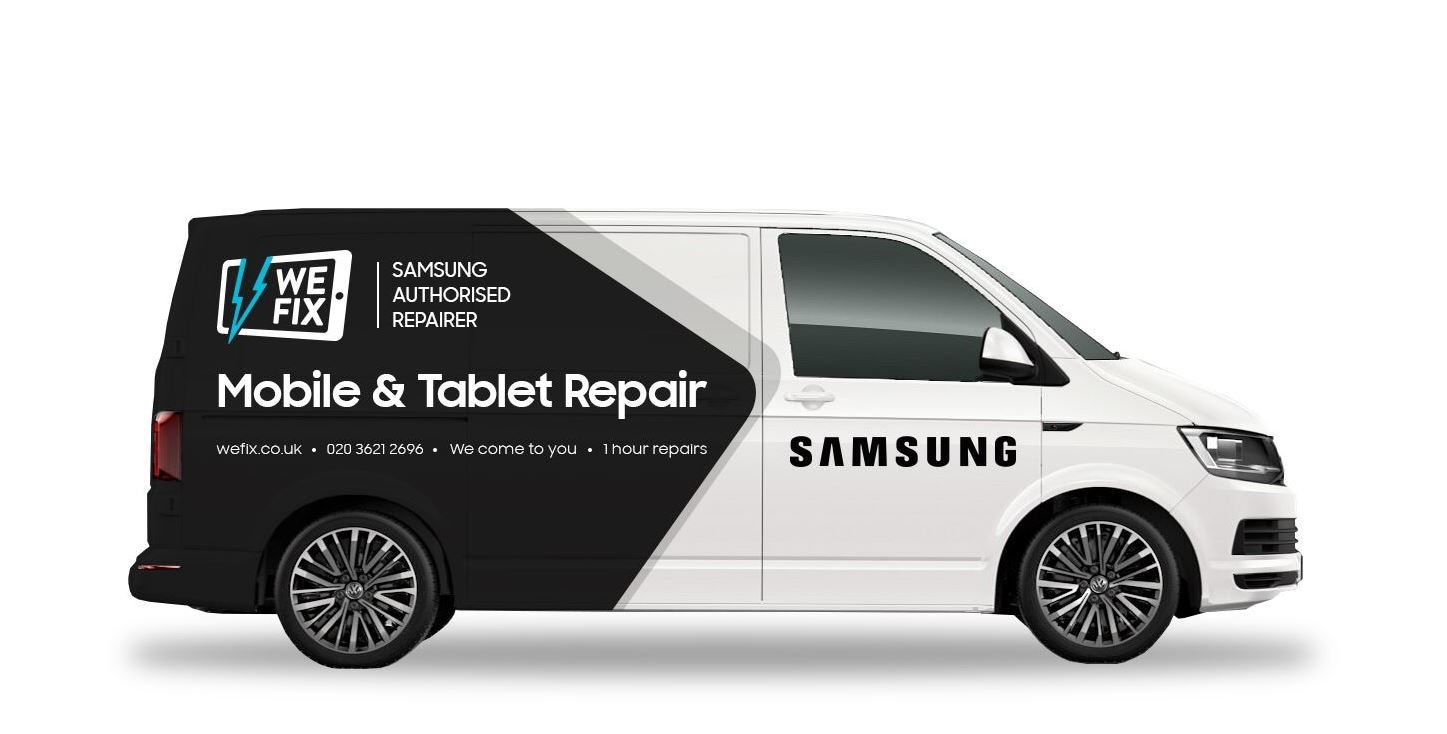
Doorstep mobile screen repairs at your location
The Samsung mobile workshops will come to you to fix your phone or tablet screen at your doorstep in selected locations across the country
Read More






Samsung Account
Stay connected with Samsung Account.
Your gateway to all things Samsung
Your gateway to all things Samsung