
In Word, you can choose to paste text using the formatting of the source, destination, or just pure text. If you always want one of the options, set it as the default for pasted text.
Set default paste options
By default, Word preserves the original formatting when you paste content into a document using Ctrl+V, the Paste button, or right-click + Paste. To change the default, follow these steps.
-
Go to File > Options > Advanced.
-
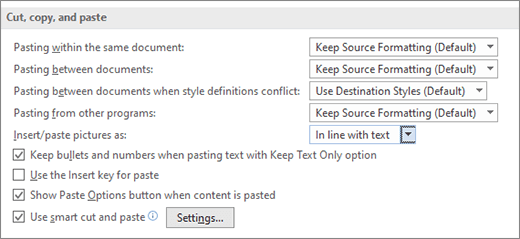
Under Cut, copy, and paste, select the down arrow for the setting to change.
-
Pasting within the same document When you paste content into the same document from which you copied the content.
-
Pasting between documents When you paste content that was copied from another Word document.
-
Pasting between documents when style definitions conflict When you paste content that was copied from another Word document, and the style that is assigned to the copied text is defined differently in the document where the text is being pasted.
-
Pasting from other programs When you paste content that was copied from another program, such as a browser.
-
-
Each setting has options you can set:
Keep Source Formatting
Merge Formatting
Keep Text OnlyFor more info on these options, see Get the look you want.
-
Select OK.
Change options when pasting content
When you copy content from a formatted source, such as a webpage or another Word document, you can select options at the time you paste it into your document.
-
Click or tap where you want to paste the content.
-
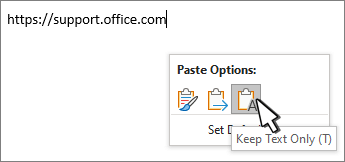
Press CTRL + V and then select Paste Options

-
Hover over the buttons for a live review.
-
Select the paste option to use.
The Paste Options
-
Go to File > Options > Advanced.
-
In the Cut, copy, and paste section, select Show Paste Options button when content is pasted.
-
Select OK.
If the setting is on but you don't see the button when you paste, make sure you're pasting formatted content, not pure text (like from NotePad.)
When you copy text from a Word document, webpage, or other app's document and paste it into a Word document, you can choose how the text is formatted. You can keep the original formatting, merge with the destination formatting, or paste just plain text.
-
Keep Source Formatting (K) This option retains formatting that was applied to the copied text. Any style definition that is associated with the copied text is copied to the destination document.
-
Merge Formatting (M) This option discards most formatting that was applied directly to the copied text, but it retains formatting that is considered emphasis, such as bold and italic, when it is applied to only a portion of the selection. The text takes on the style characteristics of the paragraph where it is pasted. The text also takes on any direct formatting or character style properties of text that immediately precedes the cursor when the text is pasted.
-
Picture (U) This option is only available on Microsoft 365 Subscription. Converts text into an image and pastes that. The text can't be changed, but you can treat it like any other picture or image and use effects, borders, or rotation. When selected, choose options from the Picture Format tab.
-
Keep Text Only (T) This option discards all formatting and nontext elements such as pictures or tables. The text takes on the style characteristics of the paragraph where it is pasted and takes on any direct formatting or character style properties of text that immediately precedes the cursor when the text is pasted. Graphical elements are discarded, and tables are converted to a series of paragraphs.
When you paste items from a bulleted or numbered list into another list, you can keep their original formatting or sequence, or blend in with the numbering or bullets of the destination list.
Paste numbered items so the sequence continues Choose Continue List (C) to have inserted items stay in sequence in the list.
Keep original sequence on numbered items Choose New List (N) to have inserted items keep their original list sequence.
Paste bulleted items into a numbered list To keep the bullets, choose Keep Source Formatting (K). To convert bullets to numbers, choose Merge Formatting (M).
Paste numbered items into a bulleted list To keep the original numbers, choose Don't Merge List (D). To convert the numbers to bullets, choose Merge List (M).
Paste Text Only lists By default, bullets and numbers are preserved when pasting text only. To turn this behavior off:
-
Go to File > Options > Advanced.
-
Clear Keep bullets and numbers when pasting text with Keep Text Only option.
-
Select OK.
Smart cut and paste allows the format of pasted content to be adjust automatically by the app to match the format of the destination document.
-
Use default options for Click an item in the list to pre-select a configuration of options in the dialog box. To select your own configuration of options, click Custom in this list.
-
Adjust sentence and word spacing automatically Select this option to remove extra spaces when deleting text or add necessary spaces when pasting text from the clipboard.
-
Adjust paragraph spacing on paste Select this option to prevent creating empty paragraphs and to prevent inconsistent paragraph spacing.
-
Adjust table formatting and alignment on paste Select this option to control the formatting and alignment of tables. When this option is turned on, single cells are pasted as text, table portions are pasted as rows into an existing table (rather than as a nested table), and when you add a table to an existing table, the pasted table is adjusted to match the existing table.
-
Smart style behavior Selecting this option has no effect. To fine-tune the behavior of styles when pasting content, use the Pasting options in the Cut, copy, and paste section of the Advanced options.
-
Merge formatting when pasting from Microsoft PowerPoint Select this option to control the results when you paste content from a PowerPoint presentation. When this option is turned on, the formatting of the surrounding text or table is applied to the pasted text, the most recently used bullet, number, or list style is applied to the pasted list, and the look of items such as tables, hyperlinks, images, OLE objects, and shapes is preserved from the source in PowerPoint.
-
Adjust formatting when pasting from Microsoft Excel Select this option to control the results when pasting data from Excel. When this option is turned on, pasted data is placed in a table, and charts are pasted as pictures rather than as OLE objects.
-
Merge pasted lists with surrounding lists Select this option to format list items to conform to the surrounding list when you are pasting the items into a list.








