
Find or replace text and numbers on a worksheet
Use the Find and Replace features in Excel to search for something in your workbook, such as a particular number or text string. You can either locate the search item for reference, or you can replace it with something else. You can include wildcard characters such as question marks, tildes, and asterisks, or numbers in your search terms. You can search by rows and columns, search within comments or values, and search within worksheets or entire workbooks.
Tip: You can also use formulas to replace text. To learn more, check out the SUBSTITUTE function or REPLACE, REPLACEB functions.

Find
To find something, press Ctrl+F, or go to Home > Editing > Find & Select > Find.
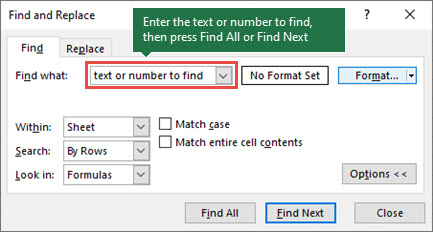
Note: In the following example, we've selected Options >> to show the entire Find dialog box. By default, it displays with Options hidden.
-
In the Find what box, type the text or numbers you want to find, or select the arrow in the Find what box, and then select a recent search item from the list.
Tips:
-
You can use wildcard characters — question mark (?), asterisk (*), tilde (~) — in your search criteria.
-
Use the question mark (?) to find any single character — for example, s?t finds "sat" and "set".
-
Use the asterisk (*) to find any number of characters — for example, s*d finds "sad" and "started".
-
Use the tilde (~) followed by ?, *, or ~ to find question marks, asterisks, or other tilde characters — for example, fy91~? finds "fy91?".
-
-
Select Find All or Find Next to run your search.
Tip: When you Select Find All, every occurrence of the criteria you're searching for is listed, and selecting a specific occurrence in the list selects its cell. You can sort the results of a Find All search by selecting a column heading.
-
Select Options>> to further define your search if needed:
-
Within: To search for data in a worksheet or in an entire workbook, select Sheet or Workbook.
-
Search: You can choose to search either By Rows (default), or By Columns.
-
Look in: To search for data with specific details, in the box, select Formulas, Values, Notes, or Comments.
Note: Formulas, Values, Notes and Comments are available only on the Find tab; only Formulas are available on the Replace tab.
-
Match case - Check this if you want to search for case-sensitive data.
-
Match entire cell contents - Check this if you want to search for cells that contain only the characters that you typed in the Find what box.
-
-
If you want to search for text or numbers with specific formatting, select Format, and then make your selections in the Find Format dialog box.
Tip: If you want to find cells that just match a specific format, you can delete any criteria in the Find what box, and then select a specific cell format as an example. Select the arrow next to Format, select Choose Format From Cell, and then select the cell that has the formatting that you want to search for.
Replace
To replace text or numbers, press Ctrl+H, or go to Home > Editing > Find & Select > Replace.
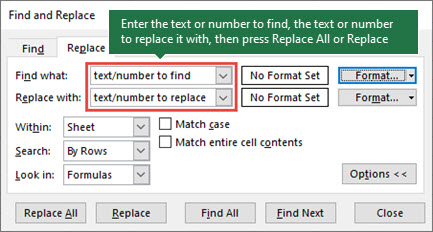
Note: In the following example, we've selected Options >> to show the entire Find dialog box. By default, it displays with Options hidden.
-
In the Find what box, type the text or numbers you want to find, or select the arrow in the Find what box, and then select a recent search item from the list.
Tips:
-
You can use wildcard characters — question mark (?), asterisk (*), tilde (~) — in your search criteria.
-
Use the question mark (?) to find any single character — for example, s?t finds "sat" and "set".
-
Use the asterisk (*) to find any number of characters — for example, s*d finds "sad" and "started".
-
Use the tilde (~) followed by ?, *, or ~ to find question marks, asterisks, or other tilde characters — for example, fy91~? finds "fy91?".
-
-
In the Replace with box, enter the text or numbers you want to use to replace the search text.
-
Select Replace All or Replace.
Tip: When you select Replace All, every occurrence of the criteria that you're searching for is replaced, while Replace updates one occurrence at a time.
-
Select Options>> to further define your search if needed:
-
Within: To search for data in a worksheet or in an entire workbook, select Sheet or Workbook.
-
Search: You can choose to search either By Rows (default), or By Columns.
-
Look in: To search for data with specific details, in the box, select Formulas, Values, Notes, or Comments.
Note: Formulas, Values, Notes and Comments are available only on the Find tab; only Formulas are available on the Replace tab.
-
Match case - Check this if you want to search for case-sensitive data.
-
Match entire cell contents - Check this if you want to search for cells that contain only the characters that you typed in the Find what box.
-
-
If you want to search for text or numbers with specific formatting, select Format, and then make your selections in the Find Format dialog box.
Tip: If you want to find cells that just match a specific format, you can delete any criteria in the Find what box, and then select a specific cell format as an example. Select the arrow next to Format, select Choose Format From Cell, and then select the cell that has the formatting that you want to search for.
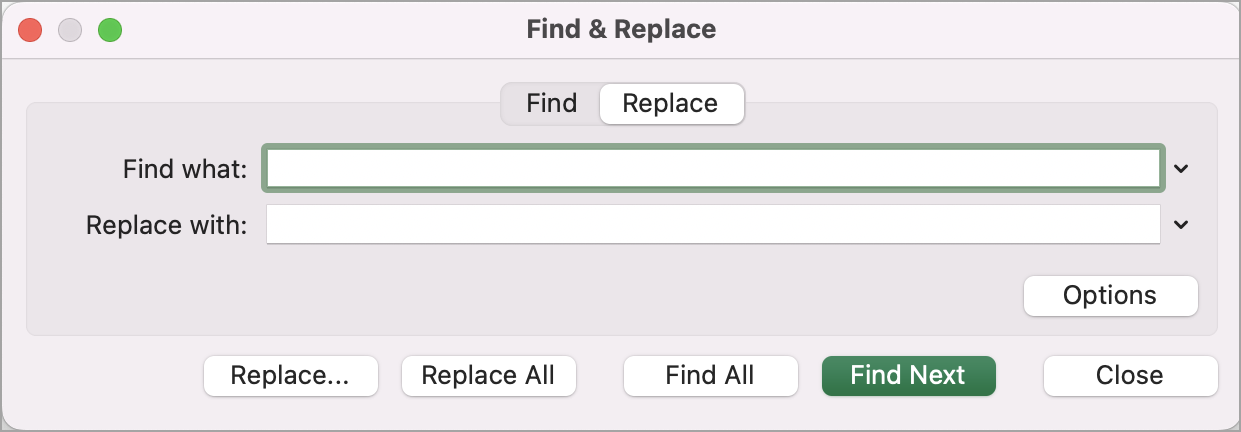
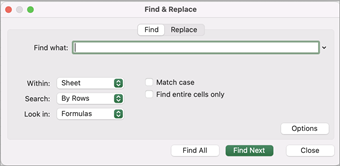
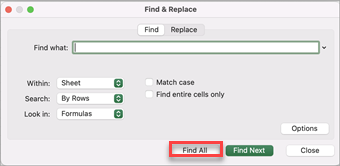
There are two distinct methods for finding or replacing text or numbers on the Mac. The first is to use the Find & Replace dialog box. The second is to use the Search bar in the ribbon.
Find & Replace dialog box
Search bar and options


-
Press Ctrl+F or go to Home > Find & Select > Find.
-
In Find what type the text or numbers you want to find.
-
Select Find Next to run your search.
-
You can further define your search:
-
Within: To search for data in a worksheet or in an entire workbook, select Sheet or Workbook.
-
Search: You can choose to search either By Rows (default), or By Columns.
-
Look in: To search for data with specific details, in the box, select Formulas, Values, Notes, or Comments.
-
Match case - Check this if you want to search for case-sensitive data.
-
Match entire cell contents - Check this if you want to search for cells that contain only the characters that you typed in the Find what box.
-
Tips:
-
You can use wildcard characters — question mark (?), asterisk (*), tilde (~) — in your search criteria.
-
Use the question mark (?) to find any single character — for example, s?t finds "sat" and "set".
-
Use the asterisk (*) to find any number of characters — for example, s*d finds "sad" and "started".
-
Use the tilde (~) followed by ?, *, or ~ to find question marks, asterisks, or other tilde characters — for example, fy91~? finds "fy91?".
-
Press Ctrl+F or go to Home > Find & Select > Find.
-
In Find what type the text or numbers you want to find.
-
Select Find All to run your search for all occurrences.
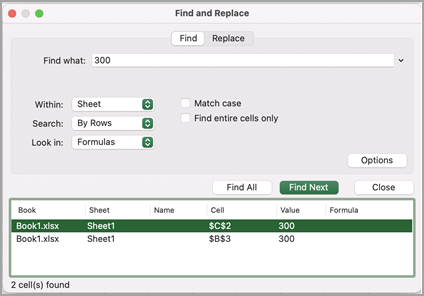
Note: The dialog box expands to show a list of all the cells that contain the search term, and the total number of cells in which it appears.
-
Select any item in the list to highlight the corresponding cell in your worksheet.
Note: You can edit the contents of the highlighted cell.
-
Press Ctrl+H or go to Home > Find & Select > Replace.
-
In Find what, type the text or numbers you want to find.
-
You can further define your search:
-
Within: To search for data in a worksheet or in an entire workbook, select Sheet or Workbook.
-
Search: You can choose to search either By Rows (default), or By Columns.
-
Match case - Check this if you want to search for case-sensitive data.
-
Match entire cell contents - Check this if you want to search for cells that contain just the characters that you typed in the Find what box.
Tips:
-
You can use wildcard characters — question mark (?), asterisk (*), tilde (~) — in your search criteria.
-
Use the question mark (?) to find any single character — for example, s?t finds "sat" and "set".
-
Use the asterisk (*) to find any number of characters — for example, s*d finds "sad" and "started".
-
Use the tilde (~) followed by ?, *, or ~ to find question marks, asterisks, or other tilde characters — for example, fy91~? finds "fy91?".
-
-
-
In the Replace with box, enter the text or numbers you want to use to replace the search text.
-
Select Replace or Replace All.
Tips:
-
When you select Replace All, every occurrence of the criteria that you are searching for is replaced.
-
When you select Replace, you can replace one instance at a time by selecting Next to highlight the next instance.
-
-
Select any cell to search the entire sheet or select a specific range of cells to search.
-
Press Cmd + F or select the magnifying glass to expand the Search bar and type the text or number you want to find in the search field.
Tips:
-
You can use wildcard characters — question mark (?), asterisk (*), tilde (~) — in your search criteria.
-
Use the question mark (?) to find any single character — for example, s?t finds "sat" and "set".
-
Use the asterisk (*) to find any number of characters — for example, s*d finds "sad" and "started".
-
Use the tilde (~) followed by ?, *, or ~ to find question marks, asterisks, or other tilde characters — for example, fy91~? finds "fy91?".
-
-
Press return.
Notes:
-
To find the next instance of the item you are searching for, press return again or use the Find dialog box and select Find Next.
-
To specify additional search options, select the magnifying glass and select Search in Sheet or Search in Workbook. You can also select the Advanced option, which launches the Find dialog box.
Tip: You can cancel a search in progress by pressing ESC.
-
Find
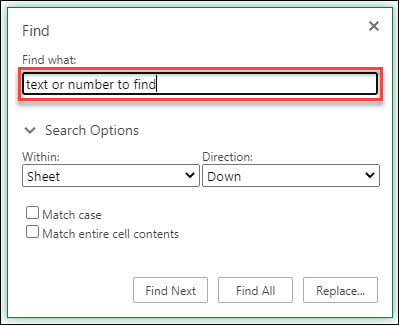
To find something, press Ctrl+F, or go to Home > Editing > Find & Select > Find.
Note: In the following example, we've selected > Search Options to show the entire Find dialog box. By default, it displays with Search Options hidden.
-
In the Find what box, type the text or numbers you want to find.
Tips:
-
You can use wildcard characters — question mark (?), asterisk (*), tilde (~) — in your search criteria.
-
Use the question mark (?) to find any single character — for example, s?t finds "sat" and "set".
-
Use the asterisk (*) to find any number of characters — for example, s*d finds "sad" and "started".
-
Use the tilde (~) followed by ?, *, or ~ to find question marks, asterisks, or other tilde characters — for example, fy91~? finds "fy91?".
-
-
Select Find Next or Find All to run your search.
Tip: When you select Find All, every occurrence of the criteria that you're searching for is listed, and selecting a specific occurrence in the list selects its cell. You can sort the results of a Find All search by selecting a column heading.
-
Select > Search Options to further define your search if needed:
-
Within: To search for data within a certain selection, choose Selection. To search for data in a worksheet or in an entire workbook, select Sheet or Workbook.
-
Direction: You can choose to search either Down (default), or Up.
-
Match case - Check this if you want to search for case-sensitive data.
-
Match entire cell contents - Check this if you want to search for cells that contain only the characters that you typed in the Find what box.
-
Replace
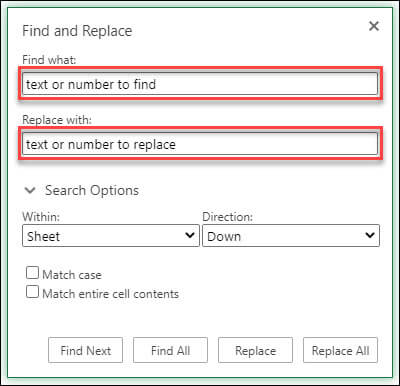
To replace text or numbers, press Ctrl+H, or go to Home > Editing > Find & Select > Replace.
Note: In the following example, we've selected > Search Options to show the entire Find dialog box. By default, it displays with Search Options hidden.
-
In the Find what box, type the text or numbers you want to find.
Tips:
-
You can use wildcard characters — question mark (?), asterisk (*), tilde (~) — in your search criteria.
-
Use the question mark (?) to find any single character — for example, s?t finds "sat" and "set".
-
Use the asterisk (*) to find any number of characters — for example, s*d finds "sad" and "started".
-
Use the tilde (~) followed by ?, *, or ~ to find question marks, asterisks, or other tilde characters — for example, fy91~? finds "fy91?".
-
-
In the Replace with box, enter the text or numbers you want to use to replace the search text.
-
Select Replace or Replace All.
Tip: When you select Replace All, every occurrence of the criteria that you're searching for is replaced, while Replace updates one occurrence at a time.
-
Select > Search Options to further define your search if needed:
-
Within: To search for data within a certain selection, choose Selection. To search for data in a worksheet or in an entire workbook, select Sheet or Workbook.
-
Direction: You can choose to search either Down (default), or Up.
-
Match case - Check this if you want to search for case-sensitive data.
-
Match entire cell contents - Check this if you want to search for cells that contain only the characters you typed in the Find what box.
-
Need more help?
You can always ask an expert in the Excel Tech Community or get support in Communities.
Recommended articles


Need more help?
Want more options?
Explore subscription benefits, browse training courses, learn how to secure your device, and more.




Communities help you ask and answer questions, give feedback, and hear from experts with rich knowledge.


