
Creating a lookup field not only improves the meaning of data but helps avoid data entry errors by limiting the values that can be entered. A lookup field can display a user friendly value that is bound to another value in the source data table. For example, you want to record the customer for an order in the Orders table. However, all customer information is tracked in the Customers table. You can create a lookup field that displays the customer information in a combo box or list box control. Then, when you select the customer in that control, an appropriate value — such as the customer's primary key value — is stored in the order record.
Note Access has other types of list fields: a values list field that stores only one value with valid values defined in a property and a multivalued field that can store up to 100 values in one field, separated by a comma (,). For more information, see Create or delete a values list field and Create or delete a multivalued field.
In this article
What is a lookup field?
A lookup field is a field in a table whose value is retrieved from another table or query. Whenever possible, you should use the Lookup Wizard to create a lookup field. The Lookup Wizard simplifies the process and automatically populates the appropriate field properties and creates the appropriate table relationships.
Create a lookup field in Design View
-
Open the table in Design View.
-
In the first available empty row, click a cell in the Field Name column, and then type a field name for the lookup field.
-
Click in the Data Type column for that row, click the arrow and then, in the drop-down list, select Lookup Wizard.
Note The Lookup Wizard creates three types of lists depending on the choices you make in the wizard: a lookup field, a values list field, and a multivalued field.
-
Carefully follow these steps in the wizard:
-
On the first page, select I want the lookup field to get values from another table or query, and then click Next.
-
On the second page, select the table or query that contains the values, and then click Next.
-
On the third page, select one or more fields, and then click Next.
-
On the fourth page, select a sort order for the fields when displayed in a list, and then click Next.
-
On the fifth page, adjust the width of the column to make the values easier to read, and then click Next.
-
On the sixth page, keep the field name or enter a new one, select Enable Data Integrity, choose a Cascade Delete or Restrict Delete option, and then click Finish.
For more information about enforcing referential integrity, see Create, edit or delete a relationship.
-
-
Save your changes.
Understanding the bound and display values
The purpose of a lookup field is to replace the display of a number such as an ID with something more meaningful, such as a name. For example, instead of displaying a contact ID number, Access can display a contact name. The contact ID number is the bound value. It is automatically looked up in a source table or query and replaced with the contact name. The contact name is the display value.
It is important to understand the distinction between a lookup field's display value and its bound value. The display value is automatically shown in Datasheet view, by default. However, the bound value is what is stored, what you use in query criteria, and what Access uses by default in joins with other tables.
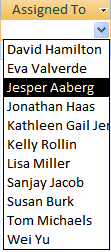
In the following example of the AssignedTo lookup field:

1 The employee name is the display value
2 The employee ID is the bound value, which is stored in the Bound Column property of the Lookup field properties.
Update the properties of a lookup field
When you use the Lookup Wizard to create a lookup field, the Lookup field properties are set for you. To change the design of the multivalued field, set it's Lookup properties.
-
Open a table in Design View.
-
Click the lookup field's name in the Field Name column.
-
Under Field Properties, click the Lookup tab.
-
Set the Display Control property to Combo Box to see all available properties changes to reflect your choice. For more information, see Lookup field properties.
Delete a lookup field
Important When you delete a lookup field that contains data, you lose that data permanently — you cannot undo the deletion. For that reason, you should back up your database before you delete any table fields or other database components. Also, you may be prevented from deleting the Lookup field because referential integrity is enforced. For more information, see Create, edit or delete a relationship.
Delete from Datasheet view
-
Open the table in Datasheet View.
-
Locate the lookup field, right-click the header row , and then click Delete Field.
-
Click Yes to confirm the deletion.
Delete from Design view
-
Open the table in Design View.
-
Click the row selector next to the lookup field, and then press DELETE, or right-click the row selector and then click Delete Rows.
-
Click Yes to confirm the deletion.
Lookup field properties
|
Set this property |
To |
|
Display Control |
Set this property to control what properties are displayed:
|
|
Row Source Type |
Choose whether to fill the lookup field with values from another table or query, or from a list of values that you specify. You can also choose to fill the list with the names of the fields in a table or query. |
|
Row Source |
Specify the table, query, or list of values that provides the values for the lookup field. When the Row Source Type property is set to Table/Query or Field List, this property should be set to a table or query name or to a SQL statement that represents the query. When the Row Source Type property is set to Value List, this property should contain a list of values separated by semicolons. |
|
Bound Column |
Specify the column in the row source that supplies the value stored by the lookup field. This value can range from 1 to the number of columns in the row source. The column that supplies the value to store does not have to be the same column as the display column. |
|
Column Count |
Specify the number of columns in the row source that can be displayed in the lookup field. To select which columns to display, you provide a column width in the Column Widths property. |
|
Column Heads |
Specify whether to display column headings. |
|
Column Widths |
Enter the column width for each column. The display value in a lookup field is the column or columns that are represented in the Column Widths property as having a non-zero width. If you don't want to display a column, such as an ID column, specify 0 for the width. |
|
List Rows |
Specify the number of rows that appear when you display the lookup field. |
|
List Width |
Specify the width of the control that appears when you display the lookup field. |
|
Limit To List |
Choose whether you can enter a value that isn't in the list. |
|
Allow Multiple Values |
Indicates whether the lookup field allows multiple values to be selected. You cannot change the value this property from Yes to No. |
|
Allow Value List Edits |
Specify whether you can edit the items in a lookup field that is based on a value list. When this property is set to Yes and you right-click a Lookup field that is based on a single column value list, you will see the Edit List Items menu option. If the lookup field has more than one column, this property is ignored. |
|
List Items Edit Form |
Name an existing form to use to edit the list items in a lookup field that is based on a table or query. |
|
Show Only Row Source Values |
Show only values that match the current row source when Allow Multiples Values is set to Yes. |








