
Symptoms
When you try to install a program in Windows 7 or Windows Vista, you receive the following error message:
"The Windows Installer Service could not be accessed. This can occur if the Windows Installer is not correctly installed. Contact your support personnel for assistance."
Resolution
To resolve this issue, use Method 1. If Method 1 does not resolve the issue, use the next method that is listed until you resolve the issue.
Important This section, method, or task contains steps that tell you how to modify the registry. However, serious problems might occur if you modify the registry incorrectly. Therefore, make sure that you follow these steps carefully. For added protection, back up the registry before you modify it. Then, you can restore the registry if a problem occurs. For more information about how to back up and restore the registry, click the following article number to view the article in the Microsoft Knowledge Base: 322756 How to back up and restore the registry in Windows
To reset the Windows Installer Service settings in the registry, create a registry file by using Notepad. Then, run the file to update the registry key.
To do this, follow these steps:
-
Click Start, and then type Notepad in the Search box.
-
Under the Programs heading, click Notepad.exe.
-
Copy the following text, and then paste it into a notepad:
Windows Registry Editor Version 5.00

[HKEY_LOCAL_MACHINE\SYSTEM\CurrentControlSet\Services\msiserver]
"DisplayName"="@%SystemRoot%\\system32\\msimsg.dll,-27"
"ImagePath"=hex(2):25,00,73,00,79,00,73,00,74,00,65,00,6d,00,72,00,6f,00,6f,00,\
  74,00,25,00,5c,00,73,00,79,00,73,00,74,00,65,00,6d,00,33,00,32,00,5c,00,6d,\
  00,73,00,69,00,65,00,78,00,65,00,63,00,20,00,2f,00,56,00,00,00
"Description"="@%SystemRoot%\\system32\\msimsg.dll,-32"
"ObjectName"="LocalSystem"
"ErrorControl"=dword:00000001
"Start"=dword:00000003
"Type"=dword:00000010
"DependOnService"=hex(7):72,00,70,00,63,00,73,00,73,00,00,00,00,00
"ServiceSidType"=dword:00000001
"RequiredPrivileges"=hex(7):53,00,65,00,54,00,63,00,62,00,50,00,72,00,69,00,76,\
  00,69,00,6c,00,65,00,67,00,65,00,00,00,53,00,65,00,43,00,72,00,65,00,61,00,\
  74,00,65,00,50,00,61,00,67,00,65,00,66,00,69,00,6c,00,65,00,50,00,72,00,69,\
  00,76,00,69,00,6c,00,65,00,67,00,65,00,00,00,53,00,65,00,4c,00,6f,00,63,00,\
  6b,00,4d,00,65,00,6d,00,6f,00,72,00,79,00,50,00,72,00,69,00,76,00,69,00,6c,\
  00,65,00,67,00,65,00,00,00,53,00,65,00,49,00,6e,00,63,00,72,00,65,00,61,00,\
  73,00,65,00,42,00,61,00,73,00,65,00,50,00,72,00,69,00,6f,00,72,00,69,00,74,\
  00,79,00,50,00,72,00,69,00,76,00,69,00,6c,00,65,00,67,00,65,00,00,00,53,00,\
  65,00,43,00,72,00,65,00,61,00,74,00,65,00,50,00,65,00,72,00,6d,00,61,00,6e,\
  00,65,00,6e,00,74,00,50,00,72,00,69,00,76,00,69,00,6c,00,65,00,67,00,65,00,\
  00,00,53,00,65,00,41,00,75,00,64,00,69,00,74,00,50,00,72,00,69,00,76,00,69,\
  00,6c,00,65,00,67,00,65,00,00,00,53,00,65,00,53,00,65,00,63,00,75,00,72,00,\
  69,00,74,00,79,00,50,00,72,00,69,00,76,00,69,00,6c,00,65,00,67,00,65,00,00,\
  00,53,00,65,00,43,00,68,00,61,00,6e,00,67,00,65,00,4e,00,6f,00,74,00,69,00,\
  66,00,79,00,50,00,72,00,69,00,76,00,69,00,6c,00,65,00,67,00,65,00,00,00,53,\
  00,65,00,50,00,72,00,6f,00,66,00,69,00,6c,00,65,00,53,00,69,00,6e,00,67,00,\
  6c,00,65,00,50,00,72,00,6f,00,63,00,65,00,73,00,73,00,50,00,72,00,69,00,76,\
  00,69,00,6c,00,65,00,67,00,65,00,00,00,53,00,65,00,49,00,6d,00,70,00,65,00,\
  72,00,73,00,6f,00,6e,00,61,00,74,00,65,00,50,00,72,00,69,00,76,00,69,00,6c,\
  00,65,00,67,00,65,00,00,00,53,00,65,00,43,00,72,00,65,00,61,00,74,00,65,00,\
  47,00,6c,00,6f,00,62,00,61,00,6c,00,50,00,72,00,69,00,76,00,69,00,6c,00,65,\
  00,67,00,65,00,00,00,53,00,65,00,41,00,73,00,73,00,69,00,67,00,6e,00,50,00,\
  72,00,69,00,6d,00,61,00,72,00,79,00,54,00,6f,00,6b,00,65,00,6e,00,50,00,72,\
  00,69,00,76,00,69,00,6c,00,65,00,67,00,65,00,00,00,53,00,65,00,52,00,65,00,\
  73,00,74,00,6f,00,72,00,65,00,50,00,72,00,69,00,76,00,69,00,6c,00,65,00,67,\
  00,65,00,00,00,53,00,65,00,49,00,6e,00,63,00,72,00,65,00,61,00,73,00,65,00,\
  51,00,75,00,6f,00,74,00,61,00,50,00,72,00,69,00,76,00,69,00,6c,00,65,00,67,\
  00,65,00,00,00,53,00,65,00,53,00,68,00,75,00,74,00,64,00,6f,00,77,00,6e,00,\
  50,00,72,00,69,00,76,00,69,00,6c,00,65,00,67,00,65,00,00,00,53,00,65,00,54,\
  00,61,00,6b,00,65,00,4f,00,77,00,6e,00,65,00,72,00,73,00,68,00,69,00,70,00,\
  50,00,72,00,69,00,76,00,69,00,6c,00,65,00,67,00,65,00,00,00,53,00,65,00,4c,\
  00,6f,00,61,00,64,00,44,00,72,00,69,00,76,00,65,00,72,00,50,00,72,00,69,00,\
  76,00,69,00,6c,00,65,00,67,00,65,00,00,00,00,00
"FailureActions"=hex:84,03,00,00,00,00,00,00,00,00,00,00,03,00,00,00,14,00,00,\
  00,01,00,00,00,c0,d4,01,00,01,00,00,00,e0,93,04,00,00,00,00,00,00,00,00,00

[HKEY_LOCAL_MACHINE\SYSTEM\CurrentControlSet\Services\msiserver\Enum]
"0"="Root\\LEGACY_MSISERVER\\0000"
"Count"=dword:00000001
"NextInstance"=dword:00000001
-
Click File, click Save As, and then name the file Msirepair.reg.
-
In the Save as type box, click All Files (*.*).
-
In the Save in box, click Desktop, and then click Save.
-
On the File menu, click Exit to close notepad.
-
On the Desktop, right-click Msirepair.reg, and then click Run as administrator. If you are prompted to enter an administrator password or provide confirmation, type the password, or click Continue.
-
Click Yes when you are prompted to install the registry keys.
-
Restart the installation process for the program that you want to install.
To start the Windows Installer Service, follow these steps:
-
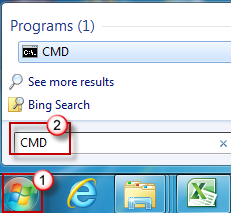
Click Start, and then type CMD in the Search programs and files dialog box.
-
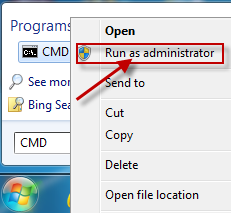
Right-click cmd.exe, and then click Run as Administrator.
-
Type net start MSIServer, and then press ENTER.
-
Restart the installation process for the program that you want to install.
To check that the Windows Installer Service is running, follow these steps:
-
Click Start, type services.msc in the Search box, and then click Services under the Programs heading.
-
In the Services (Local) list, right-click Windows Installer, and then click Properties.
-
In the Startup type drop-down list, check that the value is set to Manual.
-
The Windows Installer Service is running if the Service status: entryis set to Running.
If an earlier version of the program that you want to install is already installed on the computer, follow these steps:
-
Click Start, click Control Panel, and then click Uninstall a Program under Programs.
-
Select the program in the list that you want to install.
-
Click Uninstall (or Uninstall/Change in Windows Vista), and then follow the instructions or prompts to uninstall the application.
-
Restart the computer.
-
Restart the installation process for the program that you want to install.
This issue occurs when one or more of the following conditions are true:
-
You install or remove a program that uses the Microsoft Installer Service before you try to install the program on your computer.
-
The Windows Installer Service is not running.
-
The Windows Installer registry settings are corrupted or configured incorrectly.
For more information about this issue in Windows XP and Windows Server 2003, click the following number to view the article in the Microsoft Knowledge Base:
315346 Error message when you try to add or remove a program on a computer that is running Windows XP or Windows Server 2003: "The Windows Installer service could not be accessed"








