How to delete corrupted and hidden rules from a single mailbox in Outlook 2003| Article ID | : | 924297 | | Last Review | : | June 23, 2008 | | Revision | : | 3.1 |
INTRODUCTIONThis article describes how to delete corrupted and hidden rules from a single mailbox in Microsoft Office Outlook 2003. MORE INFORMATIONTo delete corrupted and hidden rules from a single mailbox in Outlook 2003, follow these steps. Warning Use of the Microsoft Exchange Server MAPI Editor (MFCMapi) may damage Microsoft Exchange Server and
the Exchange server mailboxes.
| 1. | Download MFCMapi to a folder on
your computer.
The following file is available for download from the Microsoft Download Center:
Download the MfcMapi.EXE package now. (http://www.microsoft.com/downloads/details.aspx?FamilyID=55fdffd7-1878-4637-9808-1e21abb3ae37&DisplayLang=en) | | 2. | Open the folder to which you downloaded the MfcMapi.exe file, and then
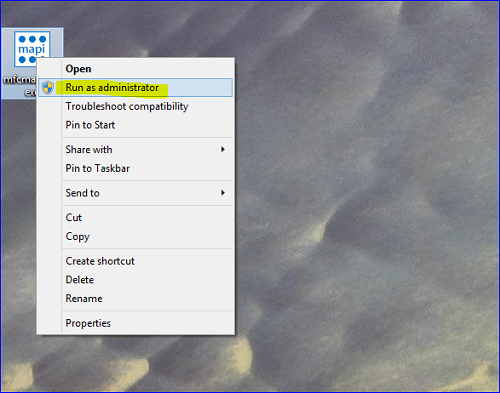
double-click MfcMapi.exe. | | 3. | In the Choose Directory for Extracted Files box, type the path of the folder in which you want to save MFCMapi, and then click OK. For example, save MFCMapi in a folder that is named
C:\MFCMapi. | | 4. | Copy any rules that you created in Outlook. To do this, follow these steps:
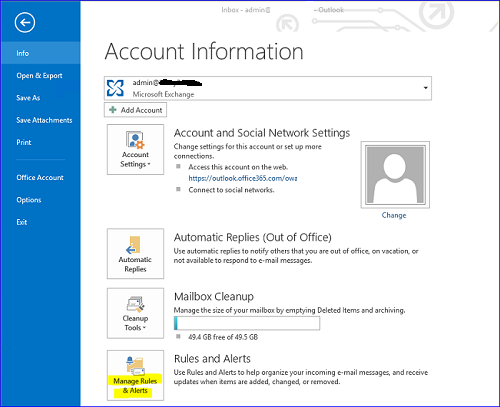
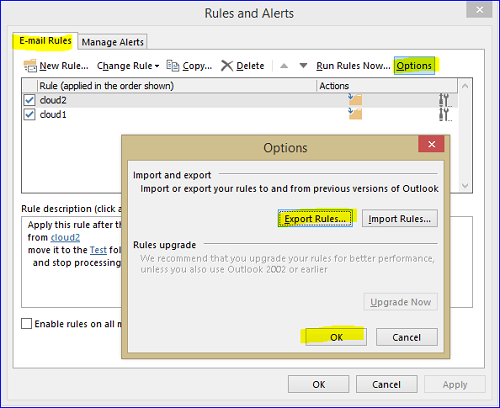
| a. | On the Tools menu, click Rules and Alerts. | | b. | In the Rules and Alerts dialog box, click Options. | | c. | In the Options dialog box, click Export Rules. Note the location where you save the rules. |
| | 5. |
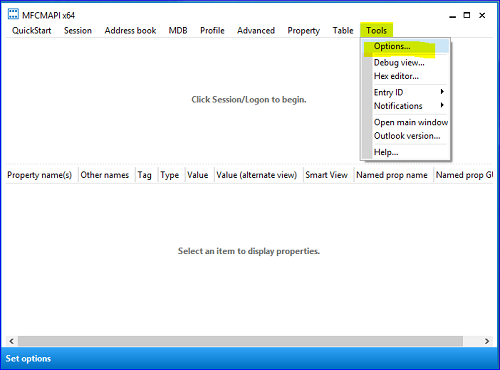
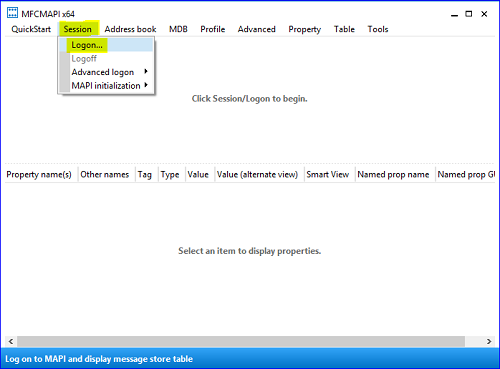
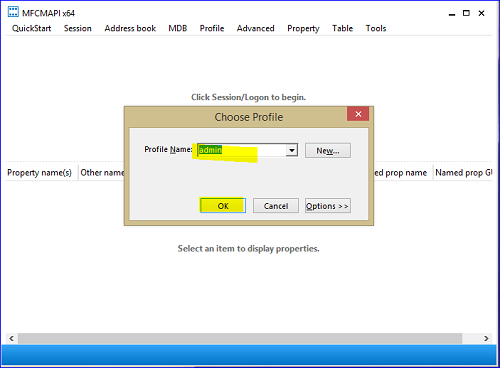
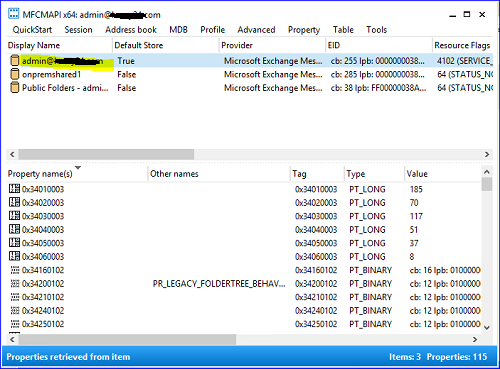
Use MFCMapi to remove all rules that are applied to the mailbox. To do this, follow these steps: | a. | Open the folder to which you extracted MFCMapi, double-click mfcmapi, and then click OK. | | b. | On the Session menu, click Logon and Display Store Table. | | c. | If you are prompted to select a profile, click the profile name in the Profile Name list, and then click OK. | | d. | Double-click the mailbox that contains the inbox rules that you want to delete. | | e. | Expand Root Container, and then expand Top of information Store.
Note Outlook should be in Online mode to use MFCMAPI. If you see IPM_SUBTREE instead of Top of information Store, Outlook Cache mode is enabled. Disable Outlook Cache mode before you use MFCMapi. | | f. |
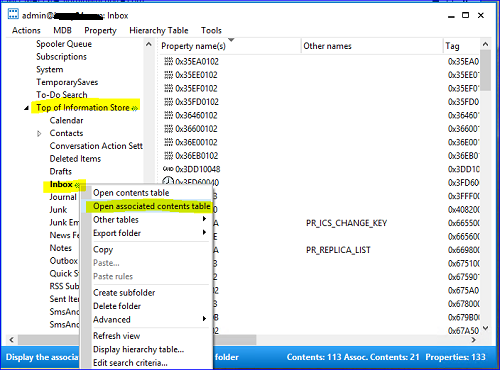
Right-click Inbox, and then click Open Associated Contents Table.
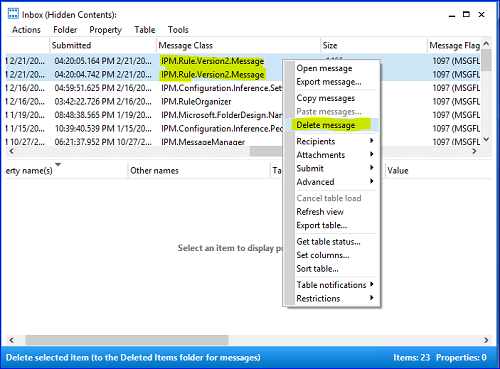
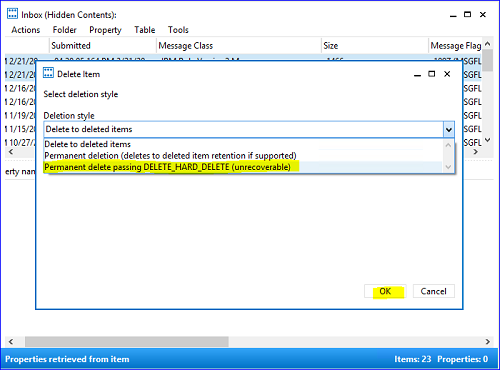
The Open Associated Contents Table contains the hidden messages of the Inbox. | | g. | In the Inbox window, locate and then click the items that have the IPM.Rule.Message message class, and then click Delete. | | h. | Select Permanent delete passing DELETE_HARD_DELETE (unrecoverable) in the drop-down list, and then click OK. |
| | 6. | Import the backed-up rules into Outlook. To do this, follow these steps:| a. | On the Tools menu, click Rules and Alerts. | | b. | In the Rules and Alerts dialog box, click Options. | | c. | In the Options dialog box, click Import Rules. | | d. | Locate the rules that you copied in step 4, click Open, and then click OK. |
|
APPLIES TO| • | Microsoft Office Outlook 2003 |
Back to the top
| kbdownload kbfilters kbexpertiseinter kbhowto KB924297 |
| Other Support Options- Need More Help?
Contact a Support professional by Email, Online or Phone. - Customer Service
For non-technical assistance with product purchases, subscriptions, online services, events, training courses, corporate sales, piracy issues, and more. - Newsgroups
Pose a question to other users. Discussion groups and Forums about specific Microsoft products, technologies, and services.
|
|