
How to use Microsoft Translator with your Microsoft SwiftKey Keyboard
1 -What is Translator for Microsoft SwiftKey?
Microsoft Translator is now available to use from your Microsoft SwiftKey Keyboard.
Translator for Microsoft SwiftKey enables you to quickly and easily translate text in over 60 languages without ever leaving your keyboard.
2 - How many languages does Translator Support?
Just like Microsoft Translator, Microsoft SwiftKey’s translation smarts support 60+ languages. A full list is provided below under FAQ
3 - How to use Translator
Typing with Translations
Microsoft SwiftKey Translator is perfect for messaging (or any back and forth interactions). Take the following example that shows a conversation between two people. One of them is fluent in German, the other isn’t. Microsoft SwiftKey Translator can help by translating both as you write and read messages.
Copy the text you need translated.
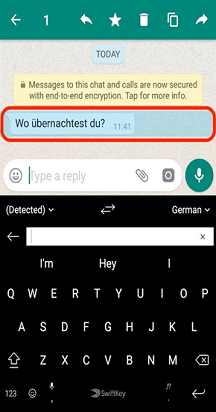
Microsoft SwiftKey Translator will detect the language used and display the translated text above your keyboard.
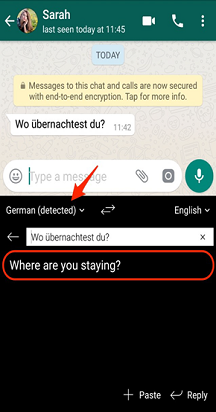
Tap the ‘X’ or hit ‘Reply’ to clear the translation bar.
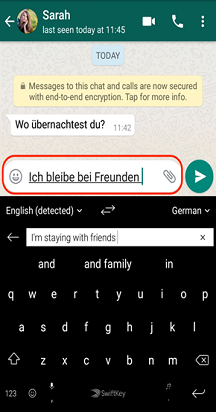
Now begin to type your reply - you’ll see Microsoft SwiftKey Translator translates from the native typing language to German on the fly.
Picking a Language
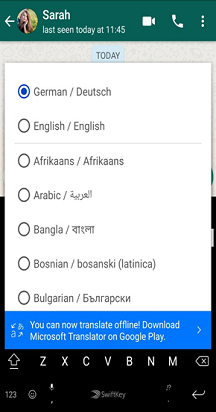
Microsoft SwiftKey Translator does a good job of detecting languages used. But language options can be specified should you choose to change the input and output.
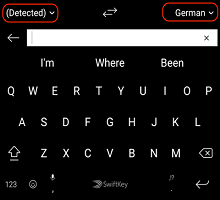
Tap onto an arrow to open the language picker menu.
4 -How to Translate offline
Microsoft SwiftKey Translator has been designed to work online, but if you download the Microsoft Translator app from the Google Play Store you’ll be able to use it offline too.
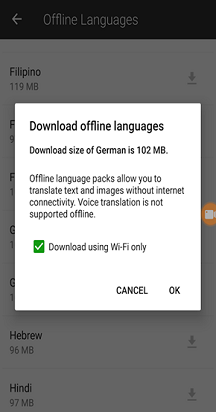
To use Translator offline
Get Microsoft Translator from Google Play.
Open Microsoft Translator.
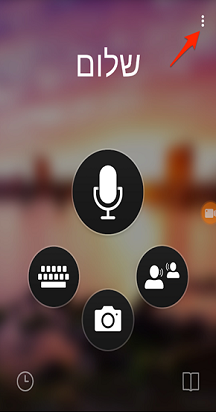
Tap the three dots in right-hand corner of your screen.
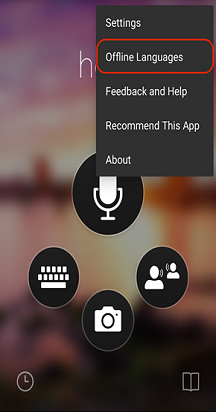
Select ‘Offline Languages’ from the menu.
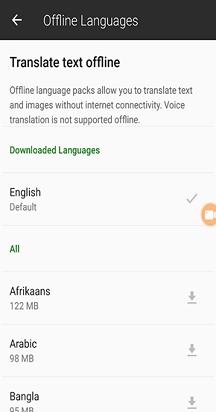
Pick a language you’d like to use offline from the list. File sizes may be large so we’d recommend connecting to WiFi first.
5 -FAQ
- What are the 60+ languages offered?
Translator supports the following languages: Afrikaans, Arabic, Bangla, Bosnian (Latin), Bulgarian, Cantonese (Traditional), Catalan, Chinese (Simplified), Chinese (Traditional), Croatian, Czech, Danish, Dutch, English, Estonian, Fijian, Filipino, Finnish, French, German, Greek, Haitian Creole, Hebrew, Hindi, Hmong Daw, Hungarian, Indonesian, Italian, Japanese, Kiswahili, Korean, Latvian, Lithuanian, Malagasy, Malay, Maltese, Norwegian, Persian, Polish, Portuguese, Quer'etaro Otomi, Romanian, Russian, Serbian (Cyrillic), Serbian (Latin), Slovak, Slovenian, Spanish, Swedish, Tahitian, Thai, Turkish, Ukrainian, Urdu, Vietnamese, Welsh, and Yucatec Maya.
Contact Us
For more help, Contact Support at Microsoft SwiftKey Support - Contact us