
To help you locate data that you want to analyze in a PivotTable more easily, you can sort text entries (from A to Z or Z to A), numbers (from smallest to largest or largest to smallest), and dates and times (from oldest to newest or newest to oldest).
When you sort data in a PivotTable, be aware of the following:
- Sort orders vary by locale setting. Make sure that you have the correct locale setting under Apple menu > System Settings > General > Language & Region. For information about changing the locale setting, see the Mac Help system.
- Data such as text entries may have leading spaces that affect the sort results. For optimal sort results, you should remove any spaces before you sort the data.
- Unlike sorting data in a range of cells on a worksheet or in an Excel for Mac table, you can't sort case-sensitive text entries.
- You can't sort data by a specific format, such as cell or font color, or by conditional formatting indicators, such as icon sets.
Sort row or column label data in a PivotTable
In the PivotTable, select any field in the column that contains the items that you want to sort.
On the Data tab, select Sort, and then select the sort order that you want.
From the Order drop-down list, select A to Z or Z to A to sort data in ascending or descending order. When you do this, text entries are sorted from A to Z or from Z to A, numbers are sorted from smallest to largest or from largest to smallest, and dates or times are sorted from oldest to newest or newest to oldest.
For additional sort options, select Options. From the Orientation window, you can select either of the following options:
- Sort from top to bottom
- Sort from left to right
- Case-sensitive
Sort on an individual value
You can sort on individual values or on subtotals by right-clicking a cell, selecting Sort, and choosing a sort method. The sort order is applied to all the cells at the same level in the column that contains the cell.
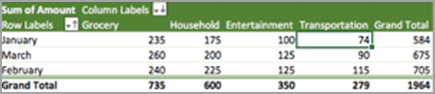
In the example shown below, the data in the Transportation column is sorted smallest to largest.
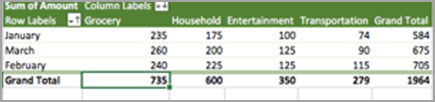
To see the grand totals sorted largest to smallest, choose any number in the Grand Total row or column, and then select Sort > Z to A.
Set custom sort options
To sort specific items manually or change the sort order, you can set your own sort options.
- Select a field in the row or column you want to sort.
- On the Data tab, select Sort.
- Select the Order drop-down list and select Custom List.
- From the Custom List, select the required criteria.
- Select OK.