
When cells aren't visible on a worksheet, you can watch those cells and their formulas in the Watch Window. The Watch Window helps you inspect, audit, and verify formula calculations and results in large worksheets. By using the Watch Window, you don't need to repeatedly scroll or go to different parts of your worksheet. When cells aren't visible on a worksheet, you can watch those cells and their formulas in the Watch Window. The Watch Window helps you inspect, audit, and verify formula calculations and results in large worksheets. By using the Watch Window, you don't need to repeatedly scroll or go to different parts of your worksheet.
Note
You can only have one watch per cell.
Add cells to the Watch Window
Important
On a Mac, perform step 2 of this procedure before you perform step 1; that is, select Watch Window and then select the cells to watch.
Select the cells that you want to watch.
To select all cells on a worksheet with formulas, on the Home tab, in the Editing group, select Find & Select, select Go To Special, and then select Formulas.On the Formulas tab, in the Formula Auditing group, select Watch Window.
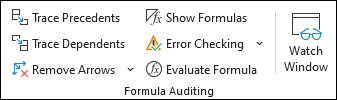
Select Add Watch
 .
.Select Add.
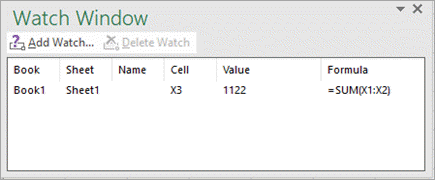
Move the Watch Window to the top, bottom, left, or right side of the window.
To change the width of a column, drag the boundary on the right side of the column heading.
To jump to a watched cell, double-click its entry in the Watch Window.
Note
Cells that have external references to other workbooks appear in the Watch Window only when the other workbook is open.
Remove cells from the Watch Window
If the Watch Window isn't displayed, on the Formulas tab, in the Formula Auditing group, select Watch Window.
Select the cells that you want to remove.
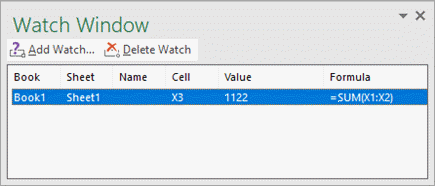
To select multiple cells, press Ctrl and then select the cells.
Select Delete Watch
 .
.
Need more help?
You can always ask an expert in the Excel Tech Community or get support in Communities.