-
On the View tab, select Macros > Record Macro.
-
Type a name for the macro and choose where to store it. To make it available in all documents, in under Store macro in, select All Documents (Normal.dotm).
-
Assign a button or keyboard shortcut to run the macro, if desired.
-
Perform the steps you want to record. Word will record your clicks and keystrokes.Tip: Use the keyboard to select text while recording; macros don't record mouse selections.
-
To stop recording, on the View tab, select Macros > Stop Recording.
Learn more about how to create or run a macro.
-
On the View tab, select the down arrow on Macros and choose Record Macro.
-
Type a name for the macro and choose where to store it. To make it available in all documents, in under Store macro in, select All Documents (Normal.dotm).
-
To assign a keyboard shortcut to run the macro, choose the Keyboard icon, under Press new keyboard shortcut, press the key combination to use, select Assign and then OK.
-
Perform the steps to record. Word records your clicks and keystrokes.Tip: Use the keyboard to select text while recording; macros don't record mouse selections.
-
To stop recording, on the View tab, select Macros and choose Stop Recording.
Creating a macro isn't currently possible in Word for the web. You can, however, create one in the Word desktop app.
-
To open the desktop app, at the top of the ribbon, select Editing > Open in Desktop App.
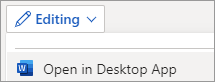
Don't have the app? Try or buy Microsoft 365.