-
On the Mailings tab, select
-
Follow the steps in the Mail Merge pane.


For more info, see Use mail merge for bulk email, letters, labels, and envelopes.
Creating a mail merge isn't currently possible in Word for the web. You can, however, create a mail merge in the Word desktop app.
-
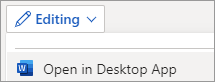
To open the desktop app, at the top of the ribbon, select Editing > Open in Desktop App.
Don't have the Word desktop app? Try or buy Microsoft 365.
-
On the Mailings tab, select
-
Select a document type and specify the list of recipients with
-
Follow the prompts in the yellow bar.

For more info, see Use mail merge for bulk email, letters, labels, and envelopes.