

Note
Microsoft Publisher reached end of support in October 2026.
Select the shape or text box. The Shape Format tab appears on the ribbon.
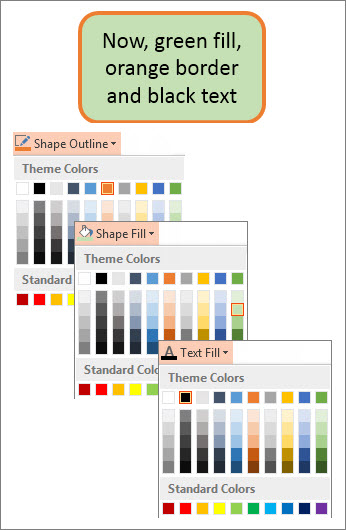
Here's a shape where we changed the border to orange, the fill to a light green, and the text to black. We used the Shape Outline, Shape Fill, and Text Fill commands, available on the Shape Format tab.
The examples below use PowerPoint for Windows. Similar Shape Fill, Shape Outline, and text-formatting controls are available in Excel, Word, classic Outlook for Windows, and Project, but the available options and ribbon locations can vary by application.
Change the text color
Select the shape or text box border. When you do that, the Shape Format tab appears.
To change multiple shapes or text boxes, click the first shape or text box, and then press and hold Ctrl while you click the other shapes or text boxes.On the Shape Format tab, click Text Fill and, under Theme Colors, pick the color you want.
Note
The Text Fill and Text Outline menus might not be active until you start typing in your shape.
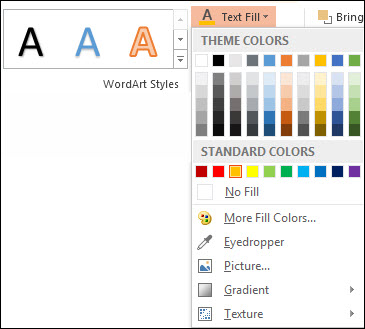
To change the text to a color that isn't in the theme colors- Select the shape or text box.
- On the Shape Format tab, click Text Fill > More Fill Colors.
- In the Colors box, either click the color you want on the Standard tab, or mix your own color on the Custom tab. Custom colors and colors on the Standard tab aren't updated if you later change the document theme.
Change the inside (fill) color
Select the shape or text box to change. When you do that, the Shape Format tab appears.
To change multiple shapes or text boxes, click the first shape or text box, and then press and hold Ctrl while you click the other shapes or text boxes.Click Shape Fill, and under Theme Colors, pick the color you want.
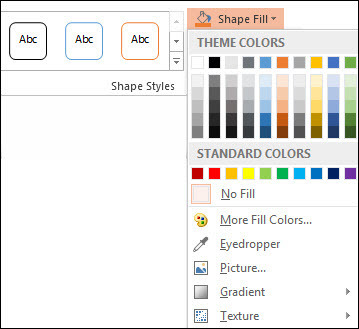
To change the fill color to a color that isn't in the theme colors- Select the shape or text box.
- On the Shape Format tab, click Shape Fill > More Fill Colors.
- In the Colors box, either click the color you want on the Standard tab, or mix your own color on the Custom tab. Custom colors and colors on the Standard tab aren't updated if you later change the document theme.
Change the border color
Select the shape or text box border. When you do that, the Shape Format tab appears.
If you want to change multiple shapes or text boxes, click the first shape or text box, and then press and hold Ctrl while you click the other shapes or text boxes.On the Shape Format tab, click Shape Outline and, under Theme Colors, pick the color you want.
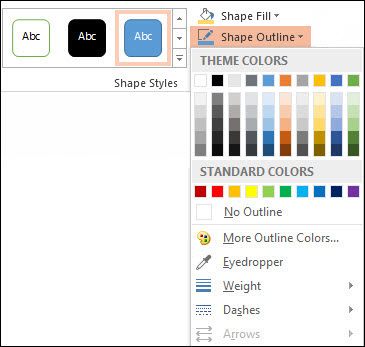
To change the border to a color that isn't in the theme colors- Select the shape or text box.
- On the Shape Format tab, click Shape Outline, and then click More Outline Colors.
- In the Colors box, either click the color that you want on the Standard tab, or mix your own color on the Custom tab. Custom colors and colors on the Standard tab aren't updated if you later change the document theme.
Tip
In PowerPoint, you can also change the border color by clicking Shape Outline (on the Home tab, in the Drawing group).
See Also
Remove or change the border on a text box or shape
Add a fill or effect to a shape
Change the font color (text color)
Change the background or color in Word
Change a message background in Outlook