-
Set up your presentation, complete with any illustrations, animations, and transitions you want.
-
Select File > Export > Create an Animated GIF.
-
If desired, set the following:
-
Quality: Use the drop-down menu to change the quality setting higher or lower. The default is Medium.
-
Timing: Select the minimum Seconds spent on each slide. The default is 1 second.
-
Slides: Sets the range of slides if you don't want to export the whole slide show. The default is all.
-
-
Select Create GIF. PowerPoint saves your presentation as a GIF, then notifies you when it's done. The result is a continuously looping .gif file.
For more details, see the article Make an animated GIF from a slide show.
-
Set up your presentation, complete with any illustrations, animations, and transitions you want.
-
Select File > Export.
-
Under File Format, select Animated GIF.
-
If desired, set the following:
-
Image quality: Use the drop-down menu to change the quality setting higher or lower. The default is Medium.
-
Timing: Select the minimum Seconds spent on each slide. The default is 1 second.
-
Slides: if you don't want to export the whole slide show, sets the range of slides you want to use. (The default setting is all slides).
-
-
Select Export. PowerPoint saves your presentation as a GIF, then notifies you when it's done. The result is a continuously looping .gif file.
For more details, see the article Make an animated GIF from a slide show.
Creating an animated GIF isn't currently possible in PowerPoint for the web. You can, however, create an animated GIF in the PowerPoint desktop app.
-
To open the desktop app, at the top of the ribbon, select

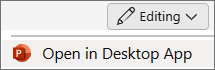
Don't have the PowerPoint desktop app? Try or buy Microsoft 365.