
Excel tables are very useful but they can be challenging to use on a smartphone. Cards View lets you work with tables using a mobile-optimized interface that keeps the focus on your data.
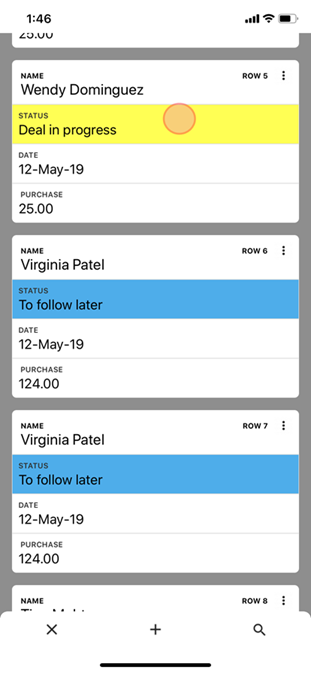
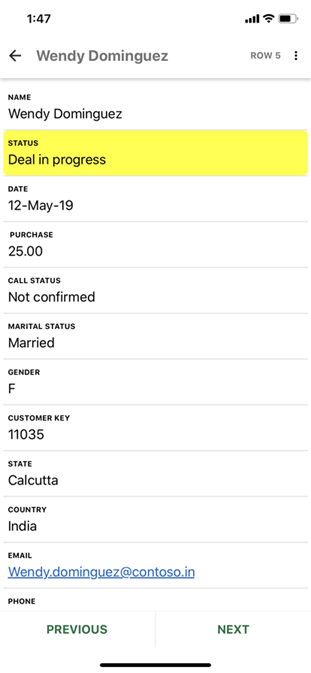
Cards View has two levels: cards and detailed views. Cards present a list of summarized rows that are easy to browse and search. You can also add and delete rows using the triple dot menu option on each card. When you tap a card in the list, a detailed view displays the whole row so you can easily edit its data.
|
|
|
|
|
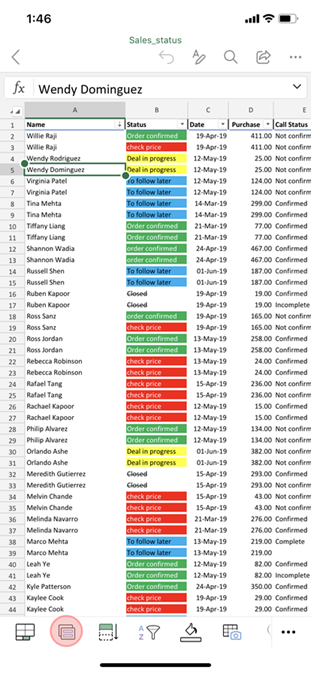
Tap a table, then tap the Cards View button. |
As you review the summarized data, |
While reviewing the details, tap a value to edit it. |
Note: Cards View only works with Excel tables. If you are working with a range of cells, you can convert the range to a table, enabling Cards View.
Note: March 3, 2020: Cards View is one of several features that are currently only available to a portion of Microsoft 365 Insiders at this time. We'll continue to optimize these features over the next several months. When they're ready, we'll release them to all Microsoft 365 Insiders, and Microsoft 365 subscribers.
Browse rows in Cards View
Cards View shows a list of summarized row data so you can quickly find the rows you want.
-
On your smartphone, open an Excel file that contains a table.
-
Tap a cell inside the table, and then tap the Cards View button.
-
Excel displays a list of cards that correspond to the rows in the selected table. Browse through the list by scrolling or use the search button at the bottom to find specific rows.
See a row in detailed view
Detailed view shows all the data for one row and makes it available for editing.
-
Open a table in Cards View.
-
Tap a card to display the detailed view of the row.
-
If desired, do one or both of the following:
-
To review an adjacent row, tap PREVIOUS or NEXT.
-
To edit, tap a value.
-








