With the ability to create a task directly from a message in Teams, you can capture that important thought, to-do item, or comment before it slips away. Convert any message into a task in just a few steps without opening another app.
Create a task
Hover over any message in a Teams conversation, select More options, and then select Create Planner task.
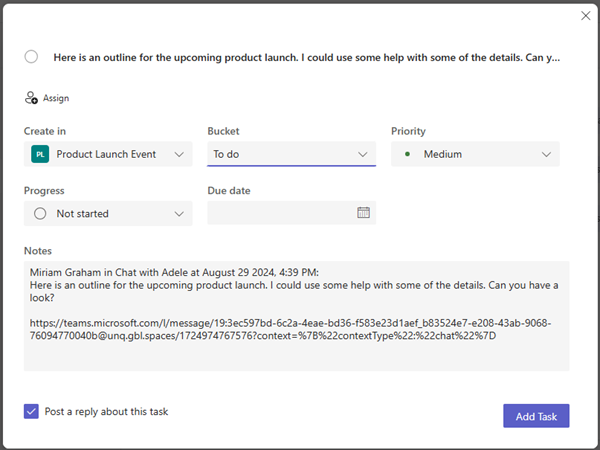
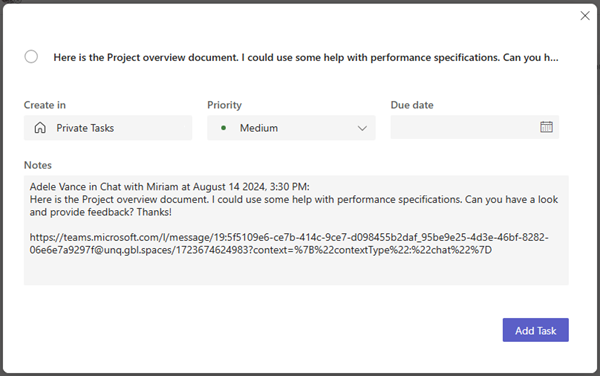
Fill in the details of your task and set the task options as needed. The Create in option determines where the task is created.
If you choose Private tasks, the task will be added to Private tasks in the Planner app in Teams. You can edit the task name, priority, due date, and notes from the window.
If you choose a plan name, the task will be added to the plan in the Planner app in Teams. You can edit the task name, priority, due date, notes, progress, and bucket, and assign the task from the window. You can also choose to post a reply in a chat conversation about the task so others can see it too.