Note
These steps apply to the desktop versions of Word. Tab stops can’t be set or modified in Word for the web.
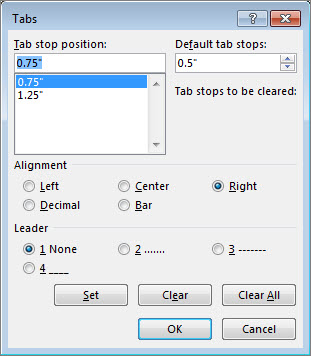
Tab stop position Enter the position (measurement) on the ruler where you want to set the tab stop.
Default tab stops Shows the current default tab stop measurement. Change this to have any tab interval.
Alignment Choose one of the following:
 A Left tab stop sets the left end of the text line.
 A Center tab stop sets the position at the middle of the text line.
 A Right tab stop sets the right end of the text line.
 A Decimal tab stop aligns numbers around a decimal point which remains in the same position. See Use decimal tabs to line up numbers with decimal points.
 A Bar tab stop inserts a vertical bar at the tab position.
Leader Choose a leader style to use between tabs - 1 None, 2 dots, 3 dashes, or 4 underline. Examples of the leader are shown next to the numbers.
Set Records changes you make. This allows you to set multiple stops in one session.
Clear Removes a selected tab stop.
Clear All Removes all tab stops.
OK Saves all changes and exits the dialog box.
Cancel Ignores all changes and exits the dialog.