

This article covers common scenarios that cause the #VALUE! error when working with SUMPRODUCT.
Problem: The array arguments don't have the same dimension
All of the array arguments should have the same dimension. If they don't, you get the #VALUE! error. For example, if Array 1 refers to a range of three rows and two columns, then Array 2 must also correspond to a similar range.
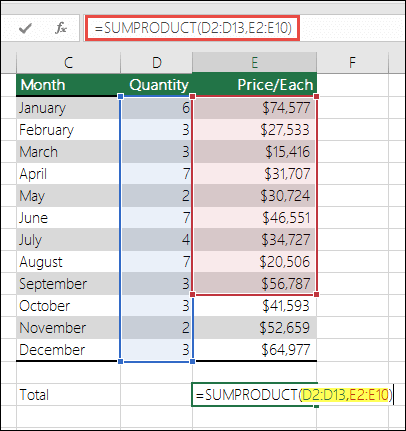
- =SUMPRODUCT(D2:D13,E2:E10)
Fails because the referenced ranges don't have the same number of rows (13 in the first range, but only 10 in the second).
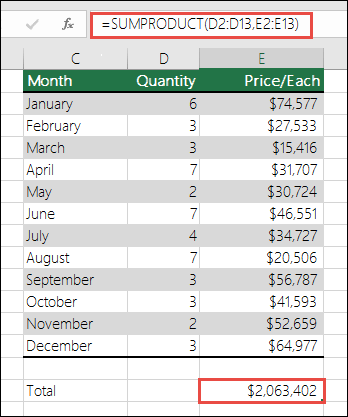
Solution: Change the formula to:
- =SUMPRODUCT(D2:D13,E2:E13)
So that both ranges have the same starting and ending row numbers, and retry the formula.
Problem: One or more cells in the range contain text
If one or more cells in the referenced range contain text or are formatted as a Text data type, you get the #VALUE! error. The text could be the result of a calculation from another formula, or the cell might not be formatted correctly.
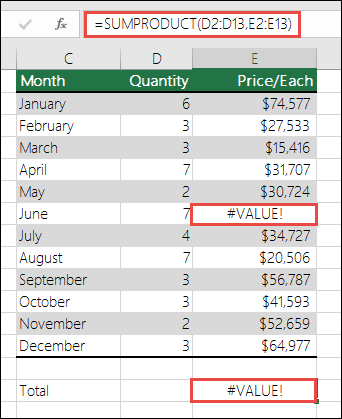
Solution: Check for any cell that contains text or is formatted as text and set it to the correct data type.
Need more help?
You can always ask an expert in the Excel Tech Community or get support in Communities.
See also
How to correct a #VALUE! error
How to avoid broken formulas in Excel
Detect errors in formulas in Excel