
Agents in OneDrive use AI to summarize and search selected files and folders. You can ask an agent questions about its sources without opening each file.
Important
Upgrades are coming in mid-November 2026 to agents in OneDrive. To learn more, see Upgrade agents in OneDrive.
Note
AI agents are available only for work or school accounts with a Microsoft Copilot license.
Create an agent in OneDrive
Sign in to the OneDrive website with your work or school credentials.
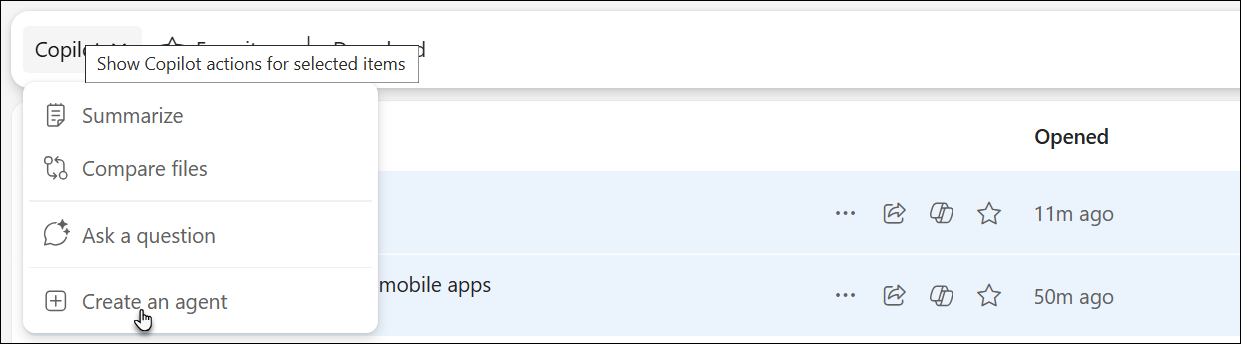
Select the files or folders you want the agent to use, and then select Copilot > Create an agent from the toolbar. You can also right-click the selected items and select Create an agent.
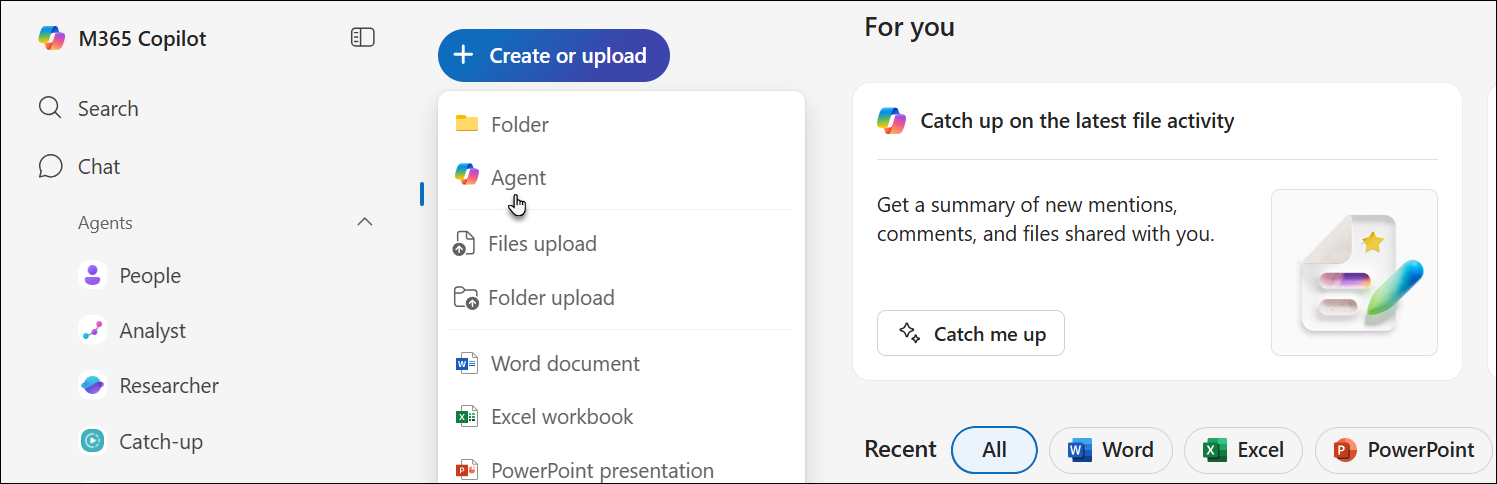
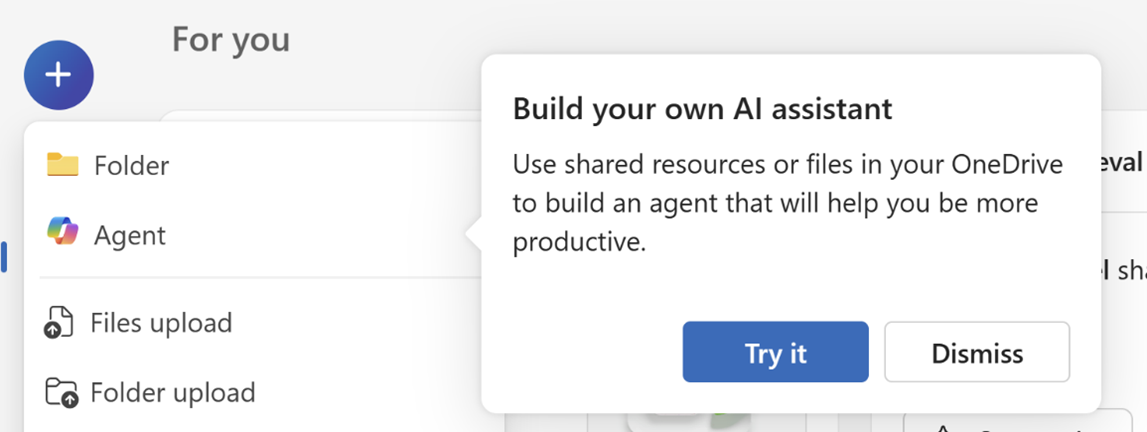
Alternatively, select + Create or upload > Agent.
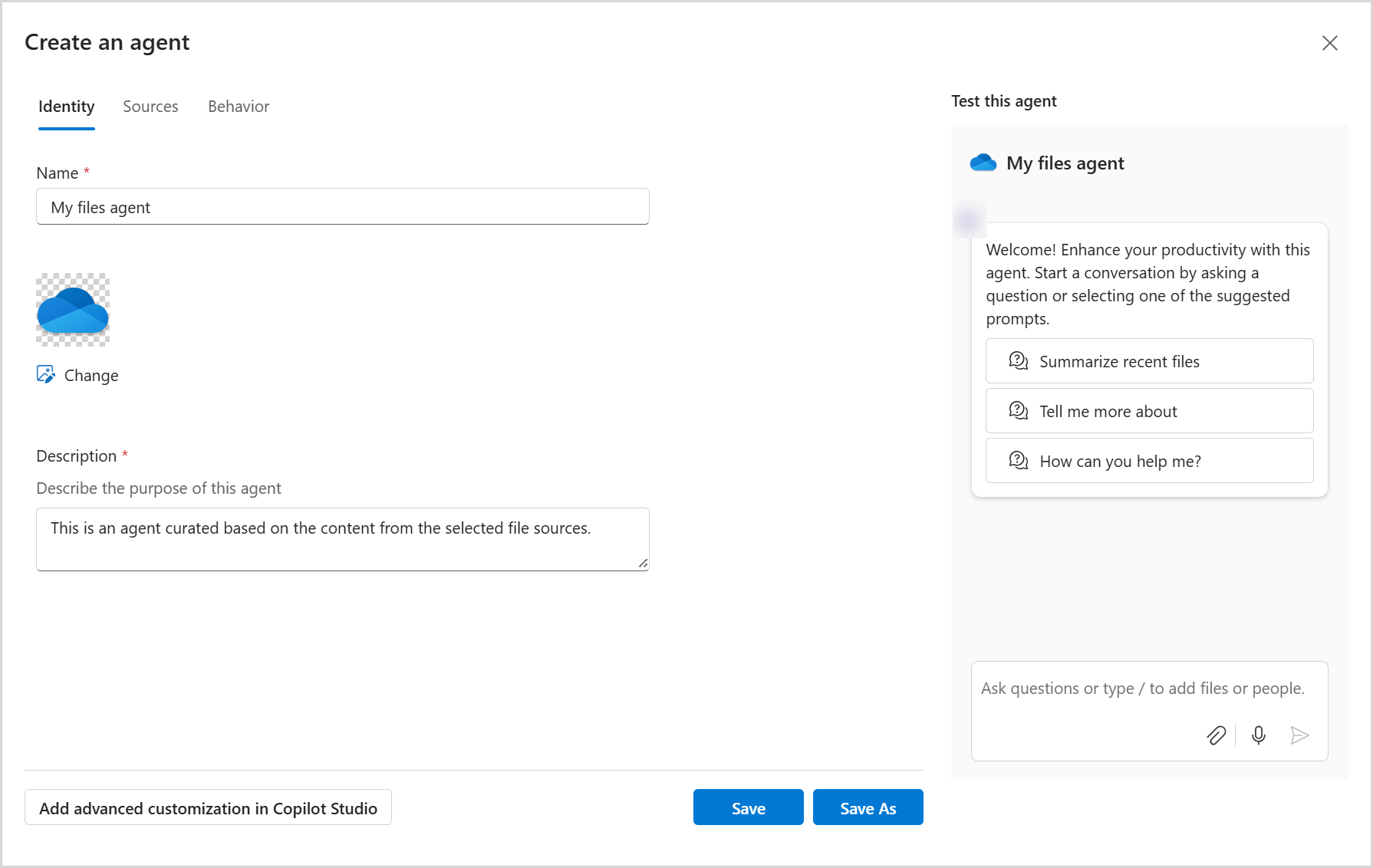
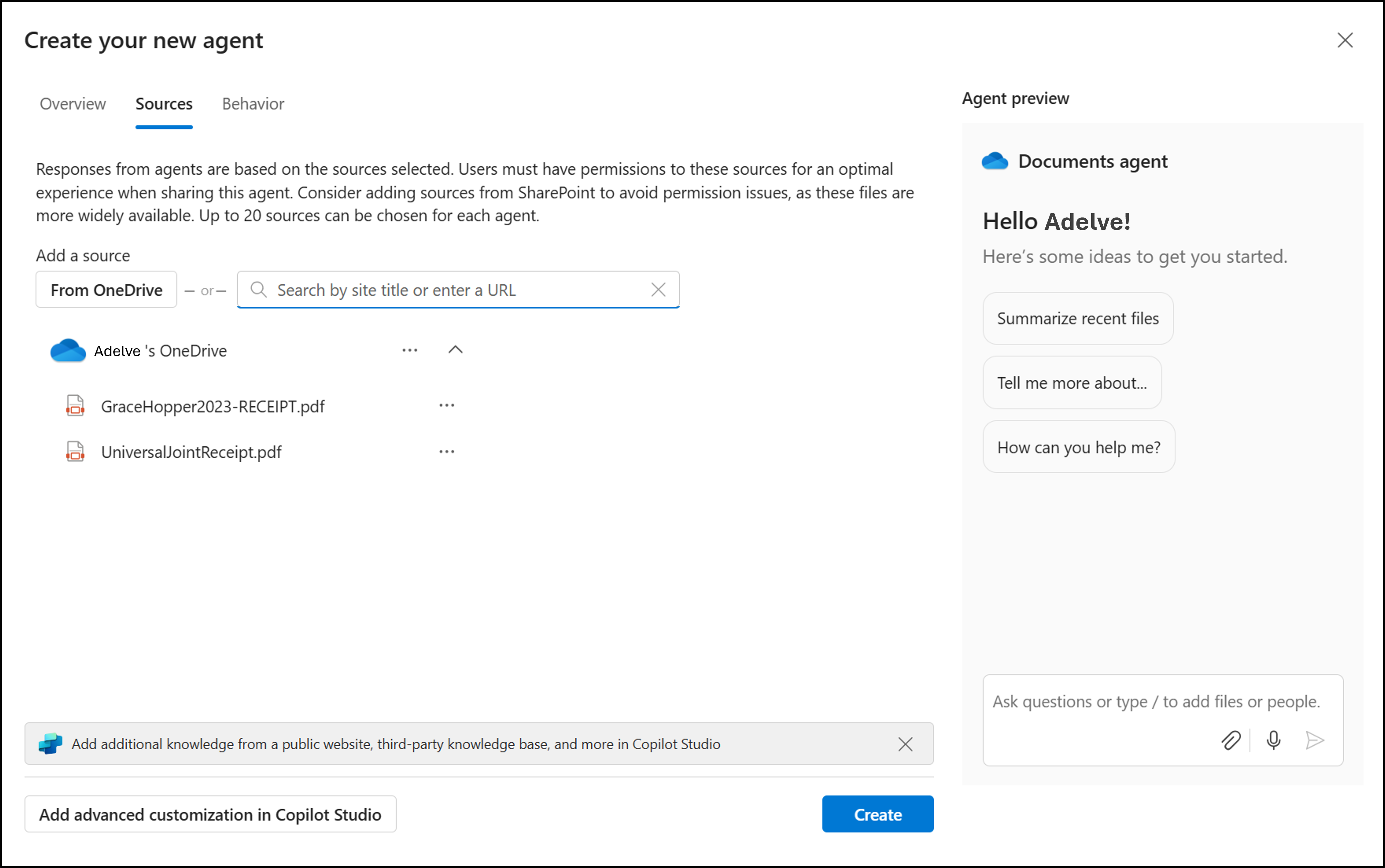
Add up to 20 sources, enter a name and description, and modify the agent's behavior.
Select Save or Save As.
OneDrive saves the agent as a .agent file in the folder where you created it.
Note
If you create an agent from the Shared or Favorites view, OneDrive saves it in My files > Documents > Agents.
Use the first-run guidance
The first time you open the Create or upload menu or select Copilot for selected files, OneDrive might display a prompt titled Build your own AI assistant. Select Try it to start creating an agent, or select Dismiss to close the prompt.
Use an agent in OneDrive
- In OneDrive, find and open the
.agentfile. - In the full-screen viewer, enter a question, such as:
- What are the key updates in this folder?
- What did we decide in the last meeting notes?
- When is the next deadline in these project files?
- Select Send or press Enter.
You can ask follow-up questions to get more detail or clarify an answer.
Edit an agent in OneDrive
To change an agent's name, behavior, or sources, use one of these methods:
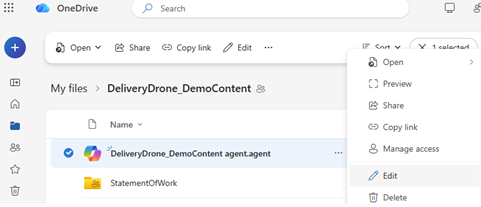
- In the OneDrive file list, select More actions next to the
.agentfile, and then select Edit. - Open the agent, and then select Edit at the top of the viewer.
- In SharePoint, select Edit in the side pane.
Share an agent from OneDrive
You can share an agent like other OneDrive files:
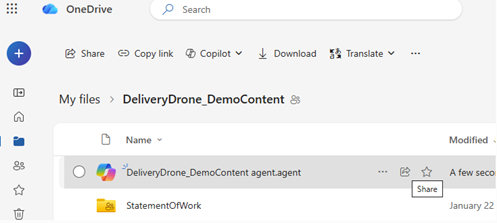
- Select the
.agentfile. - Select Share.
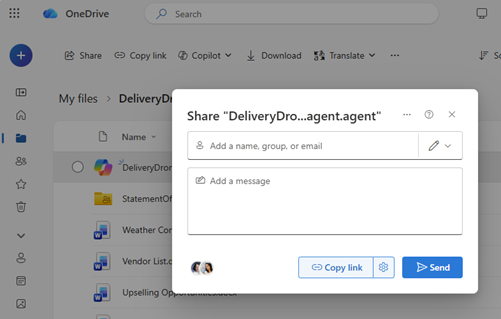
- Set the sharing permissions, and then send or copy the link.
Note
- Recipients must also have access to the files used by the agent. Without access, they can't see the agent's responses.
- You can create an agent in OneDrive only from DOC, DOCX, PPT, PPTX, PDF, TXT, RTF, and MD files. You can add up to 20 files. A selected folder can contain no more than 20 files.
For detailed sharing and access instructions, see Share an AI agent in OneDrive.
Need more help?
Account support. For help with your Microsoft account and subscriptions, visit Account & Billing Help.
Technical support. For technical support, select Contact Microsoft Support below, enter your problem and select Get Help.
Mobile users can contact Support by opening the OneDrive app and gently shaking your device.
Community support. Communities help you ask questions, give feedback, and hear from experts with rich knowledge. Ask the Microsoft Community. Do not disclose personal or sensitive information in public forums.