
Last Updated: November 4, 2026
ISSUE
Some users may receive an error when attempting to share their default Contacts folder in classic Outlook for Windows. This issue can occur as Exchange Web Services is disabled in Exchange Online because the standard contact-sharing invitation workflow in classic Outlook previously relied on EWS functionality.
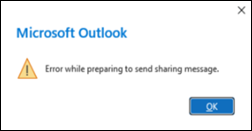
The issue affects the following sharing-invitation workflow:
- Open People or Contacts.
- Right-click the default Contacts folder.
- Select Share, and then Share Contacts.
- Add the recipient, and then select Send.
STATUS: FIX ROLLING OUT
The Outlook Team has implemented an updated contact-folder sharing solution that does not rely on the affected EWS functionality. The change is rolling out to users.
WORKAROUND
Until the fix reaches all affected users, assign permissions directly to the default Contacts folder:
- Right-click the Contacts folder, and then select Properties.
- Select the Permissions tab.
- Add the recipient and assign the appropriate permission level.
- Select OK, and then let the recipient know that access has been granted.
The recipient can then open the shared Contacts folder in Classic Outlook:
- Select File > Open & Export > Other User’s Folder.
- Select Name, and then locate the person who shared the Contacts folder.
- For Folder type, select Contacts.
- Select OK.
More Resources
 Ask the experts
Connect with experts, discuss the latest Outlook news and best practices, and read our blog.
 Get help in the community
Ask a question and find solutions from Support Agents, MVPs, Engineers, and Outlook users.
 Suggest a new feature
We love reading your suggestions and feedback! Share your thoughts. We're listening.
See Also
Fixes or workarounds for recent issues in classic Outlook for Windows