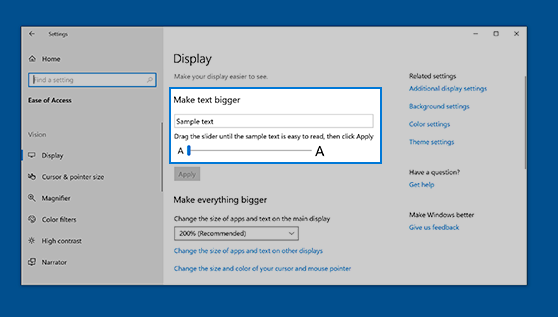
Here's how to change the size of text, images, and apps in Windows.
To change your display in Windows, select Start  > Settings
  > Accessibility
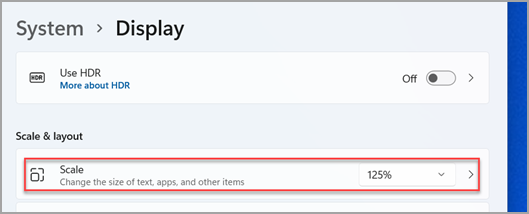
  > Text size. To make only the text on your screen larger, adjust the slider next to Text size. To make everything larger, including images and apps, select Display
  , and then choose an option from the drop-down menu next to Scale.
To zoom in or zoom out on parts of your screen in Windows, use Magnifier. To turn on Magnifier, press the Windows
key+Plus (+). Zoom in by continuing to press the Windows
key+Plus (+). Zoom out by pressing the Windows
key+Minus (-). To turn off Magnifier, press the Windows
key+Esc.
 > Ease of Access > Display. To make only the text on your screen larger, adjust the slider under Make text bigger. To make everything larger, including images and apps, choose an option from the drop-down menu under Make everything bigger.