Use the Position tab to control where a picture or shape appears on the page.
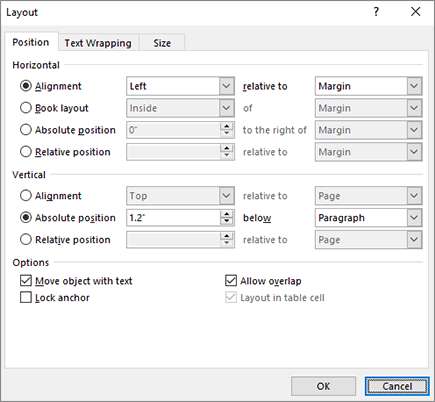
Horizontal
Position an image horizontally on a page based on the following:
Alignment Set an image Left, Right, or Centered relative to the Page, Margin, Column, Character, Left, Right, Inside, or Outside margins. Page and Margin settings position the object relative to both the left and right of the page.
Book Layout Set position when your document will be produced for printing or binding. You can control where your image will appear on a left or right page. You can position images relative to the Inside or Outside of the Page or Margin.
Absolute position Locks your image to a specific measured position to the right of the Page, Margin, Column, Character, or specifically to the Left, Right, Inside, or Outside margin. Measurements can be specified as either positive or negative for exact position control left or right of the anchor point. The image will stay in the same position regardless of any other formatting changes you make.
Relative position Set an image to a position relative to the Margin, Page, Left, Right, Inside, or Outside Margins. Specific settings are percentages. This can be helpful to keep an image a set distance from a margin, even if you plan to change margins.
Vertical
Position an image vertically on a page based on the following:
- Alignment Position an image at the Top, Centered, Bottom, Inside, or Outside as relative to the Page, Margin, line, Top, Bottom, Inside, or Outside margins. Page and Margin position the image relative to both the top and bottom of the page.
- Absolute position Locks your image to a specific measured position below the Page, Margin, Paragraph, Line, or specifically the Top, Bottom, Inside, or Outside margin. Measurements can be specified as either positive or negative for exact position control up or down from the anchor point. The image will stay in the same position regardless of any other formatting changes you make.
- Relative position Set an image to a position relative to the Margin, Page, Top, Bottom, Inside, or Outside Margins. This can be helpful to keep an image a set distance from a margin, even if you plan to change margins.
Options
Additional options to use when positioning images and objects.
Move object with text Keeps the picture or shape positioned relative to the paragraph it's anchored to. When the paragraph moves, the object moves with it.
Lock anchor prevents the object's anchor from being moved to another paragraph.
Allow overlap Allows the selected picture or shape to overlap other objects. Use Bring Forward or Send Backward to change the stacking order of overlapping objects.
Use the Text Wrapping tab to control how a picture or shape interacts with the surrounding text.
Wrapping style
These commands control how text wraps around an image or shape, which affects how you can place it on the page.
In line with text Places the picture or shape in the text as if it were a character. It moves with the surrounding text.ne.
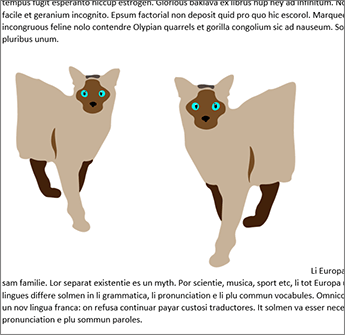
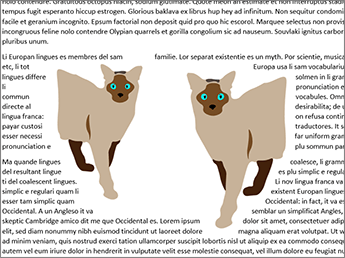
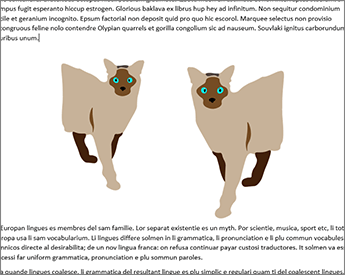
Square Wraps text around the picture or shape in a square pattern. If the picture tapers, like a triangle, the text on either side all has the same border. You can position the object randomly on the page and the text will fill around it.
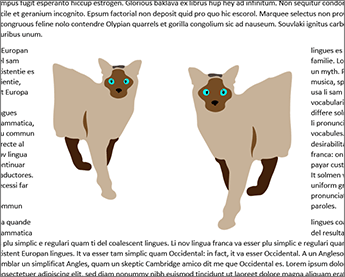
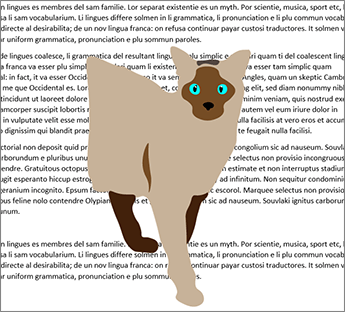
Tight Text wraps at a consistent distance between the edge of the picture or shape and the text. The text follows the shape. You can position the object randomly on the page and the text will fill around it.
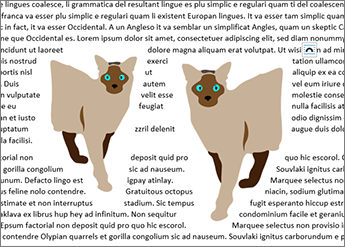
Through Acts much like Tight, except that you can change the wrap points so that text can fill in the spaces between elements in an image. If the image or shape doesn't have any spaces, then text wrapping works just like Tight. For more information, see Edit Wrap Points.
Top and Bottom Wraps text on the top and bottom of the picture or shape, and doesn't put any text along the edges, regardless of how narrow the picture.
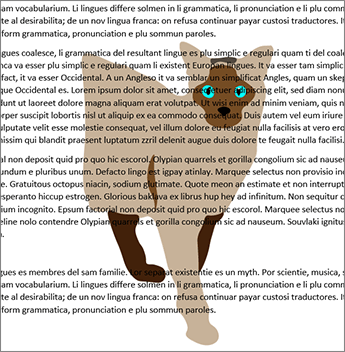
Behind Text Puts the picture or shape behind the text, and doesn't wrap the text around it. Once behind the text, you may have difficulty trying to select it. Go to Layout > Selection Pane and then choose the picture or shape from the list to select it.
In Front of Text Puts the picture or shape on top of the text. The text doesn't wrap, so some of it may be blocked, depending on the transparency of the image.
Wrap text
Choose which side or sides of the picture or shape the text can appear on.
- Both sides Wraps text around either side of the image or shape.
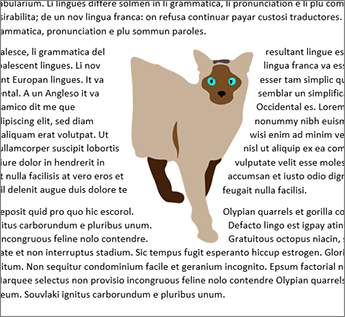
- Left Wraps text around only the left side of the image or shape.
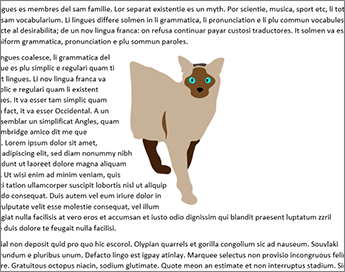
- Right Wraps text around only the right side of the image or shape.
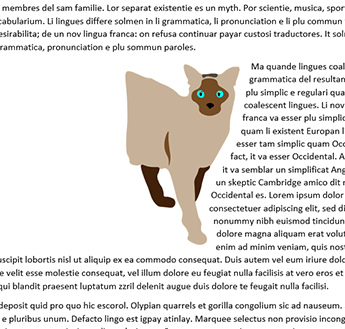
- Largest Only Wraps text on the side of the image or shape with the larger distance from the margin.
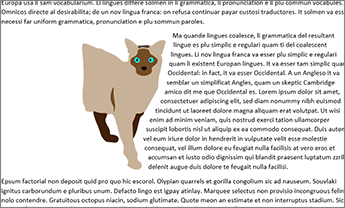
Distance from the Text
- Specify the amount of space between the picture or shape and the surrounding text. You can set the Top, Bottom, Left, and Right distances independently.
Edit Wrap Points
To edit wrap points, select the image or shape, and go to Wrap Text and select Edit Wrap Points from the text wrap menu.
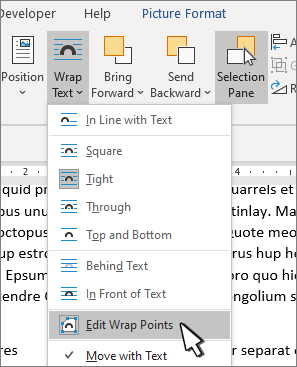
The points on the outline can be moved to let you adjust where the text will wrap.
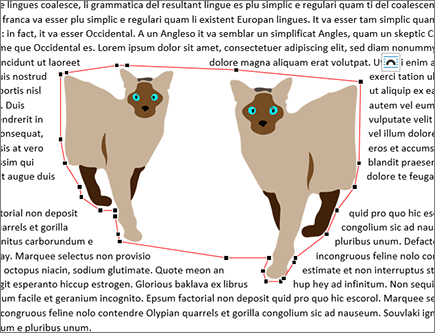
Move the wrap points so that the text fills in around the picture.
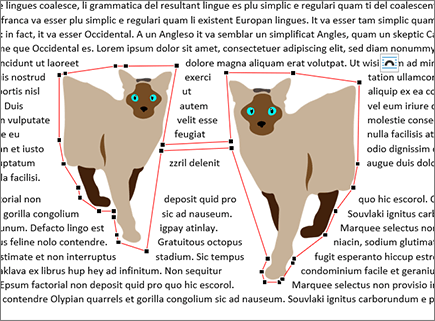
OK Saves your changes and exits the dialog box.
Cancel Ignores your changes, and exits the dialog box.
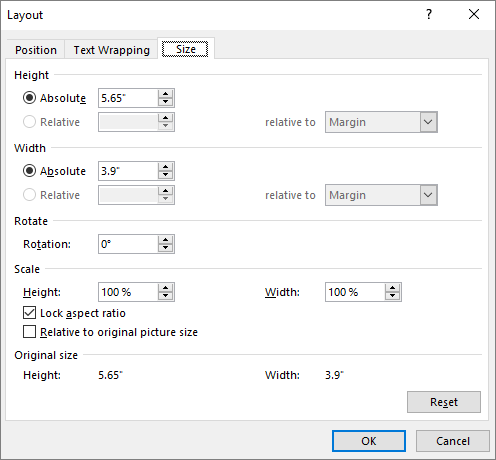
Use the Size tab to set the size, rotation, and scale of your images and shapes.
Height
- Absolute Set the actual Height of the selected object.
- Relative Set the height as a relative percentage of the Margin, Page, Top, Bottom, Inside, or Outside Margins. This isn't enabled for pictures.
Width
- Absolute Set the actual Width of the selected object.
- Relative Set the width as a relative percentage of the Margin, Page, Top, Bottom, Inside, or Outside Margins. This isn't enabled for pictures.
Rotate
Rotation Set the angle of the object by degrees (whole numbers only).
Scale
Set the height and width as percentages of the object's original size.
Lock aspect ratio Maintains the object's proportions when you change its height or width. For example, if an image is originally 8" x 10", and you change the width to 4", the height will automatically change to 5". When sizing pictures, use this setting to avoid distortion.
Relative to original picture size Calculates the height and width percentages based on the picture's original size.
Original size Shows the original height and width of the picture.
Reset Restores the picture to its original size.