Partager un fichier pour collaborer sur des pièces jointes
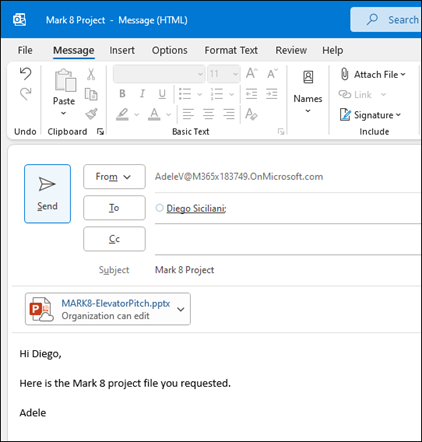
- Sélectionnez Joindre un fichier et choisissez un fichier.
- Si le fichier a une petite icône de nuage, il est déjà enregistré dans le cloud, ce qui vous permet de le partager et de travailler dessus avec d’autres personnes.
Si ce n’est pas le cas, cliquez sur la flèche du menu déroulant vers le bas, pointez sur Télécharger, puis sélectionnez OneDrive. - Tapez un message, puis sélectionnez Envoyer.
Organiser une réunion en ligne et configurer les notes partagées
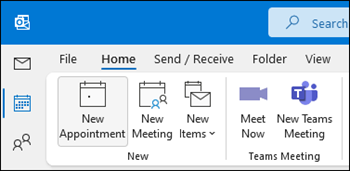
Dans le volet gauche, sélectionnez l’icône Calendrier.
Pour configurer une réunion que les participants peuvent rejoindre à distance, sélectionnez Nouvelle réunion Teams. Cela permet d’insérer un lien qui servira aux utilisateurs à distance pour rejoindre la réunion.
Pour configurer un espace de notes partagées, sélectionnez le bouton Notes de la réunion. Vous pouvez créer un bloc-notes OneNote ou sélectionner un bloc-notes existant. Un lien d’accès au bloc-notes s’affiche dans la demande de réunion.
Réunion