

Vous pouvez créer un jeu de couleurs personnalisé, également appelé couleurs de thème, dans PowerPoint et l’utiliser dans d’autres applications Office. Recherchez une couleur de thème standard que vous aimez, puis modifiez-la et enregistrez-la dans PowerPoint. La prochaine fois que vous créerez une présentation PowerPoint, un document Word ou un classeur Excel, vous pourrez utiliser la couleur de thème que vous avez créée.
Créer une nouvelle couleur de thème
- Sous l’onglet Création , cliquez sur la flèche sous Variantes et pointez sur Couleurs.
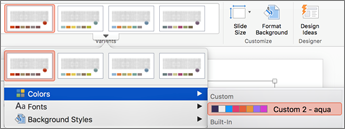
- Cliquez sur Personnaliser les couleurs.
- Cliquez sur une zone de couleur que vous souhaitez modifier. Par exemple, Accent 1.
- Cliquez sur une nouvelle couleur dans la boîte de dialogue Couleurs .
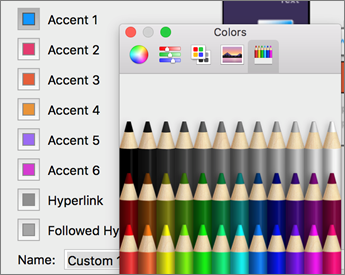
- Répétez les étapes 3 et 4 pour chaque couleur à modifier.
- Fermez la boîte de dialogue Couleurs .
- Dans la zone Nom , tapez un nom pour votre couleur de thème personnalisée, puis cliquez sur Enregistrer.
La couleur de thème est appliquée à la présentation actuelle.
Appliquer votre nouvelle couleur de thème à un nouveau document
- Sous l’onglet Création , cliquez sur la flèche sous Variantes, pointez sur Couleurs, puis cliquez sur le nom de la couleur de thème que vous avez créée.
Supprimer une couleur de thème personnalisée
Dans le Finder Mac OS X, recherchez votre couleur de thème personnalisée dans /Utilisateurs/ Nom d’utilisateur/Bibliothèque/Support d’application/Microsoft/Office/Modèles utilisateur/Mes thèmes/Couleurs de thème.
Faites glisser le fichier avec votre couleur de thème personnalisée (par exemple, 1.xml personnalisé) vers la Corbeille.
Remarque
La couleur de thème supprimée reste dans la liste Couleurs sous l’onglet Création jusqu’à ce que vous quittiez, puis rouvriez les applications Office.