
Open the diagram for editing.
Do the following:
To: Do this: For example: Select a shape Click a shape. The selected shape displays selection handles.
Tip: To select all shapes, press Ctrl+A.
Select several shapes by dragging Click on the page and drag the selection area to surround all the shapes by a temporary box with selection handles. 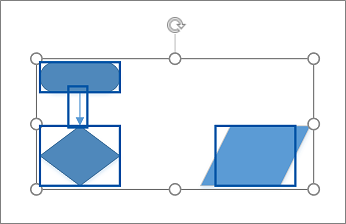
Select several shapes by clicking Hold down the Ctrl key as you click each shape that you want to select. 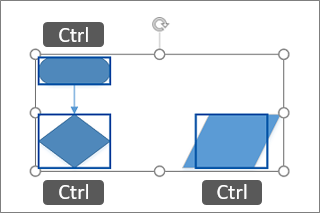
Copy a shape by dragging Press and hold the Ctrl key while you drag the shape that you want to duplicate, and then release the mouse button. 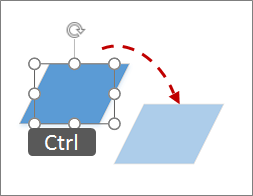
Move a shape by dragging Click the shape, and then hold down the mouse button as you drag the shape to a new location. 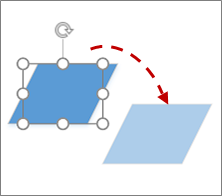
Move a shape one pixel at a time Hold down the Shift key, and then press an arrow key in the direction you want to move. 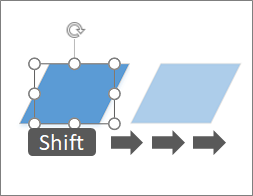
Move connector text Select the connector text control handle  , and then drag the connector text box to a different spot.
Visio for the web helpView, create, and edit a diagram in Visio for the webAdd and connect shapes in Visio for the web