
There are three levels of navigation in SharePoint: global , hub , and local (teams sites and communication sites) . Customize the navigation for your Microsoft SharePoint site to give users quick access to sites, pages, and targeted content.
This article introduces things you can do to customize your hub and local navigation:
- Change the look of your page's navigation style, colors, and logo.
- On a hub site , a team site or a communication site you can add, edit, or remove links on the navigation menu.
- Edit the horizontal menu, footer menu (communication site only), or the hub site navigation bar that appears on all communication sites associated with a hub site .
- Target navigational links to specific audiences with modern SharePoint in Microsoft 365 audience targeting.
- Set up a multilingual site name, navigation, and footer on communication sites.
Note
- The Navigation Pane can be located on the top (team sites and communication sites) or on the left (team sites only).
- You need to be a site owner to make changes to the navigation of a site.
- If your site has been customized by the site owner, the vertical menu or horizontal menu might not be available for editing.
Select your version of SharePoint below for the steps to customize the navigation on your SharePoint site.
Note
Some functionality is introduced gradually to organizations that have set up the targeted release options in Microsoft 365 . This means that you may not yet see this feature or it may look different than what is described in the help articles.
Add a link to the navigation menu on a team site
For a vertical navigation menu, select Edit at the bottom of the vertical navigation.

For a horizontal navigation menu, select Edit to the right of the horizontal navigation.

Note
If you don't see Edit , you might not have permissions to customize the site navigation. You must have at least Manage Lists permissions. Contact the site owner either to get permissions to make the changes yourself or to have the changes made for you.
Hover in between the existing links in the menu where you want to add a link and select + .

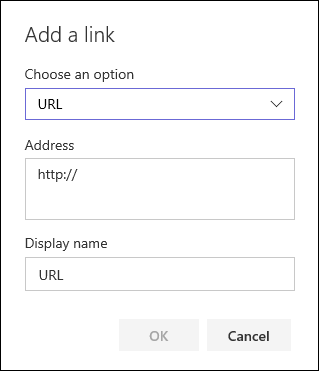
On the Add dialog box, choose one of the following link options:
- Link will add a link to any site, internal or external to your company. Just enter the address and a display name for the link.

- Label will add text to your navigation menu that is not hyperlinked. A label is useful if you want to organize or categorize your links.
- Conversations will add a link to the Microsoft 365 group conversations associated with the team site. Just enter a display name for the link. The address is automatically added and cannot be edited.
- Calendar will add a link to the Microsoft 365 group calendar associated with the team site. Just enter a display name for the link. The address is automatically added and cannot be edited.
- Notebook will add a link to the OneNote notebook associated with the team site. Just enter a display name for the link. The address is automatically added and cannot be edited.
- Planner will add a link to the Microsoft Planner instance associated with the team site. Just enter a display name for the link. The address is automatically added and cannot be edited.
- Select the Open in a new tab checkbox to have the link open in a new browser tab.
- Link will add a link to any site, internal or external to your company. Just enter the address and a display name for the link.
Then, select OK .
You can also add a page to the menu from the Site Pages list by selecting Pages from the navigation menu or accessing the Site contents under Settings .
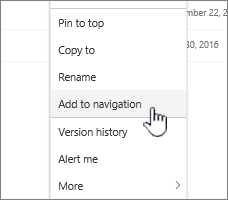
In Site Pages , select the page you want to add.

Select Add to navigation . When you navigate away from the Site Pages list, your changes will appear in the navigation menu.
Note
Recent items are handled automatically by SharePoint . You can't add links to the Recent menu.
Add a link or label to the navigation menu on a communication site
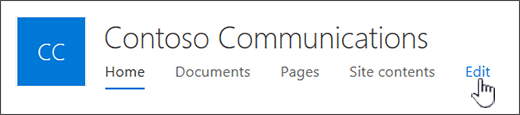
Select Edit to the right of the navigation menu.
Note
If you don't see Edit , you might not have permissions to customize the site navigation. You must have at least Manage Lists permissions. Contact the site owner either to get permissions to make the changes yourself or to have the changes made for you.
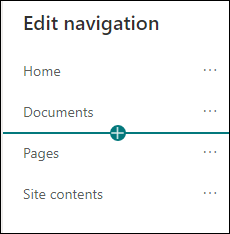
Hover in between the existing links in the menu where you want to add a link and select + .
On the Add dialog box, choose one of the following link options:
- Link will add a link to any site, internal or external to your company. Just enter the address and a display name for the link.
- Label will add text to your navigation menu that is not hyperlinked; useful if you want to add a reminder within the navigation menu or categorize for your links.
- Select the Open in a new tab checkbox to have the link open in a new browser tab.
- Link will add a link to any site, internal or external to your company. Just enter the address and a display name for the link.
In the Address box, enter the URL for the link you want to add if adding a link.
To add a link to a page, follow these steps:- Navigate to the page you want to add a link to.
- Copy the URL from the address bar.
- Paste the URL into the Address box.
In the Display name box, enter the display text that will show up on the navigation menu.
Select OK . The link will be added to the navigation menu.
When finished customizing the navigation, select Save or, to discard changes, select Cancel .
Note
You need to be a site owner to make changes to the navigation of a site. Depending on your permission level, you can change the navigation layout to Horizontal, Vertical, Mega menu, or Cascading by going to Settings , selecting Change the look , and then selecting Navigation .
Add a link to the hub site navigation bar
Note
- If you're a Global Administrator or SharePoint Administrator in Microsoft 365 , you can convert any existing site to a hub site. For more information about planning and creating hub sites, see Planning your SharePoint hub sites .
- It might take up to two hours for changes to the hub site navigation bar to appear on associated sites.
Select Edit to the right of the hub site navigation bar.

Note
If you don't see Edit , you might not have permissions to customize the hub site navigation bar. You must have at least Manage Lists permissions. Contact the hub site owner either to get permissions to make the changes yourself or to have the changes made for you.
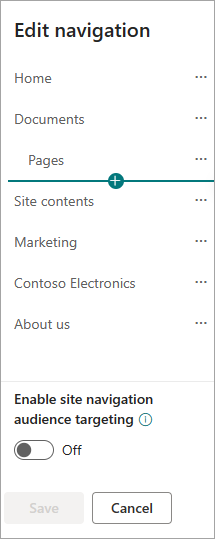
Hover in between the existing links in the menu where you want to add a link and select + .
On the Add dialog box, choose one of the following options:
- Link will add a link to any site, internal or external to your company. Just enter the address and a display name for the link.
- Associated hubs will add links to hub sites associated to the same parent hub.
- Associated child hubs will add links to child hub sites associated to the same parent hub site, if available.
- Label will add text to your navigation menu that is not hyperlinked. This is useful if you want to add a reminder within the navigation menu or categorize for your links.
- Select the Open in a new tab checkbox to have the link open in a new browser tab.
- Link will add a link to any site, internal or external to your company. Just enter the address and a display name for the link.
In the Address box, enter the URL for the link you want to add if adding a link.
To add a link to a page, follow these steps:
- Navigate to the page you want to add a link to.
- Copy the URL from the address bar.
- Paste the URL into the Address box.
In the Display name box, enter the display text that will show up on the navigation menu.
Select OK . The link will be added to the navigation menu.
Note
You can add up to 2 levels of sub links to the hub site navigation bar by accessing ... next to your links.
When finished customizing the navigation, select Save or, to discard changes, select Cancel .
Note
Navigation layout for hub navigation leverages the same setting as the site navigation.
Add or edit links and labels in the footer on a communication site
The following communication site shows a footer that's been added. Labels and links appear on the right side of the footer. When you add labels and links to your footer, they follow the Edit link and appear to the right.
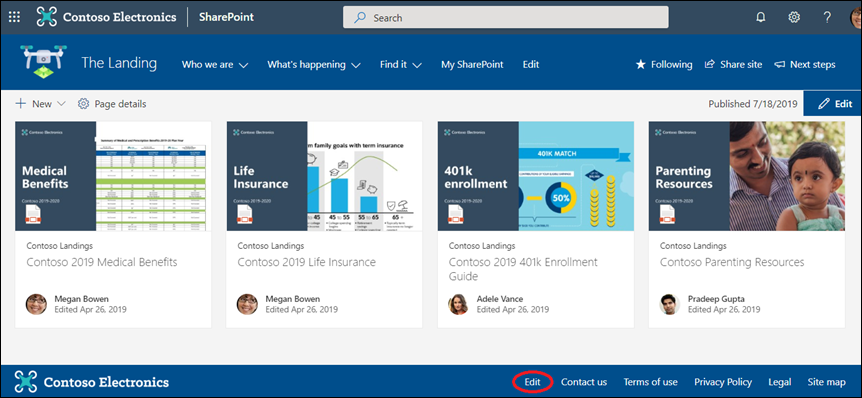
On your site, select Edit on the right side of the footer ( Edit appears on your footer after you've turned the footer control on). You can add one level of up to eight links or labels.
Note
The site footer feature is only available on communication site pages. This feature is not available for list pages, library pages, or other pages on your site.
Select + just above the buttons on the navigation menu.
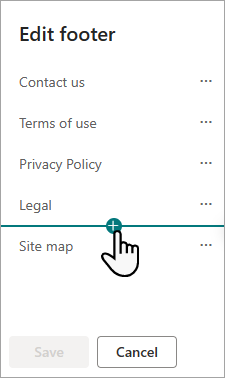
On the Add dialog box, choose one of the following options:
- Link will add a link to any site, internal or external to your company. Just enter the address and a display name for the link.
- Label will add text to your navigation menu that is not hyperlinked. This is useful if you want to add a reminder within the navigation menu or to categorize your links.
- Select the Open in a new tab checkbox to have the link open in a new browser tab.
- Link will add a link to any site, internal or external to your company. Just enter the address and a display name for the link.
In the Address box, enter the URL for the link you want to add if adding a link.
To add a link to a page, follow these steps:
- Navigate to the page you want to add a link to.
- Copy the URL from the address bar.
- Paste the URL into the Address box.
In the Display name box, enter the display text that will show up on the navigation menu.
Select OK . The link will be added to the footer.
To edit an existing link or label, after selecting Edit on the right side of the footer, select the ellipses ( ... ) next to the link that you want to edit.

On the menu, choose one of the following options:
- Edit to change the link or label.
- Move up or Move down to change the order that the link or label appears on the footer.
- Remove to delete the link or label from the footer.
When done making your changes, select Save
Target navigational links to specific audiences
Important
- The site owner must enable audience targeting for site navigation.
- Only site owners can turn audience targeting on and off. Once turned on, any site editor can target menu links to specific audiences.
- An audience is defined by Microsoft 365 groups and security groups. If you need to, create a Microsoft 365 group for the members of your audience. Or, if you're an admin, you can create a security group from the Microsoft 365 admin center. Azure AD dynamic groups are not currently supported.
- Select Edit within the navigational menu.
For a vertical navigation menu, select Edit at the bottom of the menu.
For a horizontal navigation menu, select Edit to the right of the menu.
Note
If you don't see Edit , you might not have permissions to customize the site navigation. You must have at least Manage Lists permissions. Contact the site owner either to get permissions to make the changes yourself or to have the changes made for you.
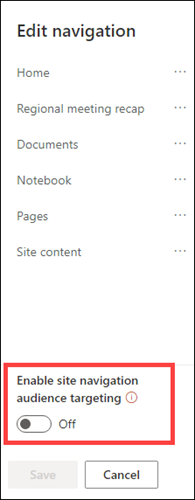
2. At the bottom of the Edit navigation pane, select the toggle for Enable site navigation audience targeting . When enabled, audience targeting will apply to all menus on the site including hub and footer menus.
3. Select the ellipses ( ... ) next to the link that you want to edit, and select Edit .

4. In the Audiences to target box, enter up to 10 Microsoft 365 groups or security groups to target.
Note
When audience targeting is applied to a parent link, audience targeting also gets applied to the sub links and will only be visible to the groups you specify.
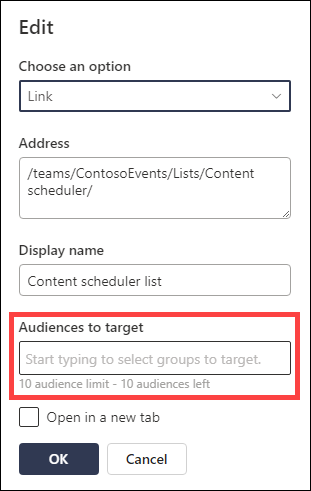
5. Select OK when you are done editing the link and an icon will confirm the links are being targeted.
Note
While editing the navigation, all links and sub links become visible to the editor including those that are targeted. Once saved, the navigation will display the targeted nodes.
6. Select Save when you are done or select Cancel to discard changes.
Edit the display name or address for a menu link
- Select Edit within the navigational menu.
For a vertical navigation menu, select Edit at the bottom of the menu.
For a horizontal navigation menu, select Edit to the right of the menu.
Note
If you don't see Edit , you might not have permissions to customize the site navigation. You must have at least Manage Lists permissions. Contact the site owner either to get permissions to make the changes yourself or to have the changes made for you.
2. Select the ellipses ( ... ) next to the link that you want to edit.
3. Select Edit .
4. Make your changes in Display name and Address , and when you are done editing the menu link, select OK .
5. When finished customizing the navigation, select Save or, to discard changes, select Cancel .
Note
Changing the type of a menu link may not be possible. Please verify whether the modification was applied successfully. If the change is not visible, consider creating a new menu link with the desired configuration and removing the existing one if necessary.
Change the order of menu links
- Select Edit within the navigation menu.
For a vertical navigation menu, select Edit at the bottom of the menu.
For a horizontal navigation menu, select Edit to the right of the menu.
Note
If you don't see Edit , you might not have permissions to customize the site navigation. You must have at least Manage Lists permissions. Contact the site owner either to get permissions to make the changes yourself or to have the changes made for you.
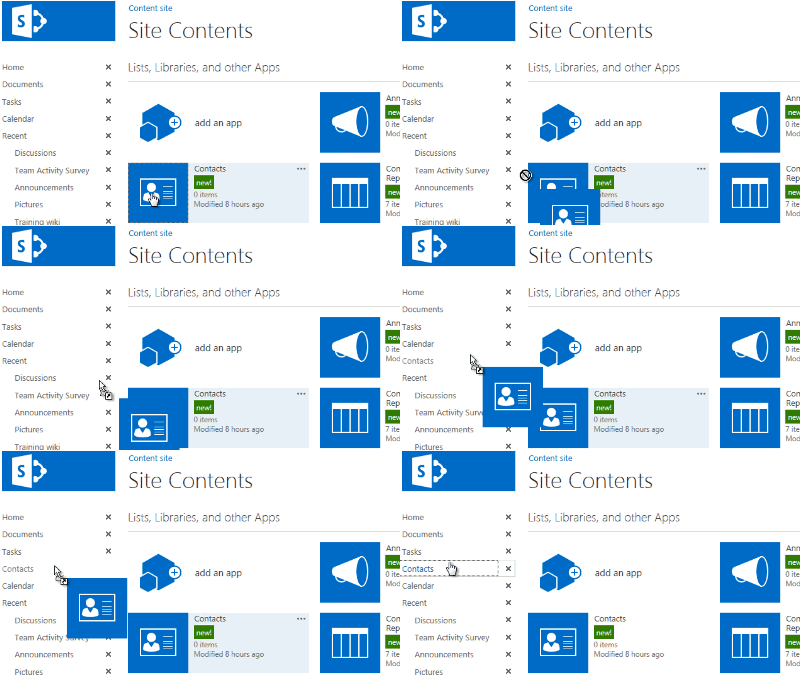
2. You can drag and drop menu items to reorder them. Select the menu item that you want to move, drag it to the new location, then release.
3. When finished customizing the navigation, select Save or, to discard changes, select Cancel .
Create sub links on the menu
This creates an indented link under another link. You can add up to 2 levels of sub links to a vertical menu, a horizontal menu, or to the hub site navigation bar. When adding a sub link, create the link where you want it to appear and then make it a sub link of the one above it.
Vertical menu

Horizontal menu

- Select Edit within the navigational menu.
For a vertical navigation menu, select Edit at the bottom of the menu.
For a horizontal navigation menu, select Edit to the right of the menu.
Note
If you don't see Edit , you might not have permissions to customize the site navigation. You must have at least Manage Lists permissions. Contact the site owner either to get permissions to make the changes yourself or to have the changes made for you.
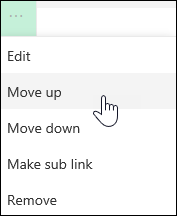
2. Select the ellipses ( ... ) next to the link that you want to make a sub link.
3. Select Make sub link .

4. When finished customizing the navigation, select Save or, to discard changes, select Cancel .
Move a sub link up to a primary link on the menu
This moves an indented link out from under another link.
- Select Edit within the navigational menu.
For a vertical navigation menu, select Edit at the bottom of the menu.
For a horizontal navigation menu, select Edit to the right of the menu.
Note
If you don't see Edit , you might not have permissions to customize the site navigation. You must have at least Manage Lists permissions. Contact the site owner either to get permissions to make the changes yourself or to have the changes made for you.
2. Select the ellipses ( ... ) next to the sub link that you want to promote to a primary link.
3. Select Promote sub link .

4. When finished customizing the navigation, select Save or, to discard changes, select Cancel .
Remove a link from the menu
Note
Some links, such as Recycle Bin are system links and can't be removed.
- Select Edit within the navigational menu.
For a vertical navigation menu, select Edit at the bottom of the menu.
For a horizontal navigation menu, select Edit to the right of the menu.
Note
If you don't see Edit , you might not have permissions to customize the site navigation. You must have at least Manage Lists permissions. Contact the site owner either to get permissions to make the changes yourself or to have the changes made for you.
2. Select the ellipses ( ... ) next to the link that you want to remove.
3. Select Remove .
Note
The Recycle bin link is a system link and can't be removed.
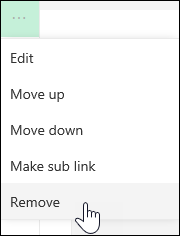
4. When finished customizing the navigation, select Save or, to discard changes, select Cancel .
Show/Hide the navigation menu for a SharePoint in Microsoft 365 team site
If you have owner or admin permissions, you can show or hide the navigation menu for your team site.
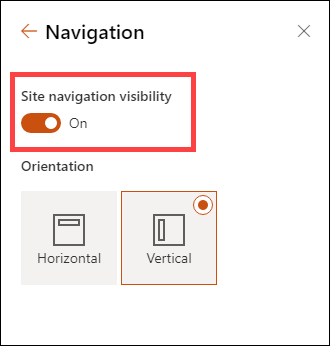
Select Settings , and then select Change the look .

In the Navigation settings, select the toggle to turn Site navigation visibility on or off.
Note
When you disable the Quick Launch panel, you may still see the Recycle bin and the Edit links.
Classic SharePoint experience site navigation
If you've enabled the publishing feature on your classic SharePoint experience site, the vertical menu will show links to modern experience lists or libraries if you've added them to your classic experience site in addition to showing items from the term store. For more information, see Enable managed navigation for a site in SharePoint and Enable publishing features .








Related links
To add links to your page rather than the vertical menu or horizontal menu, see Add a link to a page .
To create new pages that you can link to, see Add a page to a site .
To change colors, background, and how your site looks, see Change the look of your SharePoint site .
To change the name, description, logo, or other site settings, see Change a site's title, description, logo, and site information .
To create a site in SharePoint in Microsoft 365 , see Create a team site in SharePoint or Create a communication site in SharePoint .