
Search and Filter
The Side Panel provides powerful ways to help you find content within that journal. As you search or filter your results will show up in the Side Panel.
You can use the Pages tab
 or the Cards tab
 in the side panel to get different views of your content and search results.
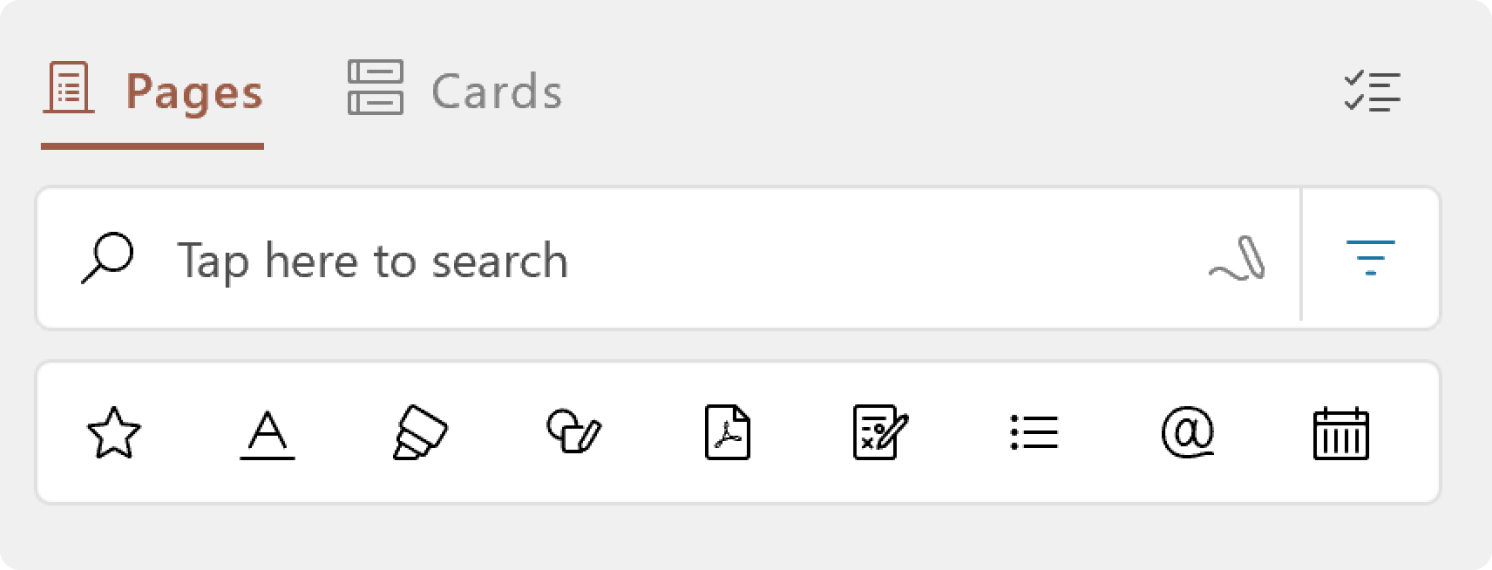
Keyword Search
You can type or write a query to find different types of content you wrote. If you tap the search box with your pen, the search box will grow to give you room to write. You can switch from writing to typing by tapping the pen icon.
Filter based on recognized Ink
| Filter | Description | |
|---|---|---|
| Stars |

|
Content next to a five point star or an asterisk |
| Headings |

|
Any content underlined as a heading. Headings must start at the beginning of a line. |
| Highlighter |

|
Content marked up with the Highlighter Tool |
| Drawings |

|
Content recognized as a drawing |

|
Pages containing an imported PDF | |
| Annotations |

|
PDF pages marked up with ink |
| Lists |

|
Content recognized as list |
Additional filters for Microsoft 365 work and school users who have signed in:
| Filter | Description | |
|---|---|---|
| @Mention |

|
@ mention content added to the page |
| Meetings |

|
Pages created from the Home Screen’s calendar that have the Meeting Header. |