Verfügbar in der Office Mobile App (Microsoft 365) unter Android und iOS.
Sie können in Bildern verfügbaren Text mit der Office Mobile-App (Microsoft 365) übersetzen. Die Office Mobile-App ermöglicht die Übersetzung von in Bildern vorhandenem Text von einer Sprache in eine andere bevorzugte Sprache mithilfe von Deep-Scan. Sie können auch Aktionen wie Kopieren, Freigeben und Suchen in diesem übersetzten Text ausführen.
Diese Aktion ist als Teil der Deep-Scan-Intelligenz verfügbar, die Text und visuelle Inhalte in Bildern hervorhebt, damit Benutzer sie kopieren, freigeben, speichern und vieles mehr können. Tippen Sie einfach auf die gewünschte Aktion und verwenden Sie die Inhalte nahtlos wieder!
Wo ist diese Erfahrung in der Office Mobile App (Microsoft 365) verfügbar?
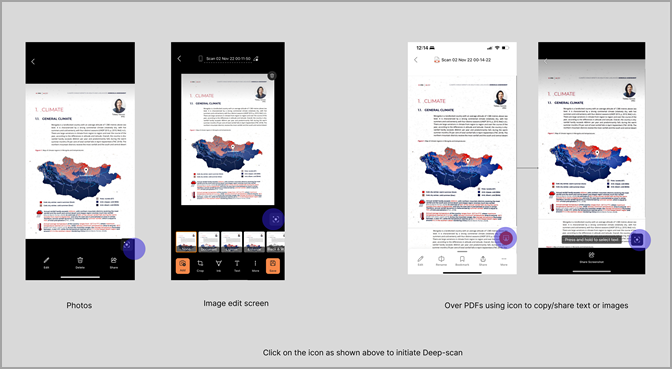
Translate ist als Teil des Deep-Scans verfügbar, der in den folgenden Szenarien verfügbar ist:
- Über vorhandenen Bildern
- Livekamerabildschirm
- Bildbearbeitungsbildschirm (Bildschirm, der nach einer neuen Bilderfassung angezeigt wird)
- Über PDFs mit dem Symbol zum Kopieren/Teilen von Text oder Bildern

Wie kann ich die Übersetzung über Bilder starten?
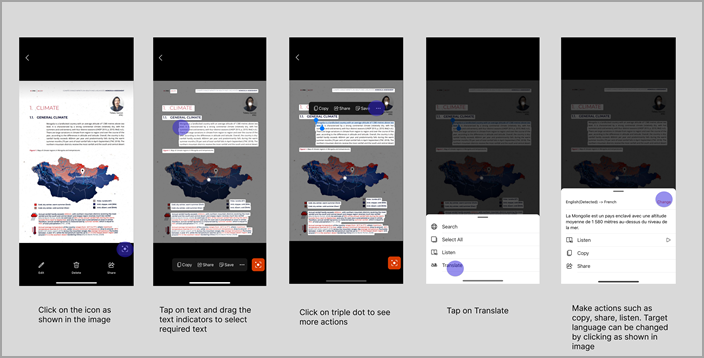
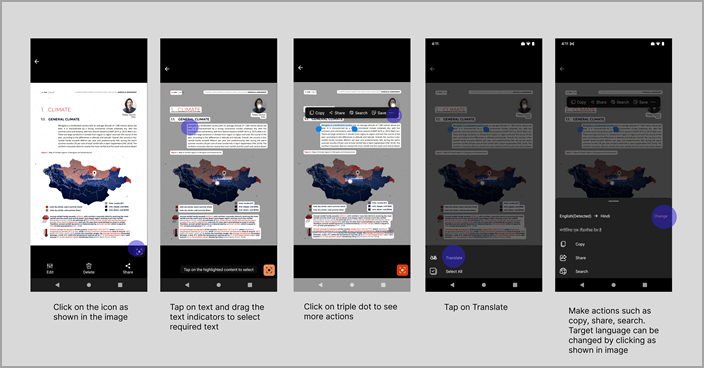
- Starten Sie den Deep-Scan-Flow, indem Sie auf dieses Symbol
 über Bilder.
 - Tippen Sie auf Text und wählen Sie den gewünschten Textbereich aus, den Sie übersetzen möchten.
- Eine Reihe verfügbarer Aktionen wird angezeigt. Tippen Sie auf Übersetzen. Wenn Sie "Übersetzen" nicht im Voraus sehen können, tippen Sie auf
 , Übersetzen sollte jetzt sichtbar sein.
 - Konvertieren Sie den Text aus den unterstützten Sprachen in die gewünschte Sprache. Sie können die Zielsprache ändern, indem Sie auf Ändern klicken.
- Führen Sie Aktionen wie Kopieren, Freigeben und Suchen im übersetzten Text aus.
Tipp
Um optimale Ergebnisse zu erzielen, verwenden Sie ein Bild mit guter Auflösung und klarer und einfacher Schriftart.
Office Mobile App (Microsoft 365) jetzt herunterladen: Für Android herunterladen.