
Schedule a calendar event or meeting
- Select the Calendar
 .
. - Select New event.
- Enter the details, location, start time and end time.
- If this is a meeting, add the names or email addresses of the people you want to invite.
Select Scheduling Assistant to see free/busy times for each user (Exchange users). The horizontal bar that denotes the selected time will be blue and attendee availability will be listed under each attendee's names for the times you select. This can be especially helpful if attendees are in different time zones.
You can send the event from the Scheduling Assistant view, or return to the Event to edit more meeting details. - To make this a recurring meeting, select Make recurring, and choose how often.

- Select Save or Send.

Send an automatic reply (Out of Office message)
- Select Settings
 > Accounts > Automatic replies.
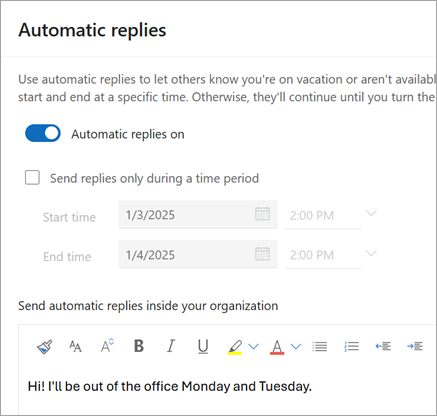
 - Select Turn on automatic replies.
- If you have specific times you want the automatic replies to run, select Send replies only during a time period and enter the Start time and End time.
- Type your reply.
- Select Save.
Scheduling Assistant visual updates
We have updated the Scheduling Assistant to help you better visualize meeting schedules in the new Microsoft Outlook for Windows and Web. Learn about these feature and other updates on the Microsoft 365 Roadmap.