
Edit in DAX Copilot for Dragon Medical One
Recording a patient encounter is done via DAX Copilot on your mobile device. The choice of where to edit your notes is determined by your workflow and personal preferences.
- Mobile App: Some clinicians opt to perform preliminary edits using the mobile application. Learn how to edit on the mobile app.
- Desktop: Others prefer the desktop application for its convenience, utilizing a keyboard, mouse, and voice commands. Learn how to edit on the desktop app.
- EHR: Some clinicians choose to edit directly in the note within the Electronic Health Record (EHR) system.
Many clinicians use a combination of these methods. As you gain experience, you'll find the workflow that best fits your needs.
Note
The mobile app automatically syncs with the desktop app. This ensures that any edits made in one are reflected in the other.
Microphone management
Use dictation, Dragon Medical One voice commands, mouse, or keyboard to edit summaries. Any microphone connected to Dragon Medical One will work to edit a summary in DAX Copilot.
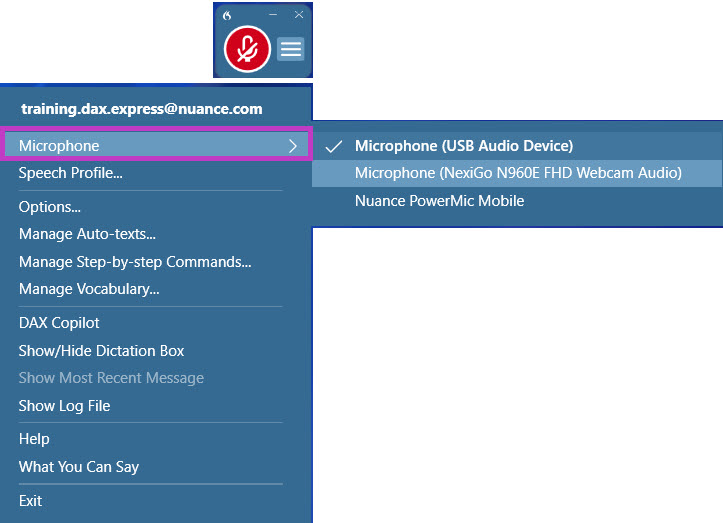
Need to switch microphones?
Open the DragonBar menu, select Microphone, and choose your preferred device from the list.
Voice Commands for editing in DAX Copilot
You can use Dragon Medical One voice commands while editing.
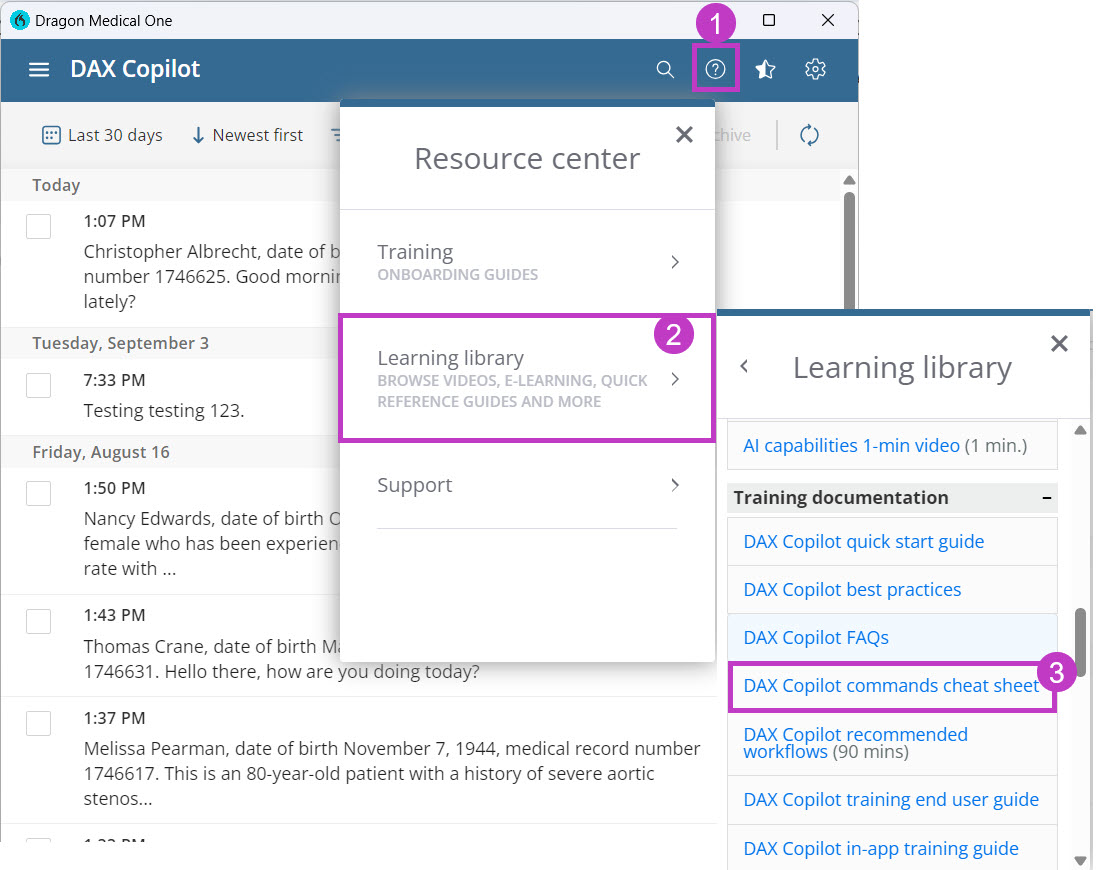
To see a list of all available commands, say "what can I say", OR:
- Navigate to the Resource Center,
- Choose Learning Library.
- Select DAX Copilot commands cheat sheet.
Popular commands available in both the mobile and desktop apps.
| Say this... | To do this... |
|---|---|
| Next section | Jump to the next note section |
| Previous section | Jump to the previous note section |
| Go to [SECTION] (Ex: Go to social history, Go to allergies, Go to review of systems) |
Jump to the stated section within the note |
| Go to end of paragraph | Navigates to the end of the paragraph with the cursor focus (after the punctuation mark) |
| Select [TEXT] | Select the word or phrase spoken |
| Select [TEXT] through [TEXT] | Select the specified text |
| Delete that | Delete the selected text |
| Scratch that | Deletes the last word or phrase spoken |
| New paragraph | Begin a new paragraph |
| Cap that | Capitalizes the first letter of each selected word or all words of the last thing you said |
| All caps that | Formats the selected text or the last thing you said as all capital letters |
| What can I say? | List of available content and commands in DMO. |
Additional Dragon Medical One resources
Dictation and microphone best practices
Related topics
How to edit in the DAX Copilot desktop application
How to edit in the DAX Copilot mobile application
How to record an encounter in DAX Copilot for Dragon Medical One