
Surface Pro 12-inch features
Get to know the Surface Pro 12-inch, and all the latest features and capabilities of a Copilot+ PC.
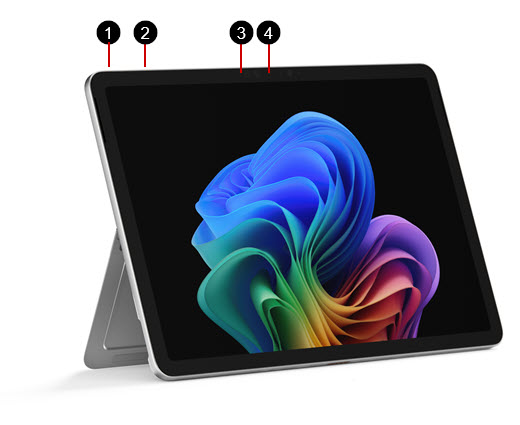
1. Power button
2. Volume
3. Windows Hello camera
4. Front-facing camera
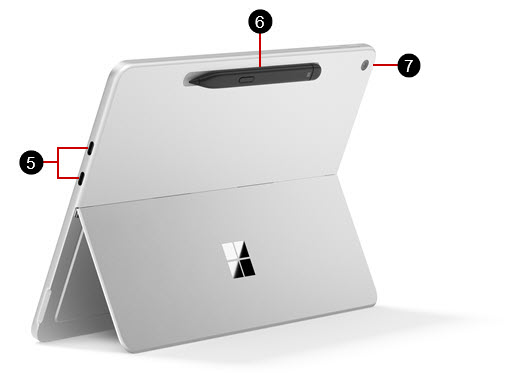
5. Two USB-C / USB 3.2 ports
6. Surface Slim Pen storage and charging (pen sold separately)
7. Rear camera
Available to purchase from the Microsoft Store and other retailers.
Charging your Surface
Charge your device using either USB-C port with a USB Type-C PD charger.
For best performance, we recommend using a USB-C PD charger that provides at least 27W. If you connect a lower-wattage charger, your device may charge slowly or not at all.
For Fast Charging, use a charger that provides at least 45W. With Fast Charging, you can charge your battery up to 80% in about an hour.
We recommend using the Surface 45W USB-C Wall Charger.
To learn more about charging your device, see USB-C and Fast Charging for Surface.
Connect a Surface Pro 12-inch Keyboard
To use your Surface Pro 12-inch like a traditional laptop, connect a Surface Pro 12-inch Keyboard. (Keyboard sold separately.)
- Bring the bottom edge of your Surface Pro close to the top edge of the keyboard until the magnets click into place.
Note
The Surface Pro 12-inch is compatible with the Surface Pro 12-inch Keyboard. Other Surface Pro Keyboards, including the Surface Pro 13-inch Keyboard with pen storage and the Surface Pro 13-inch Flex Keyboard are not compatible with Surface Pro 12-inch. Learn more about Surface Pro Keyboards and Type Covers.
A more repairable device design
Many components can be replaced by authorized service providers or skilled technicians — supporting a more repairable device design. Replacement components are available for out-of-warranty repair. Availability and service options may vary by product, market, and over time.
To learn more, see Self-repair information for your Surface device.