
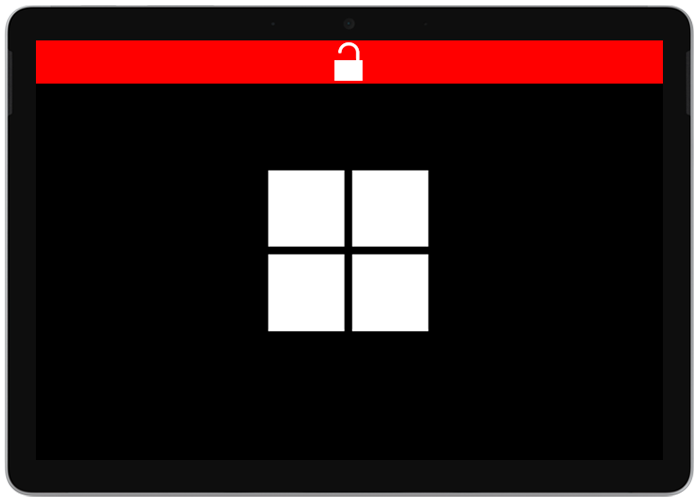
Surface turns on but shows a red bar and an unlocked lock icon
What you see
A red bar across the top of your screen that shows an unlocked lock icon.
If you see this screen, Secure Boot is turned off. Secure Boot is an important security feature designed to prevent malicious software from loading when your PC starts up (boots).
Use the solution below to turn on Secure Boot.
Solution: Turn on Secure Boot
To turn on Secure Boot to help make your Surface more secure:
- Shut down your Surface and wait about 10 seconds to make sure it's off.
- Press and hold the volume-up button on your Surface, and, at the same time, press and release the power button.
- The Microsoft or Surface logo appears on your screen. Continue to hold the volume-up button until the UEFI screen appears.
- Select Security.
- Under Secure Boot, select Change Configuration.
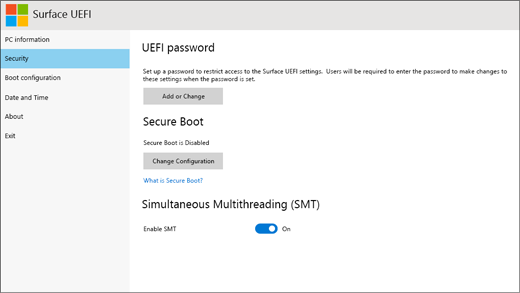
- Select a Secure Boot certificate keyset (for example, Microsoft only).
- Select Exit > Restart now to save your changes and restart your Surface.
For more help on using Surface UEFI, view How to use Surface UEFI