
DAX Copilot mobile app overview
Use the PowerMic Mobile app with DAX Copilot to record patient encounters. You can also use the app to edit a note while you're on the go.
Note
The PowerMic Mobile app with DAX Copilot is also known as the DAX Copilot mobile app or mobile app.
Steps to launch the mobile app
Step 1: Open PowerMic Mobile. On first sign-in, you see a region selector with two options:
- United States of America
- United Kingdom
Note
This selector appears only once unless you uninstall and reinstall the app.

Step 2: Use your credentials to sign in.
Note
Depending on your organization's security settings, multifactor authentication might be required.
Step 3: Select DAX Copilot.
Note
If you have the appropriate licenses, you can switch between DAX and PowerMic Mobile by using the icon at the bottom.
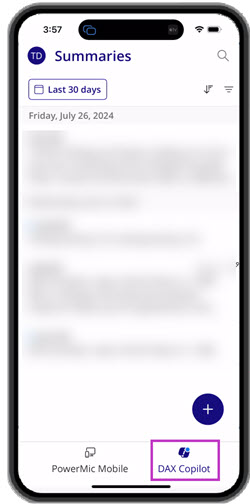
Your summaries list
DAX Copilot opens to the Summaries page, which shows a list of your patient encounters.
Note
This list stays empty until you record your first encounter or archive all summaries.
On the Summaries page, you can:
- Review a summary: Select an encounter from the list and tap to open it.
- Create a new summary: Select the
 button to start a new encounter.
How to navigate the DAX Copilot window
Settings
Select your initials to access app options and support details.
Calendar
View summaries from the past 3, 7, or 30 days.
Note
Summaries are unavailable after 30 days.
Unread Summary
A dot next to the timestamp indicates it hasn't been opened.
Search
Select the  icon to search summaries using the first 150 characters of the transcript.
Filter
Select the  icon to filter summaries by status (Unread, Read, Edited, or Archived).
Note
To include archived summaries in the default view, enable the toggle switch.
Sort
Select the
 icon to arrange summaries by newest or oldest.
Create Encounter
Select the
button to start a new encounter.

How to change a summary's status
DAX Copilot mobile and DAX Copilot desktop synchronize status updates when both applications are online.
- Swipe left: Swipe an item to the left to archive a summary. You can't edit archived summaries, but you can still view them.
- Swipe right: Swipe an item to the right to mark a summary as read or unread.
The summary tab
The summary tab displays the AI-generated summary from your recorded conversation. Scroll to read the full content of the summary.
- Go Back: Select the
 icon at the top to return to the Summaries list.
 - Edit: Select the Edit button to modify the summary.
[!TIPS]
- Once you start editing, you can't add more recordings to that encounter.
- Editing is often easier in the desktop app.
- Add Recording: Select the
 icon to add another recording to the encounter.

The Transcript tab
The transcript tab shows the text of your recorded conversation. Each time you add a recording to the encounter, the transcript updates with more text.
