The FLATTEN function simplifies a nested array (an array of arrays) by replacing its inner arrays with their contents.
Syntax
The FLATTEN function removes one or more inner layers of nesting from array.
The syntax of the FLATTEN function is:
FLATTEN(array, [pad_value], [levels])
| Argument | Description |
|---|---|
| array (required) |
The nested array, or the reference to a cell or range containing the nested array, that you want to flatten. |
| pad_value | The value used to fill empty positions when flattening produces a non-rectangular result. By default, empty positions are filled with the #N/A error. |
| levels | The number of layers to remove from inside the array. By default, one layer is removed. Enter 0 to remove every layer of nesting. |
Note
- FLATTEN has no effect on values that aren't arrays.
=FLATTEN(42)returns42. - If levels is greater than the number of layers in the array, every layer is removed
Examples
Copy the example data and paste it in cell A1 of a new Excel worksheet. If you need to, you can adjust the column widths to see all the data.
Example 1
Spread a column of nested arrays out into a grid. Each cell in column A holds a nested row of three values.
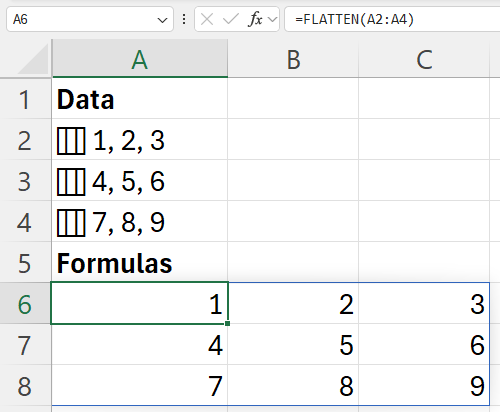
Copy the entire table and paste it into cell A1 of a new worksheet. The FLATTEN formula lands in A6 and spills a flat 3 by 3 grid into A6:C8.
| Data |
|---|
| ={{1,2,3}} |
| ={{4,5,6}} |
| ={{7,8,9}} |
| Formulas |
| =FLATTEN(A2:A4) |
The following illustration shows the result.
Example 2
Fill the gaps when the nested arrays are different sizes. Each cell in column A holds a nested row, but the two rows aren't the same length.
| Data |
|---|
| ={{1,2,3}} |
| ={{4,5}} |
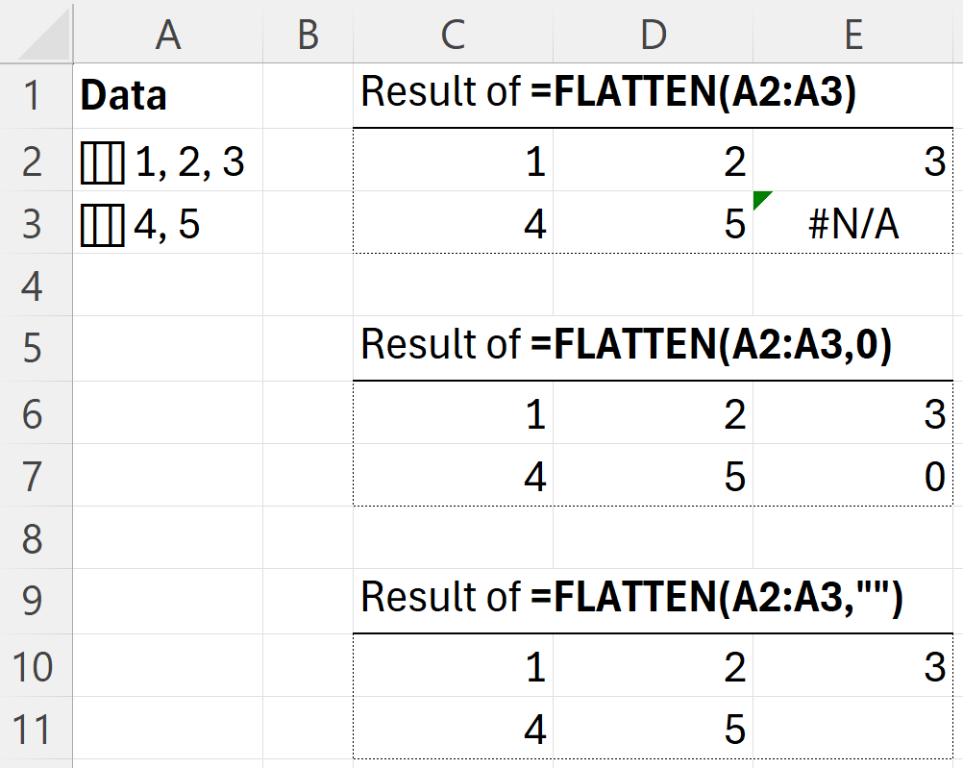
Flattening them produces a jagged result. Excel arrays must be rectangular, so the missing position is filled in — with the #N/A error by default, or with the value you supply in pad_value.
Because each result spills, enter the formulas in cells with two empty rows and three empty columns available.
=FLATTEN(A2:A3) returns #N/A in the empty cell (the default).
=FLATTEN(A2:A3,0) returns 0 in the empty cell.
=FLATTEN(A2:A3,"") returns empty text in the empty cell.
The following illustration shows the results.