

When you create an array formula in Excel, you can use values from worksheet cells or enter values directly in the formula as an array constant. An array constant is a set of values enclosed in braces ({}). You can also name an array constant so that it’s easier to reuse.
In versions of Excel that support dynamic arrays, enter an array formula in one cell and press Enter. If your version of Excel doesn’t support dynamic arrays, select the output range, enter the formula, and then press Ctrl+Shift+Enter.
You can use constants in your array formulas or by themselves.
In your array formula, type an opening brace, the values you want, and a closing brace. Here's an example:
=SUM(A1:E1*{1,2,3,4,5})
The array constant is enclosed in braces ({}), which you enter manually.Enter the rest of your formula and press Enter.
Note
If your version of Excel doesn't support dynamic arrays, press Ctrl+Shift+Enter. For legacy array formulas, Excel displays the formula with braces around it, as shown here:
{=SUM(A1:E1*{1,2,3,4,5})}The results look like this:
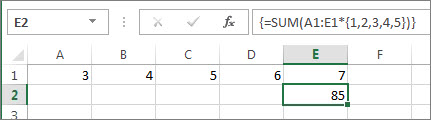
The formula multiplies A1 by 1 and B1 by 2, and so on, saving you from having to put 1,2,3,4,5 in cells on the worksheet.
Use a constant to enter values in a column
To enter values in a single column, such as three cells in column C, you:
Select a blank cell.
Enter an equal sign and your constant. Separate the values in the constant with semicolons, not commas. If you're entering text, surround it with double quotes. For example:
={"Quarter 1";"Quarter 2";"Quarter 3"}Press Enter. The values spill into the cells below the formula.
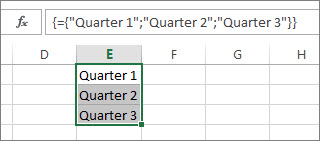
This is a one-dimensional vertical array constant.
Note
If your version of Excel doesn't support dynamic arrays, first select the output range, enter the constant, and then press Ctrl+Shift+Enter.
Use a constant to enter values in a row
To quickly enter values in a single row, such as cells F1, G1, and H1, you:
Select a blank cell.
Enter an equal sign and your constant, but this time separate the values with commas, not semicolons. For example: ={1,2,3,4,5}
Press Enter. The values spill into the cells to the right of the formula.
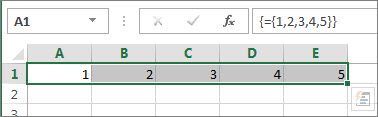
This is a one-dimensional horizontal array constant.
Note
If your version of Excel doesn't support dynamic arrays, first select the output range, enter the constant, and then press Ctrl+Shift+Enter.
Use a constant to enter values in multiple columns and rows
Select a blank cell.
Enter an equal sign and your constant. In this case, separate the values in each row with commas, and use a semicolon at the end of each row. For example:
={1,2,3,4;5,6,7,8;9,10,11,12}Press Enter. The values spill into three rows and four columns.
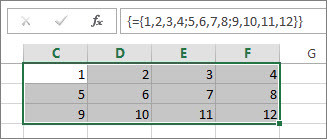
This is a two-dimensional array constant because it fills columns and rows. You can't create a three-dimensional array constant or nest an array constant inside another one.
Note
If your version of Excel doesn't support dynamic arrays, first select an output range with the same number of rows and columns as the array constant. Enter the constant, and then press Ctrl+Shift+Enter.
Use a constant in a formula
Now that you're familiar with array constants, here's a working example.
- In cell A3, enter (or copy and paste) the following formula, and then press Enter:
=SUM(A1:E1*{1,2,3,4,5})
The formula returns 85.
The formula multiplies the value in A1 by 1, the value in B1 by 2, and so on. The SUM function then adds the results. You could also enter the formula as =SUM(A1*1,B1*2,C1*3,D1*4,E1*5)
You can also enter both sets of values as array constants:
=SUM({3,4,5,6,7}*{1,2,3,4,5})
To try this, copy the formula, select a blank cell, paste the formula into the formula bar, and then press Enter. The formula returns the same result.
Note
Look for these problems if your constants don't work:
- Make sure you separate your values with the proper character. If you omit a comma or semicolon, or if you put one in the wrong place, the array constant might not look right or you might see a warning message.
- If you're using a legacy Ctrl+Shift+Enter array formula, make sure that the selected output range has the same number of rows and columns as the array constant. If the selected range is too large, Excel returns #N/A in the extra cells. If it's too small, Excel omits values that don't have a corresponding cell.
- For more about array formulas: