DAX Copilot for Epic helps you document patient encounters, review clinical information, and complete follow-up tasks. This article introduces the DAX Copilot experience and explains where to find the tools and information you use every day.
DAX Copilot terms
Before you get started, familiarize yourself with a few common DAX Copilot terms.
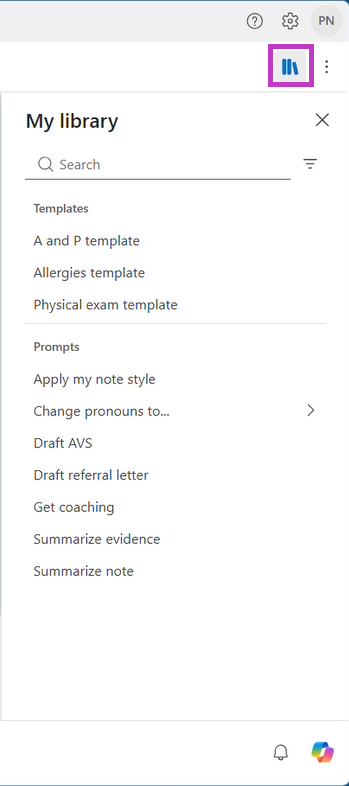
- Library: Apply a note section template or launch an AI action.
- Note: Clinical summary of your patient visit.
- Transcript: Written version of the conversation between you and the patient.
Tip
DAX Copilot organizes information around the patient, making it easier to review patient interactions, notes, transcripts, and supporting information.
Workspace icons
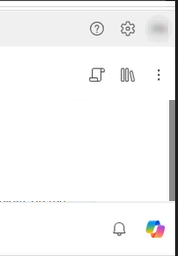
The DAX Copilot toolbar provides access to commonly used tools and settings.
Depending on your environment and permissions, you might see icons similar to the following icons:
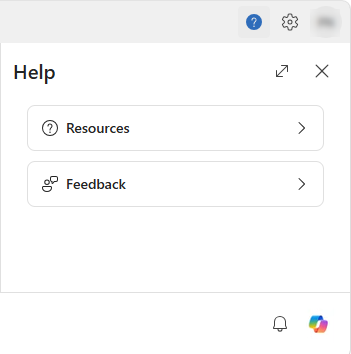
 Help: Access resources, training materials, and support information. Provide feedback.
 Settings: Configure DAX Copilot preferences and settings.
 Session options: Access the Session details to add patient details, such as the patient name, date of birth, unique identifier, and more. This information displays in the patient header.
 Transcript: Show or hide the patient transcript.
 Library: Apply a note section template or launch an AI action.
 Notifications: Review important updates and alerts related to the current patient session.
 Copilot: View results from applied AI actions.
Resources and feedback
The Help menu provides access to learning resources, product support information, and feedback options. Use it to find helpful content and share feedback about your DAX Copilot experience.
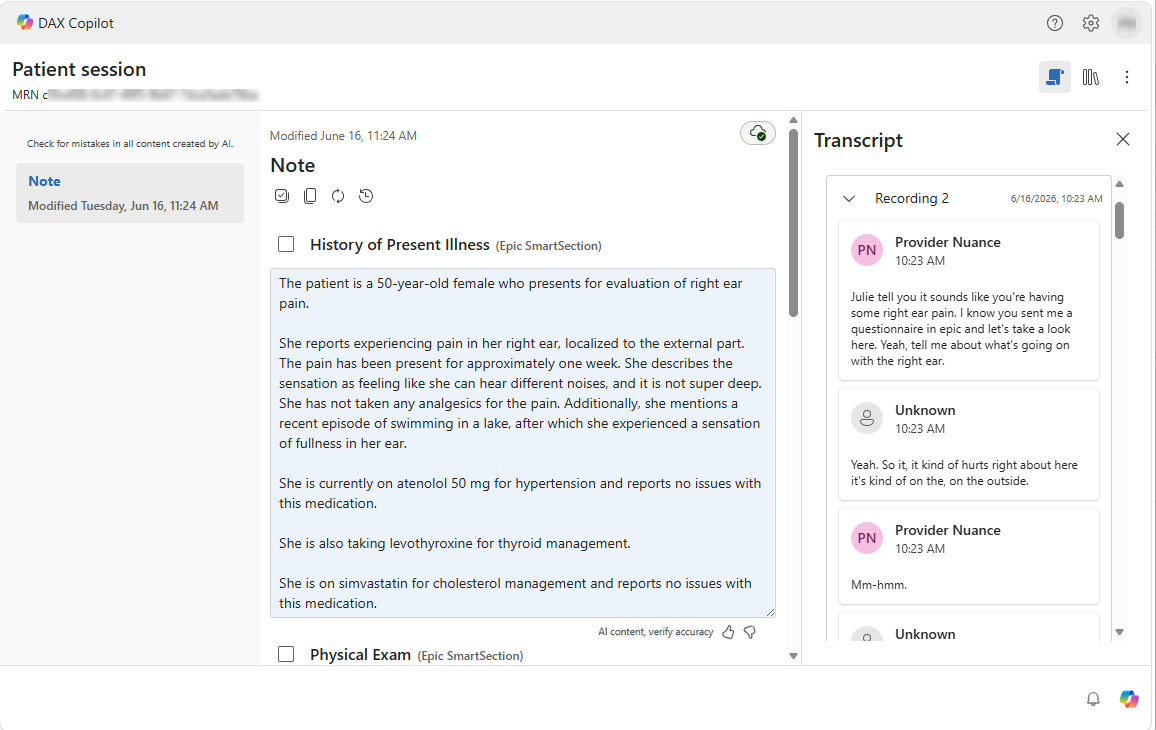
Overview of the patient session
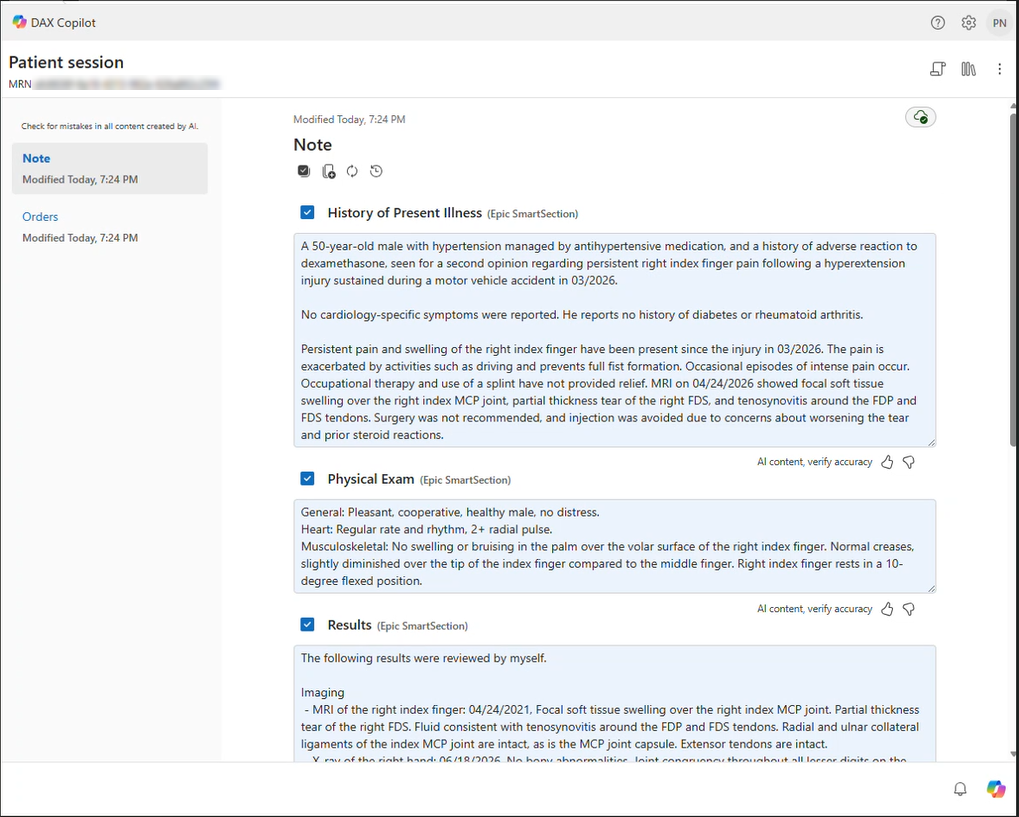
The patient session brings together information related to a patient in a single workspace, making it easier to review documentation, transcripts, and other patient-specific information.
Patient header
The patient header displays the name of the patient session, which includes any patient details that you fill in the
Session details.
Note
The note is one of the primary documents generated during your session. It includes AI-generated clinical documentation and any edits you make.
Transcript
The Transcript contains a written version of the recorded conversation. Each ambient recording generates its own transcript, so you can select and review each transcript individually.
Review the transcript to verify information and better understand how note content was generated.
My library
Access My library within a patient session by selecting the Library icon
. From here, you can apply a note section template to the supported note sections (Allergies, Physical Exam, and Assessment and Plan) or launch an AI action.