If you have a lot of contacts, the list can get a bit overwhelming. Changing how you sort your contacts, setting up favorites, and creating contact lists can help you find who you need.
Note
If the steps under this New Outlook tab don't work, you might not be using new Outlook for Windows yet. Select Classic Outlook and follow those steps instead.
In new Outlook, you can:
Sort contacts | Add a contact to favorites | Categorize your contacts | Add people in your organization
You can sort your contacts in the
 People tab by First Name, Last Name, Company, or Recently Added. In the main pane, select the current Sort by option dropdown, then change how you sort your contacts.
To change the sort order, in the main pane use the Sort by dropdown. If you select Sort by > Last Name, you can change the sort order to A to Z. If you select Sort by > Recently Added, you can sort New to Old. The app automatically saves your preferred view.
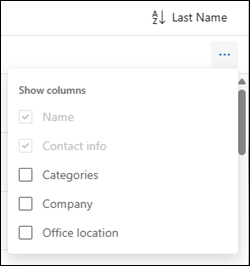
You can add or remove columns to the main pane for Your contacts by selecting the Manage column view button:
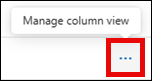
Then selecting the columns you want to add or remove:
- On the navigation bar in new Outlook, select
People.
- From your contact list, select the contact you want to add to your Favorites.
- Right-click the contact and select Add to favorites, or select Add to favorites from the Ribbon. You can remove a contact from favorites at any time.
Use categories to organize your contacts. Create contact categories with custom names and colors, then assign any of your contacts so you can find and group them more easily. You can organize contacts grouped under any category by selecting the appropriate category in the side navigation.
- On the navigation bar in new Outlook, select
People.
- Right-click the contact you want to add to a new or existing category.
- Hover over Add category, then under Create or find a category, Type a category name to either Create the new category or find and select an existing one.
- The contact is added to the category.
- On the navigation bar in new Outlook, select
People.
- Right-click the contact you want to clear categories for.
- Hover over Add category, and then select Clear categories.
To rename a category:
- On the navigation bar in new Outlook, select
People.
- Select the category you want to rename from the side navigation.
- Select the More options for Category name ... button next to the category name.
- Hover over Edit, then under Edit Category, rename the category or choose a new color.
- Select Save.
To delete a category:
- On the navigation bar in new Outlook, select
People.
- Select the category you want to delete from the side navigation.
- Select the More options for Category name ... button next to the category name.
- Select Delete, and then select Delete again to confirm. Deleting the category doesn't delete the contacts in that category.
If you're using new Outlook at work or school and your organization has a directory set up, you can view information about your colleagues without saving them as contacts. You can search for them or select their name or picture from an email message. Their profile card shows information collected from other systems (directory). If you want to add other information, such as notes or birthdays, save your colleagues to your own contacts. The new contact is auto-linked to the existing directory contact. Only you have the information you add.
In classic Outlook, you can:
Sort contacts | Add a contact to favorites | Change the format of contact names | Categorize your contacts
You can sort your contacts by the first or last name, company, home city, and more.
- On the navigation bar in classic Outlook, select
 People.
- Select the View tab from the ribbon. In the Current View group, select View Settings.
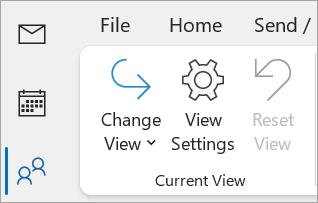
- Select the Sort button. In the Sort items by dropdown, choose how you want to sort your contacts.
- When you're finished, select OK, and OK again.
- On the navigation bar in classic Outlook, select
People.
- From your contact list, select the contact you want to add to your Favorites.
- Right-click the contact and select Add to favorites, or select
 View more options for interacting with this person, and then select Add to Favorites. You can remove them from favorites at any time.
Note
If your email is a work or school account and uses Microsoft 365 or is on an on-premises Exchange server, you can change the name format for your contacts in the main Outlook contact list and any contact folders you create, but you can't change the name format for people in the Global Address List (GAL). An IT admin automatically sets up and manages this address book.
Your contacts might not all be formatted the same way, which can mean they don't show up as expected when you sort using the File As column. For example, some might be filed as First name, Last name while others might be filed as Last name, First name. If your contacts aren't being sorted the way you want them to, try the following steps:
- In classic Outlook, click File > Account Settings > Account Settings.
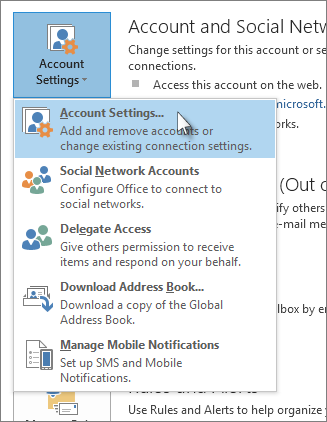
- On the Address Books tab, select the address book you want to change the name format for, and then click Change.
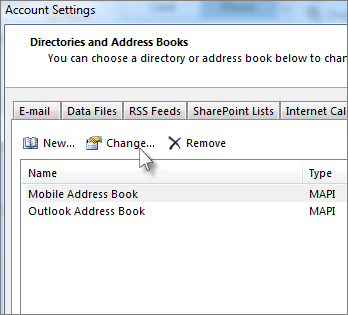
- Under Show names by, select File As (Smith, John).
- On the navigation bar in classic Outlook, select
People.
- Right-click the contact you want and hover over Categorize.
- Select a color or select All Categories. You also have the option to change the name of the category.
For more information, go to Organize your contacts with color categories
In Outlook on the web or Outlook.com, you can:
Sort contacts | Add a contact to favorites | Categorize your contacts
You can sort your contacts in the
People tab by First Name, Last Name, Company, or Recently Added. To change how your contacts are sorted, select the current Sort by option dropdown, then change how your contacts are sorted.
To change the sort order, use the Sort by dropdown. If you select Sort by > Last Name, you can change the sort order to A to Z. If you select Sort by > Recently Added, you can sort New to Old. The portal automatically saves your preferred view.
You can add or remove columns to the main pane for Your contacts by selecting the Manage column view button:
Then selecting the columns you want to add or remove:
- On the navigation bar, select
People.
- From your contact list, select the contact you want to add to your Favorites.
- Right-click the contact and select Add to favorites or select Add to favorites from the Ribbon. You can remove a contact from favorites at any time.
Use categories to organize your contacts. Create contact categories with custom names and colors, then assign any of your contacts so you can find and group them more easily. You can organize contacts grouped under any category by selecting the appropriate category in the side navigation.
- On the navigation bar in Outlook on the web or Outlook.com, select
People.
- Right-click the contact you want to add to a new or existing category.
- Hover over Add category, then under Create or find a category, Type a category name to either Create the new category or find and select an existing one.
- Your contact is added to the category.
To clear all categories:
- On the navigation bar in Outlook on the web or Outlook.com, select
People.
- Right-click the contact you want to add to a new or existing category.
- Hover over Add category, then select Clear categories.
To rename a category:
- On the navigation bar in Outlook on the web or Outlook.com, select
People.
- Select the category you want to rename from the side navigation.
- Select the More options for Category name ... button next to the category name.
- Hover over Edit, and then under Edit Category, rename the category or choose a new color.
- Select Save.
To delete a category:
- On the navigation bar in Outlook on the web or Outlook.com, select
People.
- Select the category you want to delete from the side navigation.
- Select the More options for Category name ... button next to the category name.
- Select Delete, and then select Delete again to confirm. Deleting the category doesn't delete the contacts in that category.


