

Note
If you don't see Copilot in Word, Excel, PowerPoint, or OneNote, it might not be included with your Microsoft 365 subscription or available based on your organization's settings. Learn which Copilot license you have.
Last updated: October 2026
Start a new presentation in PowerPoint.
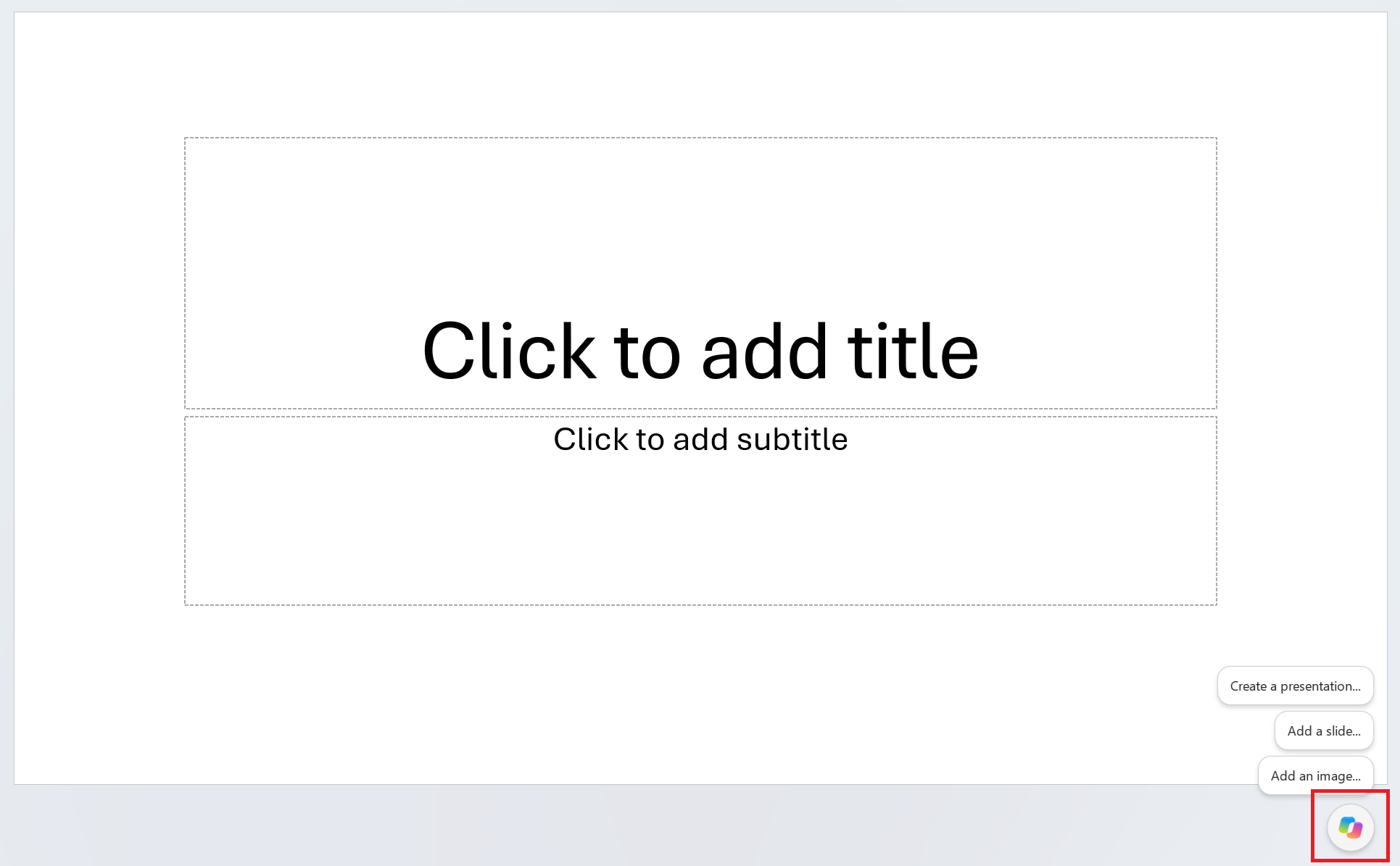
Open Copilot Chat using the Copilot icon at the bottom-right corner of the screen.
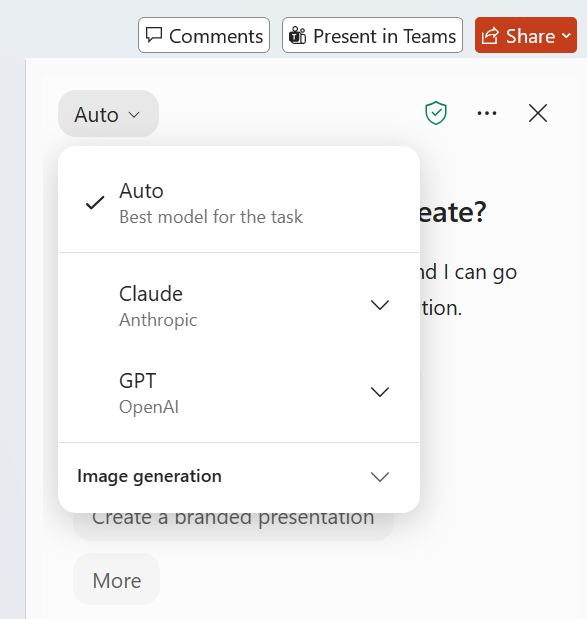
If you want, choose an AI model from the model selector, or leave it set to Auto.
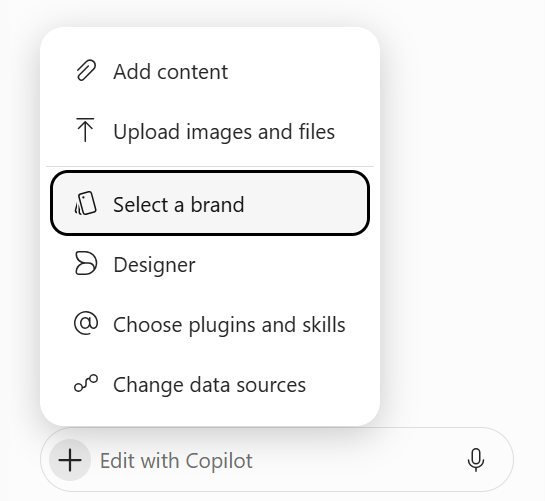
If your organization requires a Brand Kit, in Select brand, choose the Brand Kit you want Copilot to use for the presentation. If you're a consumer, your organization doesn't require a Brand Kit, or your organization hasn't created one yet, you can skip this step.
If you selected a Brand Kit, you'll see it attached to the prompt box.
If you need to create or update a Brand Kit first, select Manage kits, add or update brand assets such as logos, templates, fonts, colors, images, icons, brand voice, style, and skills, then select Publish Brand Kit to make it available in Copilot. See Create and manage official Brand Kits in Microsoft Copilot for details.
In the prompt box, describe the presentation you want Copilot to create. For examples, see Edit with Copilot in PowerPoint.
Copilot may ask clarifying questions, such as who the audience is, how long the deck should be, which template or design direction to use, and what kind of imagery to include. Answer the questions or skip them and let Copilot decide.
Copilot will gather context, generate content, and use your selected template to create the presentation. If you selected a Brand Kit, Copilot also applies it.
Best practices when creating a presentation from a Word document
Leverage Word Styles to help Copilot understand the structure of your document
By using Styles in Word to organize your document, Copilot will better understand your source document structure and how to break it up into slides of a presentation.
Include images that are relevant to your presentation
When creating a presentation, Copilot will try to incorporate any images found in your Word document.
Start with your organization's template
If your organization uses a standard presentation template, start with this file before creating a presentation with Copilot. Starting with a template will let Copilot know that you'd like to retain the presentation's theme and design. Copilot will use existing layouts to build a presentation for you. Learn more about making your presentations look great with Copilot in PowerPoint.
Tip
Copilot works best with Word documents that are smaller than 24 MB.