

Important
Upgrades are coming mid-November 2026 to agents in SharePoint. Learn more in Upgrade agents in SharePoint.
Agents help you quickly get information tailored to your project, team, and tasks. When you're on a SharePoint site, you can choose an agent, grab a share link, and share it in Teams (or any other Microsoft 365 app). By using these agents, you can interact with SharePoint-based knowledge through simple @mentions, so you can quickly access summaries, answers, and file discovery without leaving the Teams environment.
Note
The agent responds based on the permissions of the person asking the question. When you share an agent with others, they can only access the sources for which they have permissions. The permissions for the sites, pages, and files included in the agent don't automatically adjust when you share the agent. Therefore, you might need to update the sharing permissions on the agent's resources to ensure others can fully use the agent.
Before you begin
You need access to the custom agent in SharePoint and permission to use its knowledge sources. Recipients also need access to the agent and its sources. Agents don't respond in a group chat or channel that includes external or guest users.
Add an agent to a Teams chat or channel
You can add an agent to Teams chat or channel for your teammates to use.
Sign in to SharePoint with your work account.
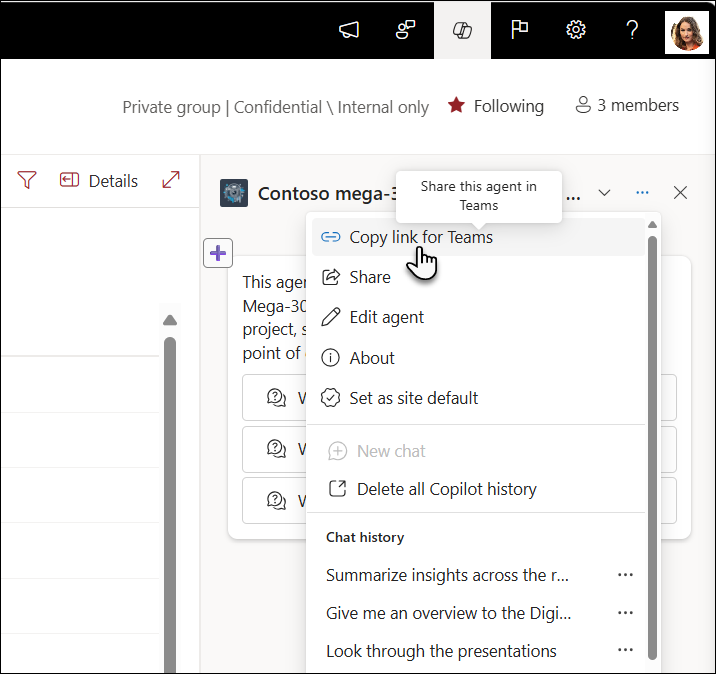
On a site, page, or document library, select the Agent icon in the upper-right corner, and then select the custom agent that you want to share.
Select the ellipsis, and then select Copy link for Teams.
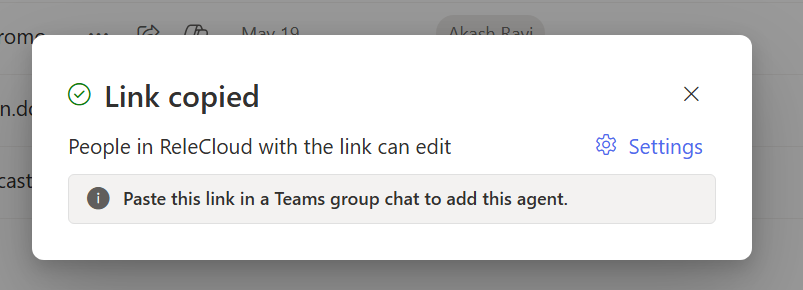
In the Link copied dialog, select Settings in the upper-right corner to adjust who can access the agent through the link.
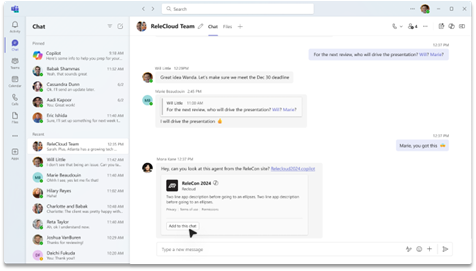
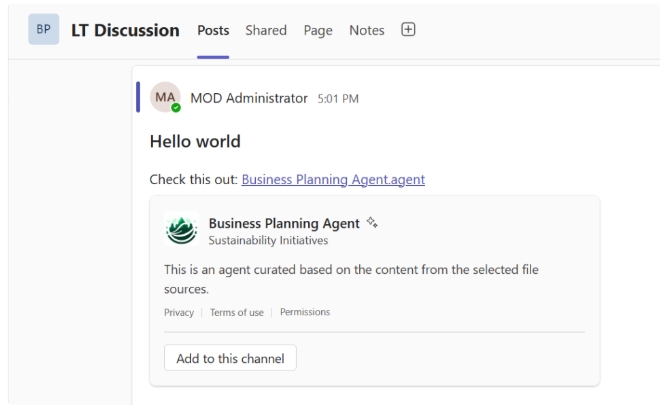
Send the link in a Teams group chat, meeting chat, or channel. When prompted, add the agent to the conversation.
Note
If you don't select Add to this chat/channel, the URL is still visible to group members, but users can't interact with the agent in the chat. Agents refuse to answer if external or guest users are part of the group chat or channel.
After the agent introduces itself and displays its starter prompts, @mention the agent to ask a question.
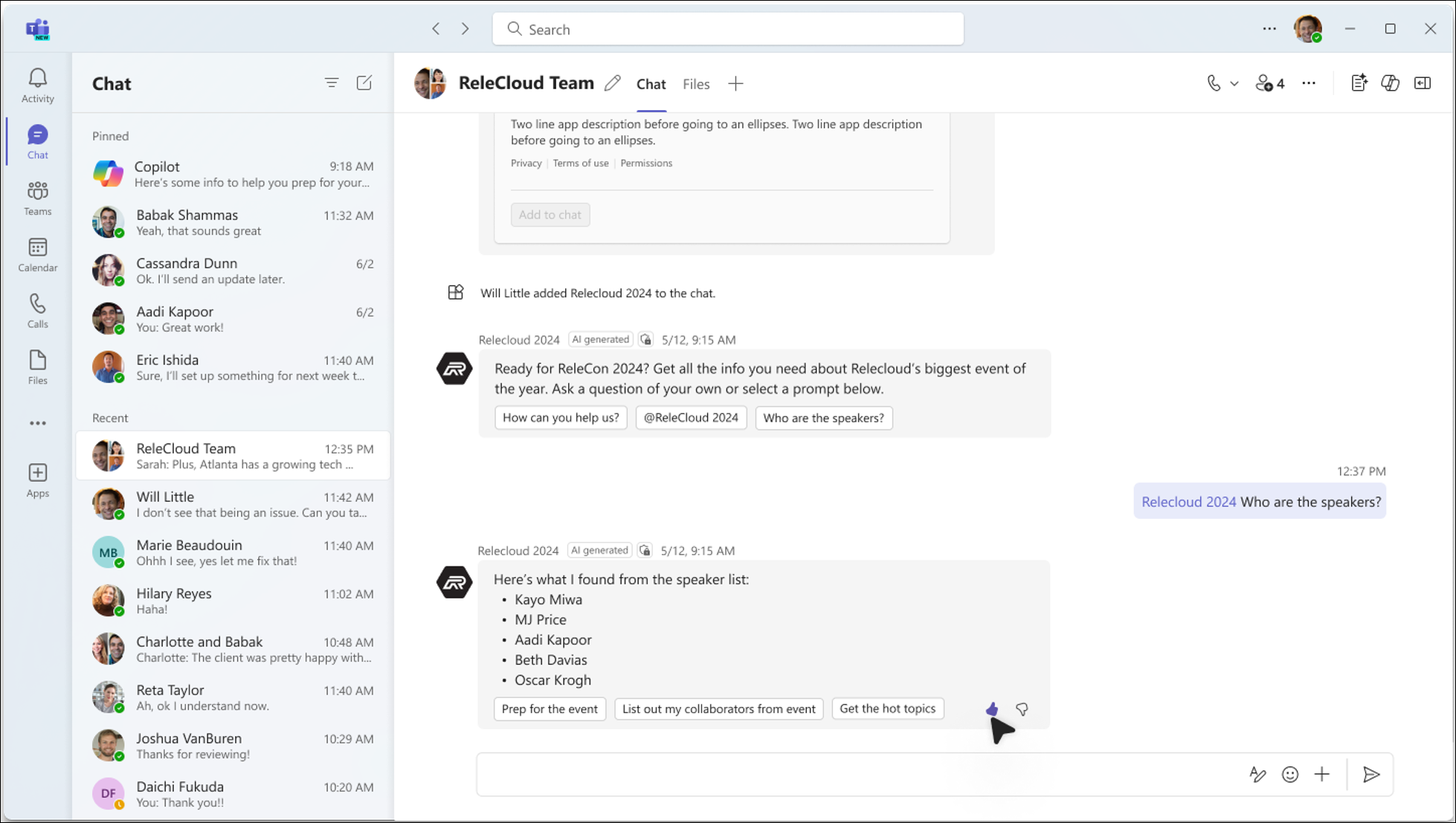
Use an agent in Teams
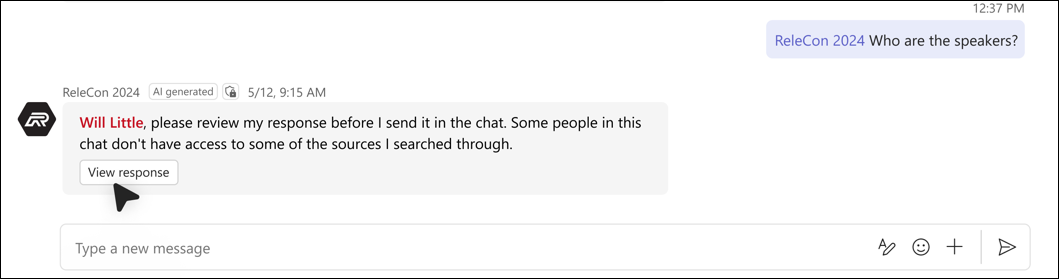
When a user asks questions to an agent created in SharePoint in Teams, the agent always checks the user's permissions before providing the answer. If the user who asks the question has permission to see the answer, but some members in the chat group don't, the user sees a message explaining that the answer can't be automatically added to the chat.
To post the answer to the Teams chat, the user needs to select View response to preview the agent's answer.
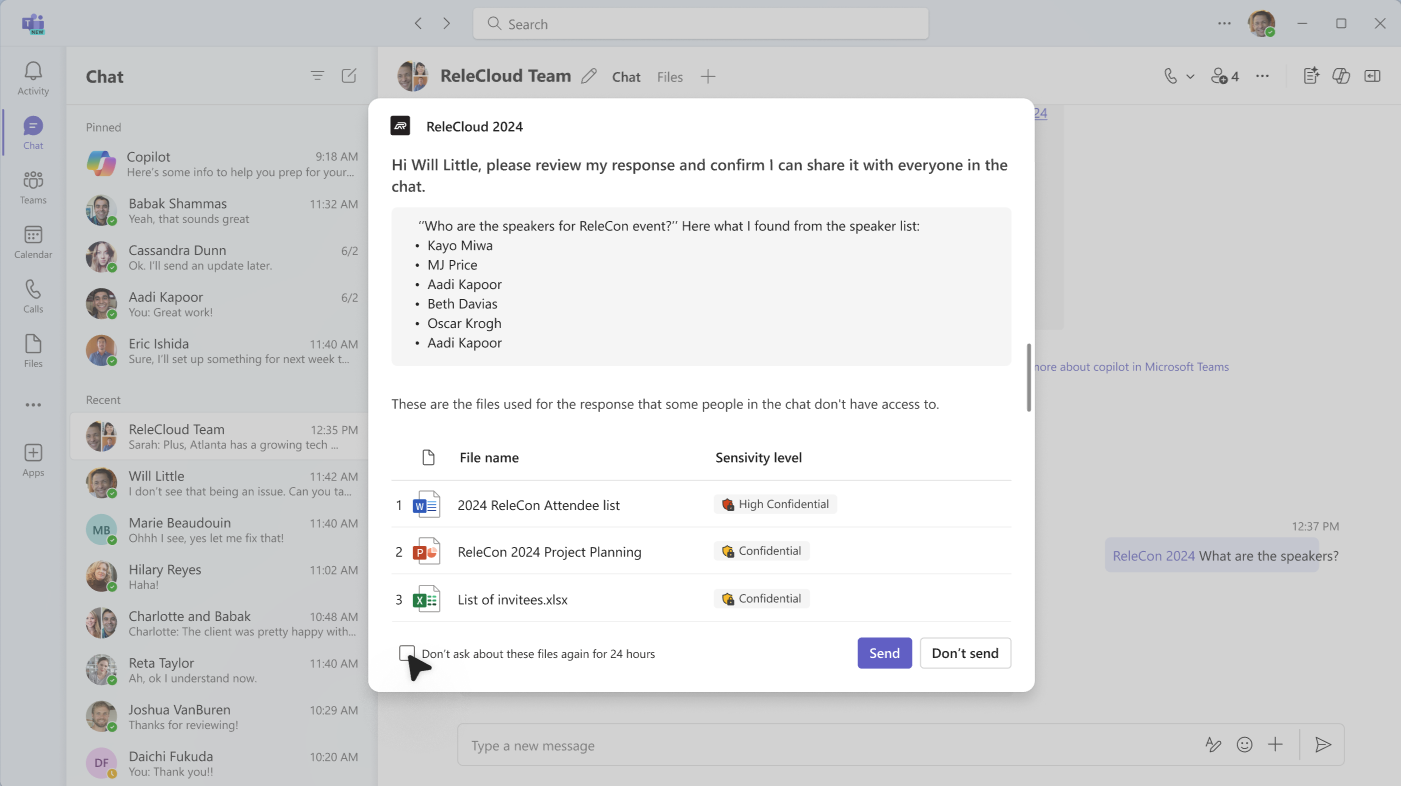
Based on the content of the answer and the files it uses, the user can decide whether to share the answer with the group. Review the answer before sharing it.
While the user who asked the question is reviewing the answer, other members of the chat see a message that the response is being reviewed.
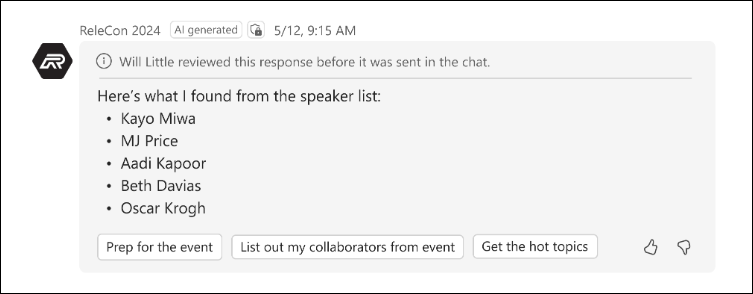
If the user who asked the question decides to share the answer with the group, the answer is shown and includes a note indicating who asked, reviewed, and shared the agent response.
If the user decides not to share the full answer, the agent informs others in the chat.

Remove an agent from Teams
You can remove an agent from Manage apps:
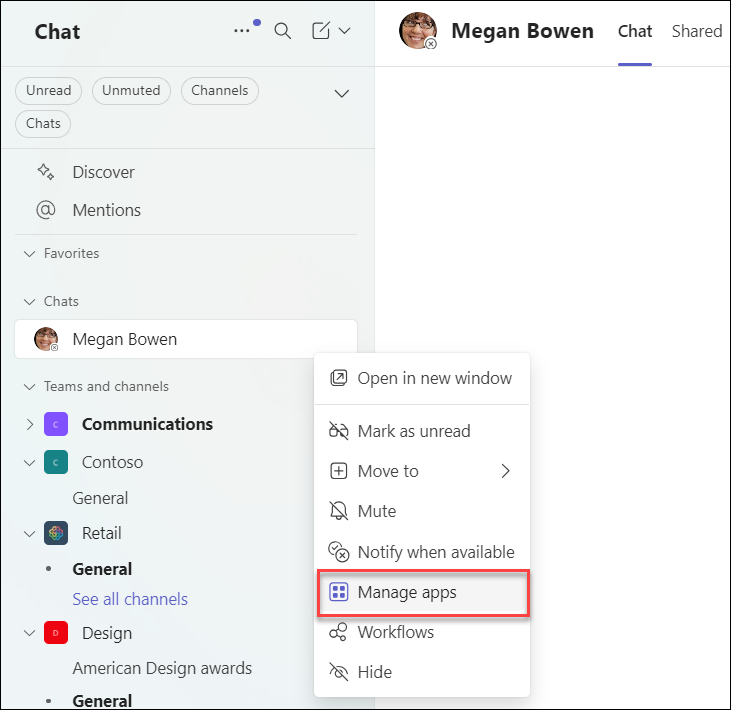
Locate the chat that contains the agent from the list of chats on the left rail of the Teams client.
Select the ellipsis, and then select Manage apps.
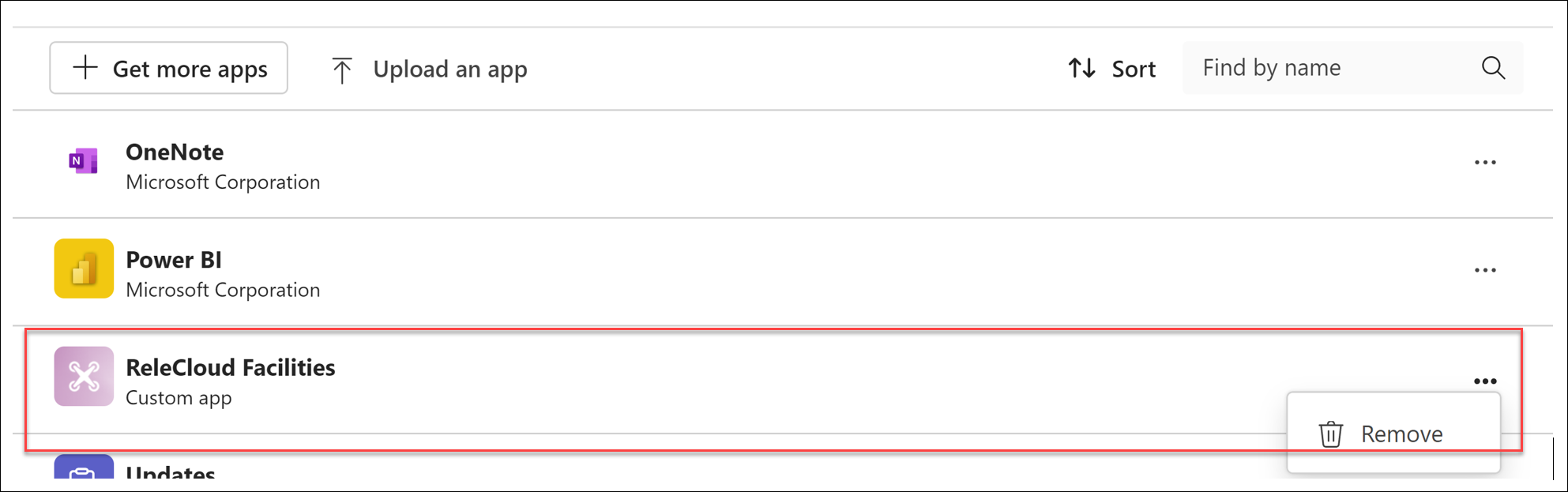
Select the ellipsis next to the agent, and then select Remove.
FAQ and data handling
To learn more about agents in SharePoint, see Frequently asked questions about agents in SharePoint.
For more information on how Microsoft Copilot works, see Data, Privacy, and Security for Microsoft Copilot.