
As a SharePoint site owner or content owner, you can use Copilot citation insights to see how often Microsoft 365 Copilot cites your site's documents, pages, and news posts as sources. You can view citation counts for individual items, identify your most-cited content, and review citation activity across your site.
When someone asks Microsoft 365 Copilot a question, Copilot finds relevant material, summarizes it, and lists the sources it used. Traditional view counts don't capture this activity. Copilot citation insights help you identify content that Copilot uses as a source so that you can prioritize keeping it accurate and easy to find.
Prerequisites
To view Copilot citation insights:
- Your tenant must have more than 50 licenses for an applicable Microsoft 365 Copilot SKU.
- You must have permission to view the corresponding SharePoint analytics experience: Site analytics, Page and news analytics, or File statistics. Copilot citation insights use the same permissions as these experiences.
What's included in Copilot citation counts
A Copilot citation is recorded when a SharePoint document, page, or news post is used as a source in a Microsoft 365 Copilot response. Each content item is counted once per prompt response, even if the response refers to that item more than once. When a user submits a prompt, Copilot scans the available content, selects the items most relevant to the question, and cites them in its answer.
In the current release, Copilot citation counts include only citations generated by Microsoft 365 Copilot Chat at m365.cloud.microsoft/chat and in the Microsoft 365 Copilot desktop app. Other Copilot experiences, canvases, and agents are out of scope. Therefore, citation totals reflect only Microsoft 365 Copilot Chat activity from these two entry points.
Note
As additional surfaces become supported, this article and the affected reports will be updated.
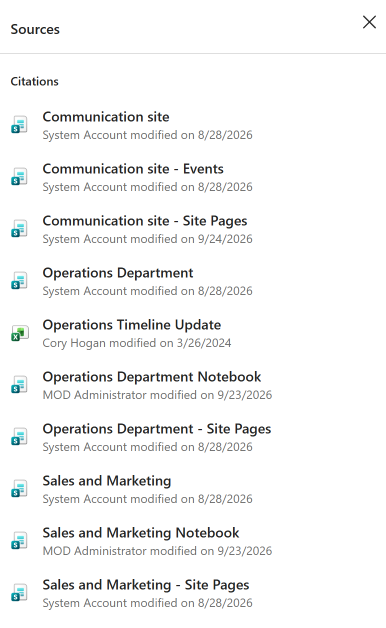
Find Copilot citation insights
Copilot citation insights appear in three SharePoint analytics experiences: Site analytics, Page and news analytics, and File statistics.
Site analytics
Site analytics is the main place to see how your whole site is performing in Copilot answers. To open it, select Settings (the gear icon) at the top of your site, and then select Site usage. You can also select Site contents in the left menu, and then select Site usage in the top navigation bar.
Popular content in Site usage tab
On the Site usage tab in Site analytics, you can sort content by citation count. In the Popular content in the last 7 days section, open the Documents, Pages, or News posts report, and then sort by Citations. This ranking covers a rolling seven-day period.
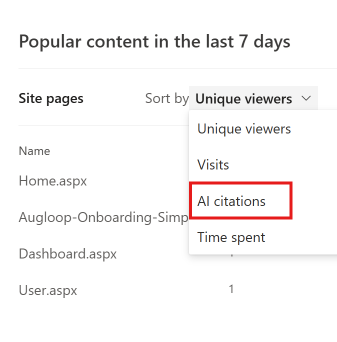
AI citations tab
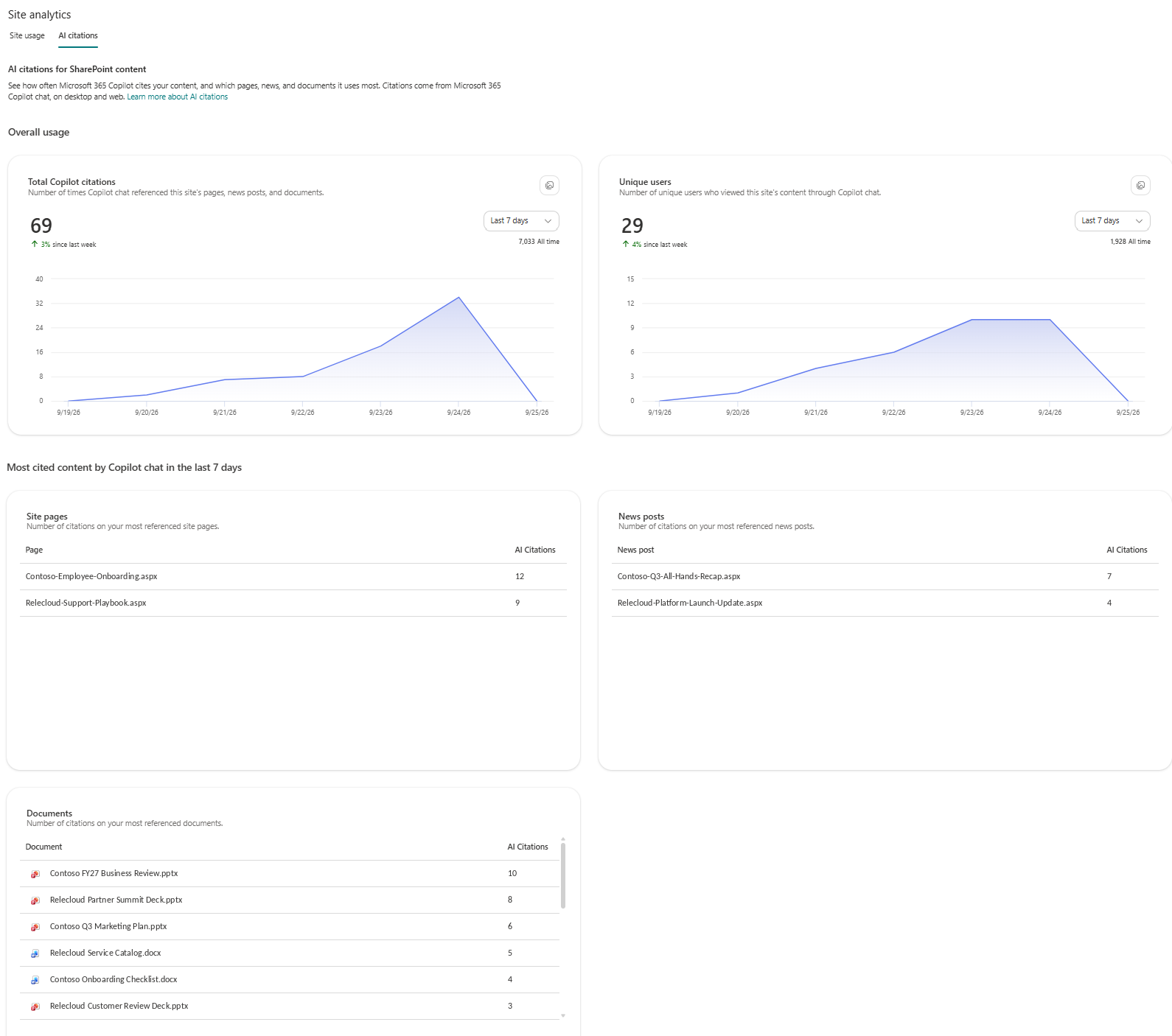
Select the AI citations tab to see your site-level citation insights. This tab rolls individual citations up into two measures: the total number of times your site's documents, pages, and news posts were cited, and the number of unique users who received a Copilot response that cited your site's content. A citation is enough for the source to be included. The user doesn't need to select the citation or open the source. This view covers a rolling period of up to 12 months.
The AI citations tab also shows your most-cited content, so you can identify which documents, pages, and news posts Copilot used most often as sources. This ranking covers a rolling seven-day period.
Page and news analytics
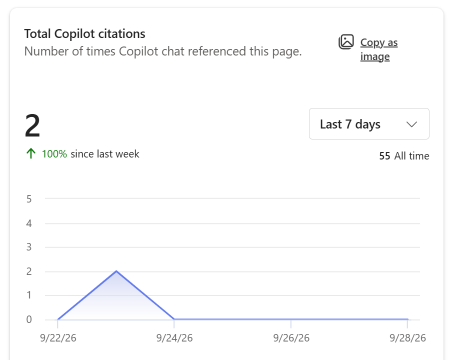
Page and news post analytics show how many times a page or news post has been cited. This information helps communicators and page authors see when a page or post is informing Copilot answers rather than only being opened directly. The time range depends on the content type: page citation counts cover a rolling period of up to 90 days, and news post citation counts cover a rolling period of up to 12 months.
To view the citation count for a page or news post:
- Open the page or news post.
- Select Analytics at the top of the page.
The citation count appears with the other usage cards in the analytics panel.
File statistics
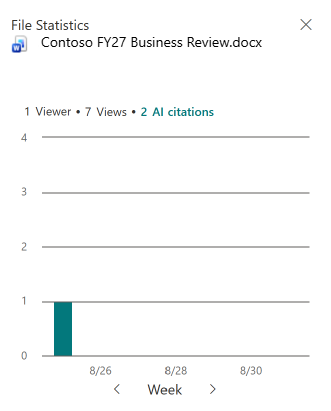
The file statistics card shows the number of times a document is cited, displayed next to its views and viewers. You can compare traditional access with Copilot-driven access for a single document at a glance. The card covers a rolling period of up to 28 days.
To view the citation count for a document:
- Open the document library or folder that contains the document.
- Point to the document name to display the file statistics card.
The citation count appears next to the document's views and viewers.
Frequently asked questions
Are citations from Copilot in Word, Excel, or PowerPoint included?
No. Copilot citation counts include only citations generated in Microsoft 365 Copilot Chat at m365.cloud.microsoft/chat and in the Microsoft 365 Copilot desktop app. Citations from the in-app Copilot experiences in Word, Excel, and PowerPoint, from Cowork, and from agents aren't included.
Are citations from Copilot in SharePoint, SharePoint agents, or other custom agents counted?
No. Copilot citation counts include only citations generated in Microsoft 365 Copilot Chat at m365.cloud.microsoft/chat and in the Microsoft 365 Copilot desktop app. Citations generated by agents aren't included. This exclusion applies to Copilot in SharePoint, SharePoint custom agents, Copilot Studio agents accessed outside Copilot, custom engine agents, and agents that use a custom orchestrator.
Do all Copilot citation reports cover the same time period?
No. The time range depends on the report, and all the time ranges are rolling periods. Document citation counts on the file statistics card cover up to 28 days. Page citation counts cover up to 90 days, and news post citation counts cover up to 12 months. The site-level aggregate covers up to 12 months. Sorting popular content by citations covers seven days.
Do Copilot citation insights show the content of prompts or Copilot answers?
No. Copilot citation insights report counts only, such as how many times content was cited and how many users viewed the content through Copilot citations. They don't expose the text of user prompts or Copilot responses.
Can site admins, owners, and members view Copilot citation insights?
Anyone who has permission to view the corresponding SharePoint analytics experience can view its Copilot citation insights. Access can therefore differ across Site analytics, Page and news analytics, and File statistics. Citation insights appear only for tenants with more than 50 licenses for an applicable Microsoft 365 Copilot SKU. File-level counts appear in File statistics, page and news post counts appear in Page and news analytics, and site-level insights appear on the AI citations tab in Site analytics.