

Keep meetings and events running smoothly by managing what attendees see. Focus on certain people by showing them on and off screen, hiding others from view, and more. Different meeting types allow for various features.
In this article
All meetings and events
Manage attendee view
Production tools can help you manage shared content and people you bring on screen in any Teams meeting, webinar, or town hall. To turn on production tools for specific members, use the Manage what attendees see toggle when you create or edit your event.
Only specific organizers, co-organizers, or presenters with control of production tools can manage what attendees see. Select a meeting type to enable production tools:
Manage who can access the attendee view in a Teams meeting
Schedule a meeting in Teams.
In the Invite attendees
 field, add people to your meeting.
Select Options.
In Roles
 :
:- Set Who can present to Specific people.
- In Search for participants, search and select presenters.
In Production tools
 , turn on the Manage what attendees see toggle.
Select Apply.
When you apply this setting, attendees won’t have camera and mic access.
Tip
These settings can be configured in the Teams mobile app.

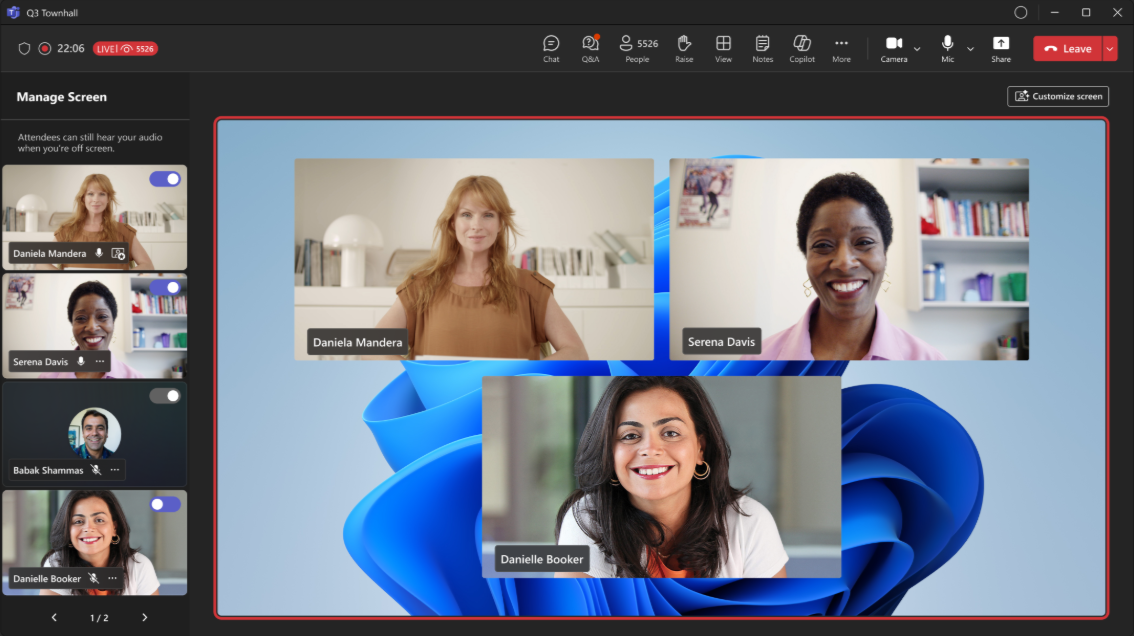
Customize a town hall event screen
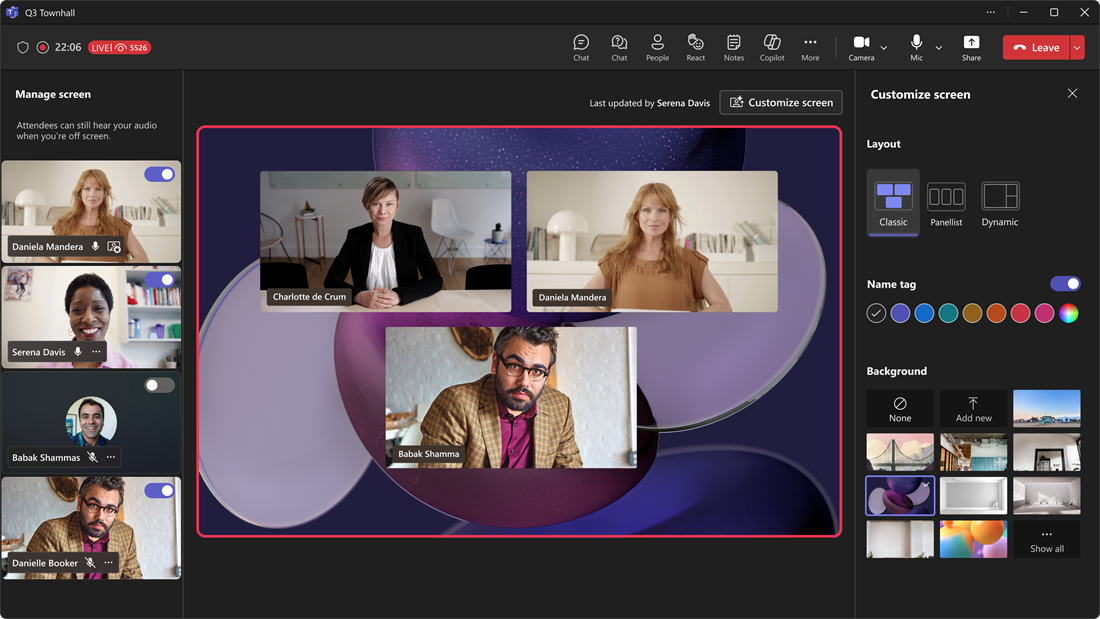
Customize the main stage for the attendees in your town hall event by choosing a layout, background, and name tag color. Only people who have control over production tools can customize the event screen. Depending on the view, Teams displays up to seven presenters at a time.
To customize your town hall screen, select Customize screen  in the event window. When you select a customization, the changes will be applied automatically.
Tip
Last updated by shows who most recently made a change to the live event screen.
Focus on speakers in a town hall
When you want to focus on speakers, such as in a news broadcast, choose from:
- Classic: Shows the presenter's full camera view.
- Panelist: Shows the presenter without the video background to reduce visual distractions.
- Dynamic: Arranges presenter videos dynamically as presenters are added.
Focus on content in a town hall
Layouts change depending on whether shared content is on screen. When you want to focus on content you're sharing content, along with the speakers, choose from:
- Speaker focus: Emphasizes the presenters rather than the shared content.
- Content focus: Makes the shared content larger than the presenters.
- Content only: Shows only the shared content.
Choose a background in a town hall
Choose a Microsoft background, an available background provided by your organization, or upload your own. You can also choose to use no background.
Customize name tags in a town hall
Turn name tags on or off, or choose a custom name tag color. Choose from the color wheel to match your preferred color choice.
Manage attendee view with preview in a town hall
In a Teams town hall, people who can control production tools will have the option to preview changes before applying them. Use Preview to arrange presenter videos and shared content without showing attendees each change as you make it. This allows for smoother, more polished transitions from attendees' perspectives.
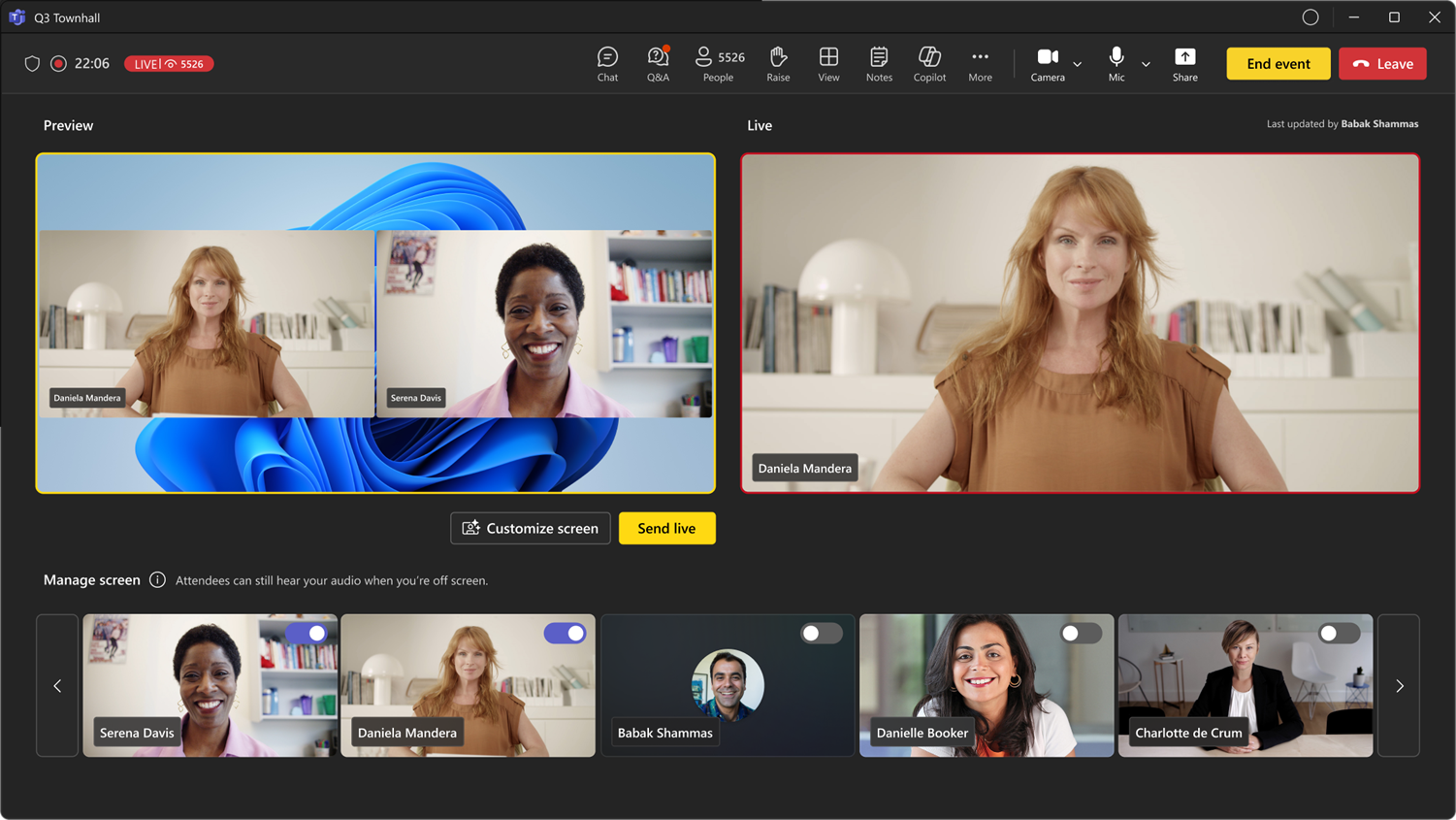
Set up your town hall meeting to turn on the Preview screen.
- When you create or edit a town hall meeting, under Set up experience and options, select All options > Production tools.
- Under Manage what attendees see, select On with preview.
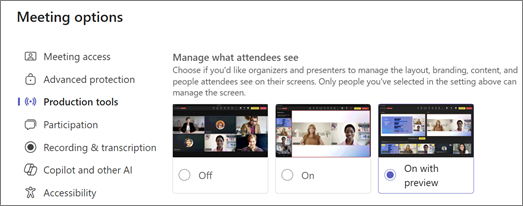
- Continue creating or editing your town hall meeting.
Once your town hall has started, use the Preview screen to queue presenters and content before going live.
During the town hall, use the Manage screen panel to toggle presenter videos and shared content on or off to queue them up for the live feed.
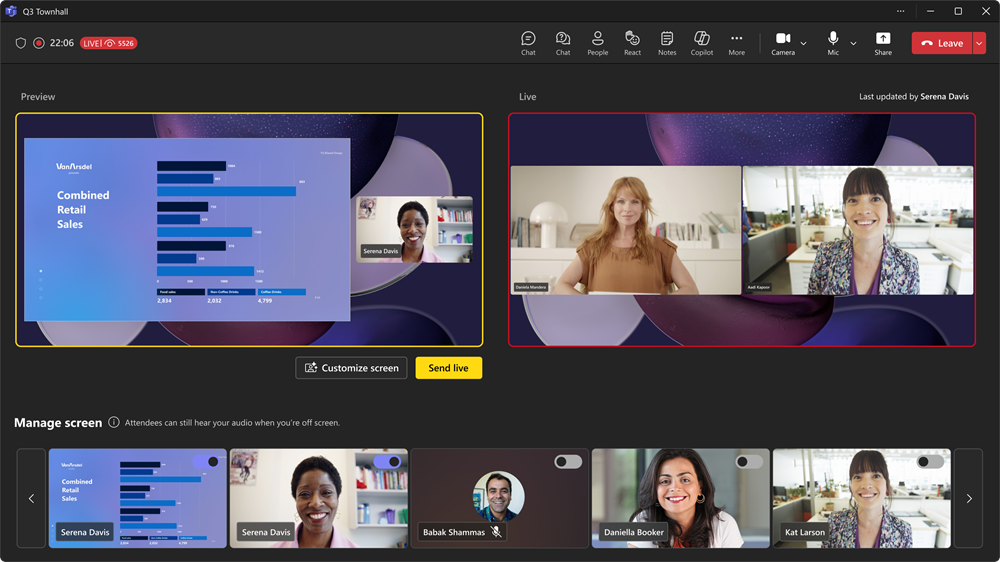
Review the presenters and shared content in Preview before sending the arrangement live. Audio from unmuted presenters in Preview can be heard even while they're off screen.
When the preview is ready, select Send live.
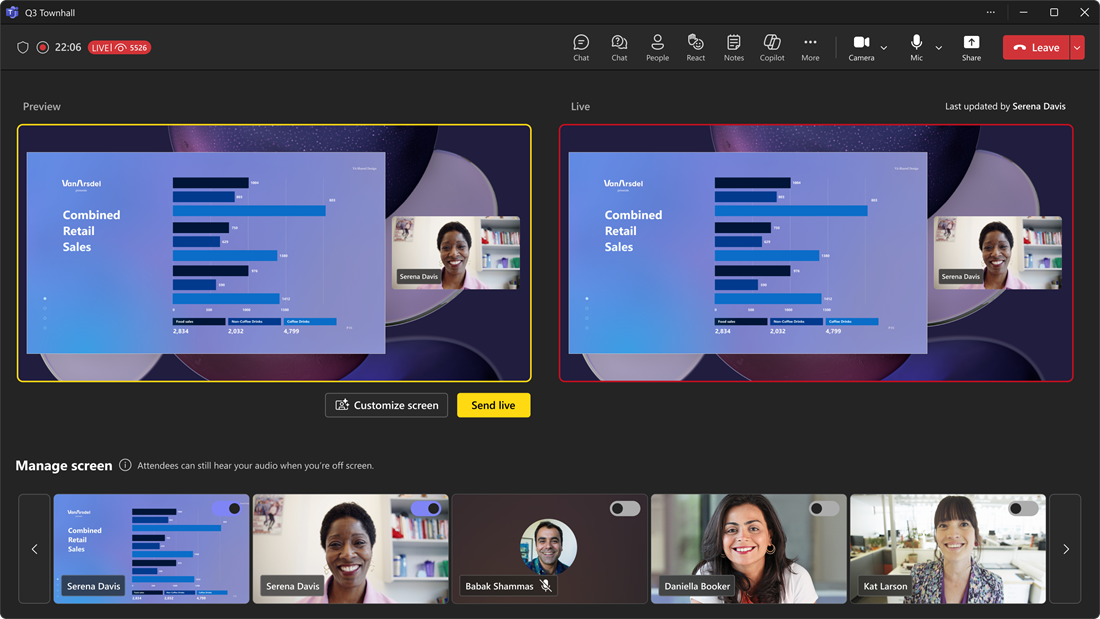
The arrangement moves to Live. The Live feed shows what attendees are currently seeing.
Note
People who control production tools won't see what others are queueing in the Preview feed. Communicate about who's arranging which scenes to keep the event running smoothly.
Bring presenters on and off screen
Presenters, organizers, and co-organizers will appear in the left pane under Manage screen. When you bring someone on screen, their video feed will appear in the Manage screen pane and in the center of the meeting window simultaneously. This supports consistent viewing and helps event organizers see what's being shown to attendees.
Easily take presenters off screen when they finish speaking or sharing content, or if they're having technical difficulties.
To bring a presenter on or off screen:
- In the Manage screen pane, find the presenter you want to bring on-screen.
- Turn the Bring participant on screen toggle that appears over their video feed or profile picture on or off to bring them on or off screen.
Important
When you bring presenters off screen, their mics won't be muted automatically. Attendees will still be able to hear them until they mute themselves manually.
You can also take a presenter off screen by hovering over their video or avatar and selecting More options > Take off screen
  .
.
You can also add or remove a presenter from attendees' screens by hovering over their video or profile picture.
Note
- Presenter view is currently only supported in Teams for desktop and web.
- Firefox and Safari aren't currently supported. Attendees joining from these browsers can only view the standard Teams meeting experience.
Pin a presenter
Get ready to bring a specific presenter on-screen by pinning them in the Manage screen pane. In meetings or events that have many presenters, pinning someone makes them easy to find.
To pin or unpin a presenter:
Find the presenter in the Manage screen pane.
Tip
Select the arrows at the bottom of the Manage screen pane to see more people and find who you're looking for.
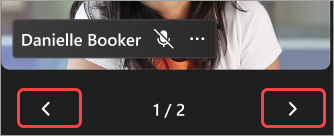
Hover over the video or profile picture of the presenter you want to pin or unpin.
Select More options
> Pin for me  or Unpin for me
  .
.
Note
When you pin presenters, only you can see them pinned in the Manage screen pane.
When you pin a presenter, they'll appear under your personal video on the Manage screen pane unless you unpin them.
Share content on screen
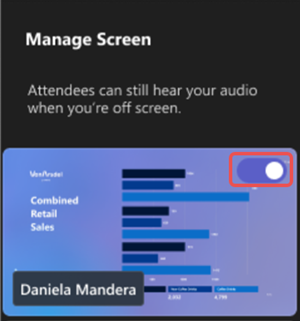
When you start sharing your screen or other content while presenting, your shared content will first appear in the Manage screen pane, where you can manually bring it on screen for everyone to see.
To bring shared content on screen or remove it:
- Select Share
 in your meeting controls.
 - Select the content you want to present.
- In Manage screen, a preview of the shared content will appear.
- Turn on the toggle in the shared content preview to bring it onto the live event feed.
Turn the toggle off, or select Stop sharing in your meeting controls, to stop presenting content.
Note
- If someone shares their screen while another person is presenting live, the live presenter's content will be taken off screen, and the newly shared content will replace the former presenter's content in the Manage screen pane. Only participants with control of production tools can bring the shared window on screen afterwards
- If you start a PowerPoint Live session, the PowerPoint will appear live to everyone immediately. To learn more, see Present from PowerPoint Live in Microsoft Teams.
Bring attendees on or off screen
Typically, attendees will take on an audience role in this style of meeting or event and won't have access to their mics or cameras. However, organizers can bring an attendee on-screen manually. When you take an attendee off screen, their mics and cameras will be turned off automatically.
To add or remove attendees from the screen:
- Select People
or More actions
 > People
in your meeting controls.
> People
in your meeting controls. - Hover over the person you want to bring on screen.
- Select More options
> Bring on screen
 or Take off screen
.
or Take off screen
.
Related topics
Meeting options in Microsoft Teams