
In this article:
Viewing and managing cameras
In Windows 11, the Camera settings in the Settings app help manage the cameras connected to a Windows device. To open Camera settings, select Start
 , then select Settings
 > Bluetooth & devices
 > Cameras
 .
.
This page was introduced in Windows 11 and isn't available on older versions of Windows.
Network cameras
Camera settings can search your local network for ONVIF-conformant network/IP cameras. After you connect one, it appears and works like other cameras, such as a USB camera.
To connect a network camera:
- Select Search for cameras.
- Select the camera when it appears in the search results.
- If prompted, enter the camera's user name and password.
To remove a connected network camera, select it under Connected cameras, and then select Remove.
For more information, see Network cameras.
Connected cameras
The Connected cameras list in the camera settings page displays the cameras currently connected to the system and allows you to access a subpage with additional settings related to each camera. These settings include default image settings, the ability to disable the camera, and in the case of network cameras, the ability to remove or disconnect the camera.
Note
Some specialty cameras don't appear on the Camera settings page. For example:
- Infrared (IR) cameras that are used for Windows Hello Face authentication.
- Cameras using DirectShow technology - these cameras might include DSLR or action camera manufacturers that can be used as webcams in some applications.
- Proprietary cameras that aren't managed by Windows - these cameras might include industrial cameras and many networked cameras.
Disabled cameras
When a camera is disabled through the camera settings page, a separate section appears with a list of disabled cameras. Select Enable to re-enable the selected camera.
To disable a camera, see the Disable a camera section in this article.
Note
- If there isn't a disabled cameras section, no cameras are disabled.
- Administrator access is required to enable cameras.
- Some cameras may not show in the camera settings page if they're missing a driver, in a nonfunctional state, or disabled through alternate utilities such as Device Manager.
Configuring individual cameras
Modify default settings for an individual camera:
Select Start
and then select Settings
> Bluetooth & devices
> Cameras
.In the Bluetooth & devices > Cameras window, under Connected cameras, select the desired camera from the list.
By selecting an individual camera from the Connected cameras list in the camera settings page, a subpage is launched that displays a camera preview, allows management of the camera, and allows configuration of default imaging settings.
Some camera manufacturers include a companion app that allows additional configuration changes. For those cameras, a link under Related settings opens the manufacturer's app or its Microsoft Store page.
Note
The default settings displayed on this page are saved per camera and per user account, although they don't synchronize between multiple Windows devices. Additionally, default imaging settings aren't backed up and restored during an OS reinstallation or during setup of a new Windows device.
Disable a camera
To disable a camera, select it from the Connected cameras list on the camera settings page to open its subpage, and then select the Disable button located beside the camera preview window. Selecting this button triggers a prompt to confirm before disabling the camera.
In some circumstances, cameras require a reboot of the system to be disabled. In this scenario, the camera continues to display in the Connected cameras list of the camera settings page but will remain greyed out with a message indicating the need to reboot the PC.
To reenable the camera, see the Disabled cameras section in this article.
Note
- Administrator access is required to disable cameras.
- On some systems, more than one camera shares camera-processing hardware, so disabling one camera can disable multiple cameras. This is common on tablet form factor devices that have both an integrated front-facing (videoconferencing) and world-facing camera. In this scenario, the confirmation prompt includes a message indicating that disabling one camera causes other cameras on the system to be disabled as a group.
Troubleshoot a camera
To troubleshoot a camera, select it from the Connected cameras list on the camera settings page to open its subpage, and then select the Troubleshoot button located beside the camera preview window. Selecting this button launches the Get Help utility that executes an interactive camera troubleshooting experience.
Adjust basic camera image settings
When a camera is selected from the Connected cameras list on the camera settings page, a selection of sliders and/or toggles for basic imaging settings may be available under the Basic settings section, as supported by the camera.
The following lists available basic settings:
- Zoom
- Pan
- Tilt
- Brightness
- Contrast
- Sharpness
- Saturation
- Video HDR
These controls are optional for cameras, so some or all these settings may not be available from the camera and the Basic settings section won't be visible.
Use Windows Studio Effects (Camera Effects)
On Copilot+ PCs, a camera may support Windows Studio Effects. This may present additional camera controls in the Connected camera settings page under a new Windows Studio Effects section.
Note
Some cameras may implement the control directly independent of Copilot+ or Windows Studio Effects. Such cameras will have this section labeled Camera Effects.
The camera may support one or more of the following controls:
- Automatic framing
- Portrait light
- Eye contact
- Background effects
- Creative filters
- ... and more
Learn more about Windows Studio Effects.
Adjust video rotation
When an external camera (such as a camera connected via USB) is selected from the Connected cameras list on the camera settings page, a dropdown is available allowing you to select a Video rotation. Available options are: No rotation, Right 90°, Left 90°, or 180°.
The Video rotation setting is only available for external cameras. If the camera is in use by another application when the setting is changed, it will not apply until the next time the camera is used.
Note
When Video rotation is set to any value other than No rotation, Windows removes all compressed data types (for example, MJPEG, H.264, and so on) from the camera and strictly outputs uncompressed data types. Legacy applications and/or cameras that depend on compressed data types being available may not function correctly when the Video rotation setting is configured.
Reset camera settings
When a camera is selected from the Connected cameras list on the camera settings page, the Reset settings button allows all camera settings to be reset to factory defaults.
When this button is used, changes to Basic settings, Windows Studio Effects (or Camera Effects), and Video rotation are erased, and the camera is restarted with its factory configuration.
Using the Reset settings button also resets any default settings that were configured by any companion app developed by camera manufacturers.
Default camera settings
Changes to Basic settings, Windows Studio Effects (or Camera Effects), or Video rotation are applied immediately to the live camera stream (and visible in the preview) and are also saved as the default value for the next time an application opens the camera.
When no applications are using the camera, the behavior of the camera settings page is simple. Changes made to Basic settings, Windows Studio Effects (or Camera Effects), or Video rotation are immediately applied to the live camera preview stream and saved as updated default values that will apply when applications start the camera in the future.
Using the camera settings page while the camera is in use
If the camera settings page is being used while another application is trying to modify a camera, it is possible for there to be a mismatch between the camera preview stream and the camera settings.
Note
Some applications may monitor for external changes to controls. Consider an application that wishes to keep the Contrast at 45% while using the camera - that application may monitor the Contrast control and immediately rewrite the control back to 45% if it is changed externally using the camera settings page.
Synchronization issues are uncommon, and they only happen in the specific scenario where a customer makes real-time changes to image settings within an application and concurrently launches the camera settings page to adjust the same image setting.
To manage concurrent use situations, an info banner is displayed in the camera settings page when the camera is in use by another application, indicating the changes made in the camera settings page or in the application will affect both the application and the preview in the camera settings page.
For a more detailed explanation, please review the Camera Settings Page section of the Learn page.
Advanced camera options
Advanced camera options are available on Windows 11, version 24H2 and later. These options might be managed by your organization.
To open Advanced camera options, go to Settings > Bluetooth & devices > Cameras, select your camera, and then select Edit under Advanced camera options. This opens a submenu with controls for camera modes such as Multi-app camera and Basic camera.
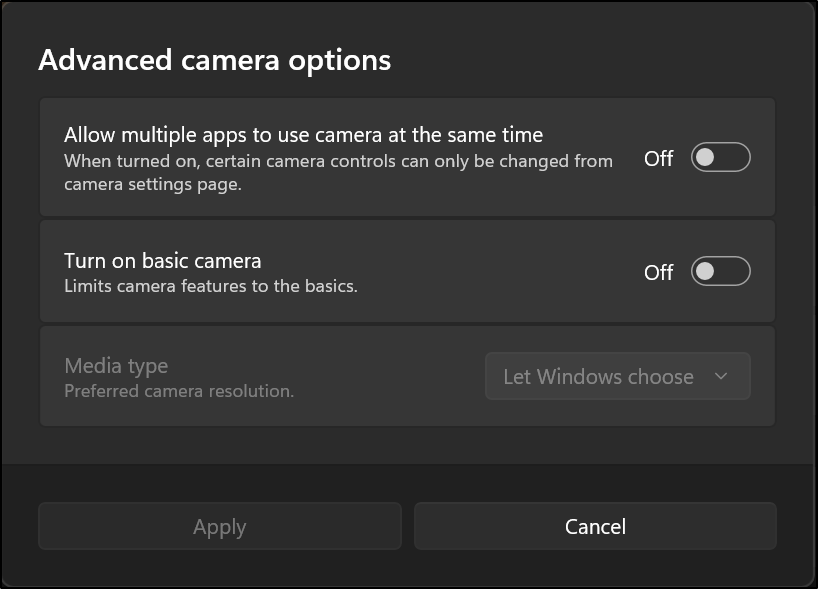
Allow multiple apps to use camera at the same time (multi-app camera mode)
Multi-app camera mode allows multiple applications to access the camera stream simultaneously. When turned on, any camera application will be able to share the camera stream without modifications. For example, Microsoft Teams and Zoom can use the same camera at the same time.
When using the multi-app camera mode, you can decide the resolution and frame rate of the camera stream or let Windows determine resolution and frame rate. By default, Windows will attempt to select the highest resolution available on the camera up to 1440p that can stream at 30 frames per second (fps).
Note
- If Windows Hello Face Recognition attempts to use a camera that was configured for multi-app managed mode and that camera is already in use by another app, Windows Hello can't access the camera and falls back to PIN login.
- The resolution and frame rate list may not show the full list of the camera's supported resolutions and frame rates.
Turn on basic camera (basic camera managed mode)
Basic camera managed mode is a troubleshooting option for camera problems. It turns off hardware acceleration and, where possible, camera manufacturer plug-ins that might prevent the camera from working.
When using the Basic camera mode, you can decide the resolution and frame rate of the camera stream or let Windows determine resolution and frame rate. By default, Windows will attempt to select the highest resolution available on the camera up to 1440p that can stream at 30 frames per second (fps).
In the case where basic camera mode is required to return camera functionality, it is encouraged to file user feedback in Feedback Hub (WIN + F) under Devices and Drivers > Device Camera or Webcams.
Note
- Windows Studio Effects will not work while basic camera mode is turned on.
- Windows Hello Face Recognition bypasses Basic Camera mode as many of the camera plugins are required for Windows Hello Face Recognition.
- Enabling basic camera mode will also enable multi-app camera mode.