

Las animaciones son una buena forma de mostrar la lista de viñetas de una diapositiva de una en una. Puede elegir hacer clic una vez para cada viñeta o hacer que cada una aparezca automáticamente tras una breve demora.
Mostrar cada viñeta con un clic
Seleccione el cuadro de texto que contiene las diapositivas que desea animar.

Haga clic en la pestaña Animaciones y después, elija un efecto de movimiento como Aparecer o Disolver.

Cuando termine, la diapositiva muestra la secuencia de animaciones en un cuadro a la izquierda de cada viñeta.

Seleccionar Presentación con
 en la barra de estado para obtener una vista previa de la animación.
Mostrar cada viñeta después de una demora
Seleccione todos los puntos de viñeta para animar y, en la pestaña Animaciones , elija un efecto de movimiento como Aparecer o Disolver en.

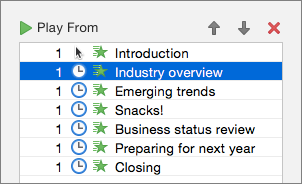
En la pestaña Animaciones , seleccione el panel Animaciones y elija la segunda animación de la lista.
En Intervalos, cambie la configuración de Inicio a Después de anterior y, a continuación, escriba la cantidad de tiempo que debe transcurrirse entre cada viñeta.
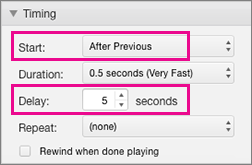
Aplique los mismos ajustes de Inicio y Retraso a las demás viñetas de la lista.
Seleccione la primera animación y elija Reproducir desde para obtener una vista previa del resultado.