If you apply a slide layout to one or more slides in your presentation, and then go back and edit that layout by adding a placeholder, custom prompt text, or completing some other layout-altering action, you must reapply the layout to the slides so that the slides adhere to the updated layout.
Change an existing layout
On the View tab, click Slide Master.
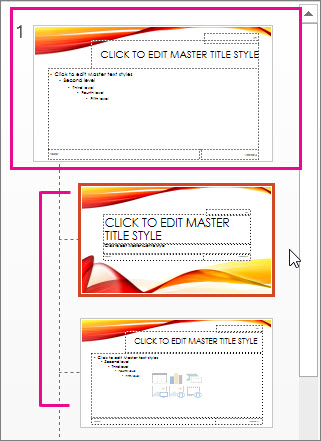
In the thumbnail pane that contains the slide masters and layouts, pick the layout that has closest arrangement of placeholders to how you want your slide to look.
Note
The slide master is always the top thumbnail, and the other slide layouts are beneath it.
Tip
If you don't like any of the layouts, pick the Blank Layout and start over by adding placeholders to contain text, pictures, videos, etc.
To change an existing layout, do one or more of the following:
- To add a placeholder, on the Slide Master tab, click Insert Placeholder, and then select a placeholder type from the list. Click a location on the layout, and then drag to draw the placeholder.
- Add, edit, or remove a placeholder on a slide layout.
To rename the layout, in the thumbnail list of layouts, right-click the layout that you customized, and then click Rename Layout.
In the Rename Layout dialog box, type a new name that describes the layout you’ve just created, and then click Rename.
On the Slide Master tab, click Close Master View.
Apply the updates so that they appear on your slides
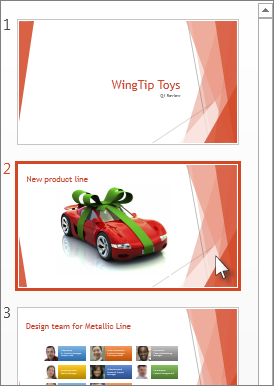
In Normal View, in the thumbnail pane, click the slide that you want to reapply the updated layout to.
Note
To select multiple slides, press and hold the Ctrl key, and then click each slide.
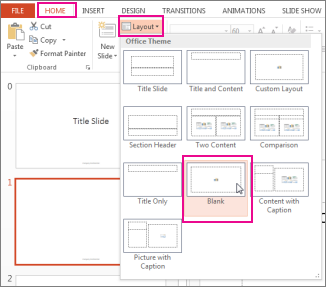
On the Home tab, in the Slides group, click Layout, and then select the layout that you updated in Slide Master View.