
Remarque
Date de publication d’origine : 16 mars 2026
Dernière date de mise à jour : 12 mai 2026
ID de la Base de connaissances : 5084567
Contenu de cet article
- Présentation
- Fonctionnalités principales
- Informations de référence sur les paramètres de mises à jour de certificat
- Architecture
- Phase 1 : Détection et surveillance de l’état au niveau de l’entreprise
- Phase 2 : script d’orchestration de mise à jour du certificat de démarrage sécurisé
- Étapes de déploiement E2E (guide de référence rapide)
- Résolution des problèmes
- Journal des modifications
Présentation
Ce guide décrit le système de déploiement automatisé pour les mises à jour de certificat de base de données de démarrage sécurisé Windows à l’aide de la stratégie de groupe et des vagues de déploiement progressives.
L’automatisation du déploiement des certificats de démarrage sécurisé est un système basé sur PowerShell qui déploie les mises à jour du certificat de base de données de démarrage sécurisé Windows sur des ordinateurs joints à un domaine de manière contrôlée et graduée.
Fonctionnalités principales
| Fonctionnalité | Description |
|---|---|
| Déploiement progressif | > 1 2 > 4 8>... Appareils par compartiment |
| Blocage automatique | Les compartiments avec des appareils inaccessibles sont exclus |
| Déploiement automatisé d’un objet de stratégie de groupe | Le script d’orchestrateur unique gère tout |
| Exécution de tâches planifiées | Aucune invite interactive n’est requise |
| Surveillance en temps réel | Visionneuse d’état avec barre de progression |
Informations de référence sur les paramètres de mises à jour de certificat
Contenu de cette section
- Stratégie de groupe AvailableUpdatesPolicy
- WinCSFlags - Indicateurs système de configuration Windows
Stratégie de groupe AvailableUpdatesPolicy
| Emplacement du Registre | HKEY_LOCAL_MACHINE\SYSTEM\CurrentControlSet\Control\SecureBoot |
|---|---|
| Nom | AvailableUpdatesPolicy |
| Valeur | 0x5944 (DWORD) |
Il s’agit de la clé contrôlée par GPO/ADMX qui :
- Persiste après les redémarrages
- Est défini par la stratégie de groupe/GPM
- Ne provoque pas de boucles de nouvelle tentative (désactivé via ClearRolloutFlags)
- Est la clé correcte pour le déploiement piloté par des stratégies
revenir à « Référence des paramètres de mises à jour de certificat »
WinCSFlags - Indicateurs système de configuration Windows
Les administrateurs de domaine peuvent également utiliser le système de configuration Windows (WinCS) publié avec les mises à jour du système d’exploitation Windows pour déployer les mises à jour de démarrage sécurisé sur les clients et serveurs Windows joints à un domaine. Il s’agit d’un utilitaire d’interface de ligne de commande (CLI) permettant d’interroger et d’appliquer des configurations de démarrage sécurisé localement à un ordinateur.
| Nom de la fonctionnalité | Clé WinCS | Description |
|---|---|---|
| Feature_AllKeysAndBootMgrByWinCS | F33E0C8E002 | L’activation de cette clé autorise l’installation sur votre appareil des nouveaux certificats de démarrage sécurisé fournis par Microsoft suivants.
|
Référence : API du système de configuration Windows (WinCS) pour le démarrage sécurisé
revenir à « Référence des paramètres de mises à jour de certificat »
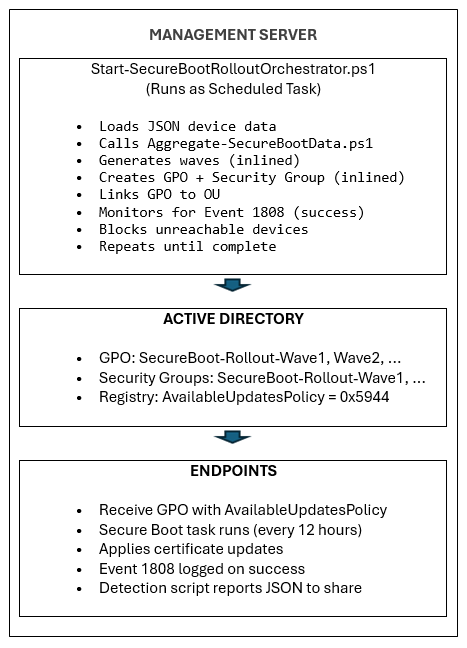
Architecture
Phase 1 : Détection et surveillance de l’état au niveau de l’entreprise
Contenu de cette section
- Scripts nécessaires pour la phase 1
- Tests locaux
- Configuration du partage réseau
- Déploiement d’un objet de stratégie de groupe
- Résumé des paramètres de l’objet de stratégie de groupe
- Vérification
Scripts nécessaires pour la phase 1
Exemples de scripts de collecte de données d’inventaire de démarrage sécurisé
Remarque
IMPORTANT Les articles suivants contenant les exemples de script ont été retirés. Si vous avez installé une mise à jour Windows publiée le 12 mai 2026 ou après, les exemples de scripts se trouvent dans le dossier %systemroot %\SecureBoot\ExampleRolloutScripts sur votre appareil.
| Exemple de nom de script | Objectif | S’exécute sur |
|---|---|---|
| Exemple de script Detect-SecureBootCertUpdateStatus.ps1 | Collecte les données de status de l’appareil | Chaque point de terminaison (via un objet de stratégie de groupe) |
| Exemple de script Aggregate-SecureBootData.ps1 | Génère des rapports et des tableaux de bord | Station de travail d’Administration |
| Exemple de script Deploy-GPO-SecureBootCollection.ps1 | Automatise la création d’objets de stratégie de groupe pour la collecte de données | Contrôleur de domaine |
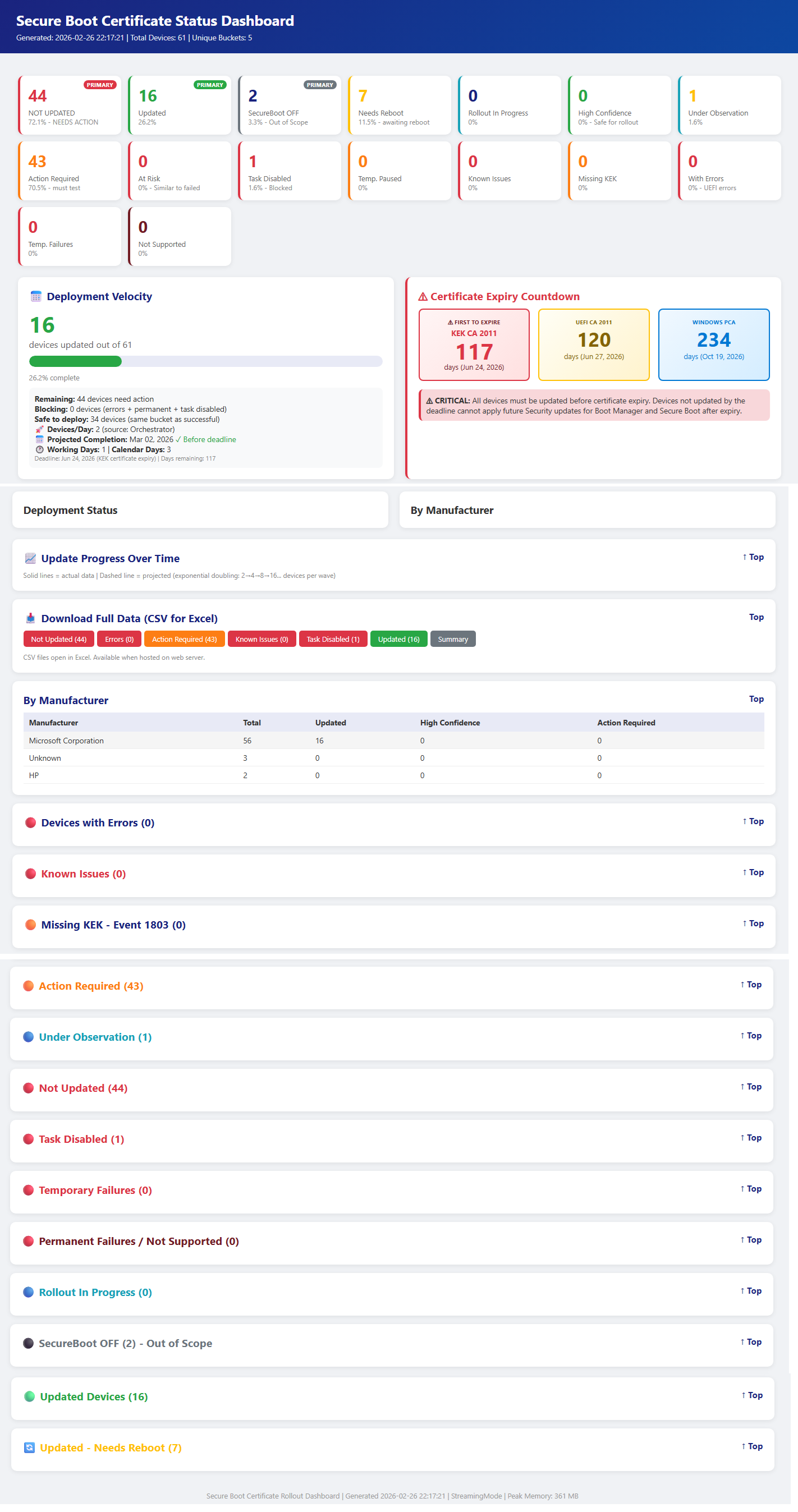
Exemple de sortie des scripts de phase 1 ci-dessus
revenir à « Phase 1 : Détection et surveillance de l’état au niveau de l’entreprise »
Tests locaux
Avant de déployer via un objet de stratégie de groupe, testez le script de collecte sur un seul ordinateur pour vérifier sa fonctionnalité.
Exécuter le script de collection localement
Ouvrez une invite PowerShell avec élévation de privilèges et exécutez :
& .\Detect-SecureBootCertUpdateStatus.ps1 -OutputPath "C:\Temp\SecureBootTest"Vérifier la sortie JSON
# View the collected data
Get-Content "C:\Temp\SecureBootTest\*_latest.json" | ConvertFrom-Json | Format-List
Champs clés à vérifier
• SecureBootEnabled : doit être True ou False
• OverallStatus – Terminé, ReadyForUpdate, NeedsData ou Erreur
• BucketHash – Compartiment de l’appareil pour la correspondance des données en toute confiance
• SecureBootTaskEnabled : affiche le status de la tâche de mise à jour du démarrage sécurisé.Script d’agrégation de test
# Generate reports from collected data
& ".\Aggregate-SecureBootData.ps1" `
    -InputPath "C:\Temp\SecureBootTest" `
    -OutputPath "C:\Temp\SecureBootReports"

# Open the HTML dashboard
Start-Process "C:\Temp\SecureBootReports\SecureBoot_Dashboard_*.html"
revenir à « Phase 1 : Détection et surveillance de l’état au niveau de l’entreprise »
Configuration du partage réseau
Créer le partage réseau
Sur votre serveur de fichiers, créez un partage dédié pour les données de collection :
# Run on file server as Administrator
$SharePath = "D:\SecureBootCollection"
$ShareName = "SecureBootData$"

# Create folder
New-Item -ItemType Directory -Path $SharePath -Force

# Create hidden share ($ suffix hides from browse list)
New-SmbShare -Name $ShareName -Path $SharePath `
    -Description "Secure Boot Certificate Status Collection" `
    -FullAccess "Domain Admins" `
    -ChangeAccess "Domain Computers"
Configurer les autorisations NTFS
# Get current ACL
$Acl = Get-Acl $SharePath

# Allow Authenticated Users to write files
$WriteRule = New-Object System.Security.AccessControl.FileSystemAccessRule(
    "Domain Computers",
    "Modify",
    "ContainerInherit,ObjectInherit",
    "None",
    "Allow"
)
$Acl.AddAccessRule($WriteRule)

# Allow Domain Admins full control (for aggregation)
$AdminRule = New-Object System.Security.AccessControl.FileSystemAccessRule(
    "Domain Admins",
    "FullControl",
    "ContainerInherit,ObjectInherit",
    "None",
    "Allow"
)
$Acl.AddAccessRule($AdminRule)

# Apply permissions
Set-Acl -Path $SharePath -AclObject $Acl
Vérifier l’accès au partage
# Test from a domain-joined workstation
Test-Path "\\fileserver\SecureBootData$"
# Should return: True
revenir à « Phase 1 : Détection et surveillance de l’état au niveau de l’entreprise »
Déploiement d’un objet de stratégie de groupe
Utilisez le script Automation fourni à partir d’un contrôleur de domaine :
# Run on Domain Controller as Domain Admin for interactive OU Section – Recommended
# Replace the “Contoso.com”, “Contoso” with the name of the domain
# Replace FILESERVER with the file server name.  Script shows list of OUs to deploy GPO on
.\Deploy-GPO-SecureBootCollection.ps1 `
    -DomainName "contoso.com" `
    -AutoDetectOU `
    -CollectionSharePath "\\FILESERVER\SecureBootData$" `
    -ScriptSourcePath ".\Detect-SecureBootCertUpdateStatus.ps1" `
    -Schedule "Daily" `
    -ScheduleTime "14:00" `
    -RandomDelayHours 4
Ce script effectuera les opérations suivantes :
- Crée un objet de stratégie de groupe avec le nom spécifié
- Copie le script de collecte dans SYSVOL pour une haute disponibilité
- Configure le script de démarrage de l’ordinateur
- Lie l’objet GPO à l’unité d’organisation cible
- Crée éventuellement une tâche planifiée pour une collecte périodique
Le tableau suivant fournit des conseils sur la durée du retard en fonction de la taille de votre flotte.
| Taille de la flotte | Plage de retard |
|---|---|
| 1 à 10 000 appareils | 4 heures |
| 10 000 à 50 000 appareils | 8 heures |
| + de 50 000 appareils | 12-24 heures |
revenir à « Phase 1 : Détection et surveillance de l’état au niveau de l’entreprise »
Résumé des paramètres de l’objet de stratégie de groupe
| Paramètres | Emplacement | Valeur |
|---|---|---|
| Script de démarrage | Configuration de l’ordinateur → scripts | Detect-SecureBootCertUpdateStatus.ps1 |
| Paramètres de script | (idem) | -OutputPath « \\server\share$ » |
| Stratégie d’exécution | Modèles → Administration de configuration d’ordinateur → PowerShell | Autoriser les connexions locales et distantes |
| Tâche planifiée | Préférences → de configuration de l’ordinateur → tâches planifiées | Collecte quotidienne/hebdomadaire |
revenir à « Phase 1 : Détection et surveillance de l’état au niveau de l’entreprise »
Vérification
Forcer la mise à jour de l’objet de stratégie de groupe sur une machine de test
# On a test workstation
gpupdate /force

# Reboot the client machines to startup script or it will trigger on next schedule.
Restart-Computer -Force
Vérifier la collecte de données
# Check if data was collected (on file server or from any machine)
Get-ChildItem "\\fileserver\SecureBootData$" |
    Sort-Object LastWriteTime -Descending |
    Select-Object -First 10

# Verify JSON content
Get-Content "\\fileserver\SecureBootData$\TESTPC_latest.json" | ConvertFrom-Json
Vérifier l’application GPO
# Verify GPO is applied to the computer
gpresult /r | Select-String "SecureBoot"
# The script also saves a local copy for redundancy.
Get-ChildItem "C:\ProgramData\SecureBootCollection\"
revenir à « Phase 1 : Détection et surveillance de l’état au niveau de l’entreprise »
Phase 2 : Scripts d’orchestration de mise à jour du certificat de démarrage sécurisé
Important
Assurez-vous que la phase 1 est terminée, y compris la collecte des données sur chaque point de terminaison aux partages de serveurs distants.
Contenu de cette section
- Scripts nécessaires pour la phase 2
- Start-SecureBootRolloutOrchestrator.ps1
- Deploy-OrchestratorTask.ps1
- Get-SecureBootRolloutStatus.ps1
Scripts nécessaires pour la phase 2
Exemples de scripts de collecte de données d’inventaire de démarrage sécurisé
Remarque
IMPORTANT Les articles suivants contenant les exemples de script ont été retirés. Si vous avez installé une mise à jour Windows publiée le 12 mai 2026 ou après, les exemples de scripts se trouvent dans le dossier %systemroot %\SecureBoot\ExampleRolloutScripts sur votre appareil.
| Exemple de nom de script | Objectif | Fonctionne sur |
|---|---|---|
| Exemple de script Detect-SecureBootCertUpdateStatus.ps1 | Collecte les données de status de l’appareil | Chaque point de terminaison (via un objet de stratégie de groupe) |
| Exemple de script Aggregate-SecureBootData.ps1 | Génère des rapports et des tableaux de bord | Station de travail d’Administration |
| Exemple de script Deploy-GPO-SecureBootCollection.ps1 | Automatise la création d’objets de stratégie de groupe pour la collecte de données | Contrôleur de domaine |
| Exemple de script Start-SecureBootRolloutOrchestrator.ps1 | Orchestration continue entièrement automatisée avec déploiement automatisé d’un objet de stratégie de groupe pour l’installation de certificats | Station de travail d’Administration |
| Exemple de script Deploy-OrchestratorTask.ps1 | Déploie le script Orchestrator en tant que tâche planifiée pour un déploiement automatisé | Contrôleur de domaine |
| Exemple de script Get-SecureBootRolloutStatus.ps1 | Afficher le status du déploiement à partir de n’importe quelle station de travail | Station de travail d’Administration |
| Exemple de script Enable-SecureBootUpdateTask.ps1 | Active la tâche de mise à jour du démarrage sécurisé | Aux points de terminaison où la tâche est désactivée (n’exécutez qu’une seule fois pour activer la tâche si elle est désactivée) |
revenir à « Phase 2 : Scripts d’orchestration de mise à jour du certificat de démarrage sécurisé »
Start-SecureBootRolloutOrchestrator.ps1
Objet : Orchestration continue entièrement automatisée avec déploiement GPO automatisé.
Action
Appels Aggregate-SecureBootData.ps1 pour status d’appareil
Génère des vagues de déploiement à l’aide d’un doublage progressif
Crée un objet de stratégie de groupe pour le déploiement de certificat à l’aide de l’une des méthodes suivantes
- Stratégie de groupe de démarrage sécurisé AvailableUpdatesPolicy = 0x5944 (par défaut)
- Méthode WinCS (Parameter –UseWinCS)
Crée des groupes de sécurité AD pour le ciblage
Ajoute des comptes d’ordinateur aux groupes de sécurité
Configure le filtrage de sécurité GPO
Lie l’objet GPO à l’unité d’organisation cible
Surveille les compartiments bloqués (appareils inaccessibles)
Débloque automatiquement lorsque les appareils se rétablissent
Utilisation
# Interactive (testing)
.\Start-SecureBootRolloutOrchestrator.ps1 `
    -AggregationInputPath "\\fileserver\SecureBootData$" `
    -ReportBasePath "C:\SecureBootReports" `
    -PollIntervalMinutes 30
# Interactive (testing), leveraging WinCS method .\Start-SecureBootRolloutOrchestrator.ps1 ` -AggregationInputPath "\\fileserver\SecureBootData$" ` -ReportBasePath "C:\SecureBootReports" ` -PollIntervalMinutes 30 ` -UseWinCSCommandes d’Administration
# List blocked buckets
.\Start-SecureBootRolloutOrchestrator.ps1 -ReportBasePath "C:\SecureBootReports" -ListBlockedBuckets
# Unblock specific bucket .\Start-SecureBootRolloutOrchestrator.ps1 -ReportBasePath "C:\SecureBootReports" -UnblockBucket "Dell|Latitude5520|BIOS1.2"# Unblock all .\Start-SecureBootRolloutOrchestrator.ps1 -ReportBasePath "C:\SecureBootReports" -UnblockAllParamètres
Paramètre Valeur par défaut Description AggregationInputPath Obligatoire Chemin UNC vers les fichiers JSON du point de terminaison ReportBasePath Obligatoire Chemin d’accès local pour les rapports et l’état TargetOU Racine de domaine Unité d’organisation pour lier des objets de stratégie de groupe WavePrefix (Préfixe d’onde) SecureBoot-Rollout Préfixe de nommage d’objet de stratégie de groupe/objet de stratégie de groupe MaxWaitHours 72 Heures avant la vérification de l’accessibilité de l’appareil PollIntervalMinutes 1440 Nombre de minutes entre les vérifications d’état DryRun Fausse Afficher ce qui se passerait sans modifications Remarque
Note sur PollIntervalMinutes : Lors de l’exécution directe de l’orchestrateur, la valeur par défaut est de 1440 minutes (24 heures). En cas de déploiement via Deploy-OrchestratorTask.ps1, la valeur par défaut est de 30 minutes. Le script de déploiement transmet sa propre valeur par défaut à l’orchestrateur. Utilisez 30 minutes pour le déploiement actif et 1440 pour la surveillance de la maintenance.
Paramètres facultatifs
Paramètre Valeur par défaut Description UseWinCS Fausse Utiliser la méthode WinCS au lieu de l’objet GPO AvailableUpdatesPolicy WinCSKey F33E0C8E002 Clé WinCS pour la configuration du démarrage sécurisé AllowListPath (aucun) Chemin d’accès au fichier avec les noms d’hôte à AUTORISER pour le déploiement ciblé/pilote. Prend en charge .txt ou .csv. AllowADGroup (aucun) groupe de sécurité AD de comptes d’ordinateurs à AUTORISER. Exemple : « SecureBoot-Pilot-Computers » ExclusionListPath (aucun) Chemin d’accès au fichier contenant les noms d’hôtes à EXCLURE du déploiement (appareils VIP/exécutifs) ExcludeADGroup (aucun) Groupe de sécurité AD de comptes d’ordinateur à exclure. Exemple : « Ordinateurs VIP » ListBlockedBuckets Fausse Afficher les compartiments d’appareils actuellement bloqués UnblockBucket (aucun) Débloquez un compartiment spécifique. Format : « Fabricant|Modèle|BIOS" UnblockAll Fausse Débloquez tous les compartiments d’appareils bloqués
revenir à « Phase 2 : Scripts d’orchestration de mise à jour du certificat de démarrage sécurisé »
Deploy-OrchestratorTask.ps1
Objet : Déploie l’orchestrateur en tant que tâche planifiée Windows.
Avantages
- Aucune invite de sécurité PowerShell (contournement de la stratégie d’exécution)
- S’exécute en arrière-plan en continu
- Aucune interaction utilisateur requise
- Survie aux redémarrages
Utilisation
Déployer avec un compte de service de domaine (recommandé)
Utiliser la stratégie de groupe AvailableUpdates (méthode par défaut)
.\Deploy-OrchestratorTask.ps1 `
    -AggregationInputPath "\\server\SecureBootData$" `
    -ReportBasePath "C:\SecureBootReports" `
    -ServiceAccount "DOMAIN\svc_secureboot"
Utiliser la méthode WinCS
.\Deploy-OrchestratorTask.ps1 `
    -AggregationInputPath "\\server\SecureBootData$" `
    -ReportBasePath "C:\SecureBootReports" `
    -ServiceAccount "DOMAIN\svc_secureboot" -UseWinCS
Déployer avec un compte SYSTÈME
Utiliser la stratégie de groupe AvailableUpdates (méthode par défaut)
.\Deploy-OrchestratorTask.ps1 `
    -AggregationInputPath "\\server\SecureBootData$" `
    -ReportBasePath "C:\SecureBootReports"
Utiliser la méthode WinCS
.\Deploy-OrchestratorTask.ps1 `
    -AggregationInputPath "\\server\SecureBootData$" `
    -ReportBasePath "C:\SecureBootReports"  -UseWinCS
Configuration requise pour le compte de service
- Domain Administration (for New-GPO, New-ADGroup, Add-ADGroupMember)
- Accès en lecture au partage de fichiers JSON
- Accès en écriture à ReportBasePath
revenir à « Phase 2 : Scripts d’orchestration de mise à jour du certificat de démarrage sécurisé »
Get-SecureBootRolloutStatus.ps1
Objet : Affichez la progression du déploiement à partir de n’importe quelle station de travail.
Ce qu'il affiche
- État de la tâche planifiée (en cours d’exécution/prêt/arrêté)
- Numéro d’onde actuel
- Appareils ciblés ou mis à jour
- Barre de progression visuelle
- Résumé des compartiments bloqués
- Lien vers le tableau de bord HTML le plus récent
Utilisation
# Quick status check
.\Get-SecureBootRolloutStatus.ps1 -ReportBasePath "C:\SecureBootReports"
# Continuous monitoring (refreshes every 30 seconds) .\Get-SecureBootRolloutStatus.ps1 -ReportBasePath "C:\SecureBootReports" -Watch 30# View blocked buckets .\Get-SecureBootRolloutStatus.ps1 -ReportBasePath "C:\SecureBootReports" -ShowBlocked# View wave history .\Get-SecureBootRolloutStatus.ps1 -ReportBasePath "C:\SecureBootReports" -ShowWaves# View recent log .\Get-SecureBootRolloutStatus.ps1 -ReportBasePath "C:\SecureBootReports" -ShowLog# Open dashboard in browser .\Get-SecureBootRolloutStatus.ps1 -ReportBasePath "C:\SecureBootReports" -OpenDashboardParamètres
Paramètre Requis ? Valeur par défaut Description ReportBasePath Requis — Chemin d’accès local aux rapports et aux fichiers d’état ShowLog (en anglais) Facultatif Fausse Afficher les entrées récentes du journal de l’orchestrateur Afficher les blocs Facultatif Fausse Afficher les détails des compartiments bloqués Ondes d’exposition Facultatif Fausse Afficher l’historique des vagues Regarder Facultatif 0 (désactivé) Intervalle d’actualisation automatique en secondes. Exemple : -Watch 30 actualisations toutes les 30 secondes. OpenDashboard Facultatif Fausse Ouvrir le tableau de bord HTML le plus récent dans le navigateur par défaut Exemple de sortie
Remarque
==============================================================
ÉTAT DU DÉPLOIEMENT DU DÉMARRAGE SÉCURISÉ
2026-02-17 19:30:00
======================================================Scheduled Task: RunningROLLOUT PROGRESS
Statut : En cours
Onde de courant : 5
Total ciblé : 1250
Total mis à jour : 847Progress: [█████████████████████░░░░░░░░░░░░░░░░░░░] 67.8%BLOCKED BUCKETS: 2 buckets need attention
Exécuter avec -ShowBlocked pour plus d’informationsLATEST DASHBOARD
C:\SecureBootReports\Aggregation_20260217_193000\SecureBoot_Dashboard.html
__________________________________________________________________________________________
revenir à « Phase 2 : Scripts d’orchestration de mise à jour du certificat de démarrage sécurisé »
Étapes de déploiement E2E (guide de référence rapide)
Contenu de cette section
Phase 1 : infrastructure de détection
Étape 1 : Créer un partage de collection
# On file server
$sharePath = "D:\SecureBootData"
New-Item -ItemType Directory -Path $sharePath -Force
New-SmbShare -Name "SecureBootData$" -Path $sharePath -FullAccess "Domain Admins" -ChangeAccess "Domain Computers"
# Set NTFS permissions $acl = Get-Acl $sharePath $rule = New-Object System.Security.AccessControl.FileSystemAccessRule("Domain Computers","Modify","Allow") $acl.AddAccessRule($rule) Set-Acl $sharePath $aclÉtape 2 : Déployer l’objet de stratégie de groupe de détection
.\Deploy-GPO-SecureBootCollection.ps1 `
    -DomainName "contoso.com" `
    -OUPath "OU=Workstations,DC=contoso,DC=com" `
    -CollectionSharePath "\\server\SecureBootData$"
Étape 3 : Attendre que les points de terminaison signalent (24 à 48 heures)
# Check collection progress
(Get-ChildItem "\\server\SecureBootData$" -Filter "*.json").Count
retour à « Étapes de déploiement E2E (guide de référence rapide) »
Phase 2 : déploiement orchestré
Étape 4 : Vérification des conditions préalables
- Objet de stratégie de groupe de détection déployé (étape 2)
- Au moins 50+ points de terminaison signalant du JSON
- Compte de service avec des droits d’Administration de domaine
- Serveur d’administration avec PowerShell 5.1+
Étape 5 : Déployer Orchestrator en tant que tâche planifiée
.\Deploy-OrchestratorTask.ps1 `
    -AggregationInputPath "\\server\SecureBootData$" `
    -ReportBasePath "C:\SecureBootReports" `
    -ServiceAccount "DOMAIN\svc_secureboot"
Étape 6 : Suivre la progression
.\Get-SecureBootRolloutStatus.ps1 -ReportBasePath "C:\SecureBootReports"Étape 7 : Afficher le tableau de bord
.\Get-SecureBootRolloutStatus.ps1 -ReportBasePath "C:\SecureBootReports" -OpenDashboardÉtape 8 : Gérer les compartiments bloqués
# List blocked
.\Start-SecureBootRolloutOrchestrator.ps1 -ReportBasePath "C:\SecureBootReports" -ListBlockedBuckets
# Investigate and unblock .\Start-SecureBootRolloutOrchestrator.ps1 -ReportBasePath "C:\SecureBootReports" -UnblockBucket "Manufacturer|Model|BIOS"Étape 9 : Vérifier l’achèvement
.\Get-SecureBootRolloutStatus.ps1 -ReportBasePath "C:\SecureBootReports"
# Status should show "Completed"
retour à « Étapes de déploiement E2E (guide de référence rapide) »
State Files
L’orchestrateur conserve l’état dans ReportBasePath\RolloutState\ :
| Fichier | Description |
|---|---|
| RolloutState.json | Historique des vagues, appareils ciblés, status |
| BlockedBuckets.json | Compartiments nécessitant une investigation |
| DeviceHistory.json | Suivi des appareils par nom d’hôte |
| Orchestrator_YYYYMMDD.log | Journaux d’activité quotidiens |
retour à « Étapes de déploiement E2E (guide de référence rapide) »
Résolution des problèmes
Contenu de cette section
Orchestrator ne progresse pas
Vérifier la tâche planifiée
Get-ScheduledTask -TaskName "SecureBoot-Rollout-Orchestrator"Consulter les journaux
Get-Content "C:\SecureBootReports\RolloutState\Orchestrator_*.log" -Tail 50Vérifier l’actualisation des données JSON
(Get-ChildItem "\server\SecureBootData$" -Filter "*.json" | Where-Object { $_.LastWriteTime -gt (Get-Date).AddDays(-1) }).Count
revenir à la section « Résolution des problèmes »
Compartiments bloqués
Liste bloquée.
.\Start-SecureBootRolloutOrchestrator.ps1 -ReportBasePath "C:\SecureBootReports" -ListBlockedBucketsExaminez l’accessibilité des appareils.
Recherchez les problèmes de microprogramme.
Débloquer après enquête.
revenir à la section « Résolution des problèmes »
L’objet GPO ne s’applique pas
Vérifiez l’existence d’un objet de stratégie de groupe.
Get-GPO -Name "SecureBoot-Rollout-Wave*"Vérifiez le filtrage de sécurité.
Get-GPPermission -Name "GPO-Name" -AllVérifiez que l’ordinateur est dans le groupe de sécurité.
Appliquez l’objet GPO sur la cible.
gpupdate /force
revenir à la section « Résolution des problèmes »
Journal des modifications
| Modifier la date | Modifier la description |
|---|---|
| 12 mai 2026 | Auparavant, chaque exemple de fichier de script était publié sous forme d’articles individuels à partir desquels vous copiiez-colliez le script. À partir des mises à jour Windows publiées à partir du 12 mai 2026, les exemples de scripts se trouvent dans le dossier %systemroot %\SecureBoot\ExampleRolloutScripts sur votre appareil. |