
Protect your organization's data in a Teams meeting without limiting productivity by using sensitivity labels.
Note
Sensitivity labels are currently unavailable in Teams events.
Assign sensitivity labels
Once your organization's IT admin configures sensitivity labels, you can choose which level of confidentiality to assign to your meeting from the various options.
To assign a sensitivity label to a meeting:
- Select Calendar
 in Teams.
 - Select a meeting.
- Select View event
 > Options
 .
. - In Meeting access
 > Sensitivity, choose a label from the dropdown menu.
 - Select Apply.
Note
A meeting's sensitivity label may affect meeting permissions, such as who can present, access the lobby, etc.
Channel meetings
Sensitivity labels can only be applied to channel meetings for teams that have already configured sensitivity settings.
In a channel meeting, the meeting's sensitivity label will be set automatically to the channel's default content label, if there is one. If the team hasn't configured sensitivity, or the sensitivity label of the team hasn't configured the default content label, there won't be an option to add a sensitivity label.
Change sensitivity label
To change the sensitivity label during a meeting:
- Join your Teams meeting.
- Select More actions
 > Settings
> Meeting options
> Settings
> Meeting options
 .
. - In Meeting access
>Sensitivity, choose a new label from the dropdown menu. If you're downgrading a meeting's sensitivity label, you may need to provide a justification.
- Select Apply.
To assign or change a sensitivity label of an existing meeting in Outlook, open it in your Outlook calendar and select Sensitivity. Then, choose a new label from the dropdown menu.
Update sensitivity label for shared files
If a file with higher sensitivity is shared during a meeting via meeting chat or live sharing, the meeting sensitivity label can update to match the sensitivity of the file.
Depending on policies set by your IT admin, the label will either update automatically or the organizer will be prompted to update the meeting sensitivity label.
If the label changes automatically, you’ll see the label change in the meeting.
If the organizer is prompted to update the label, they’ll receive a notification in their activity feed. If the file is shared during the meeting, it’ll also appear in the meeting window. Select Update label in the notification to change the meeting sensitivity.
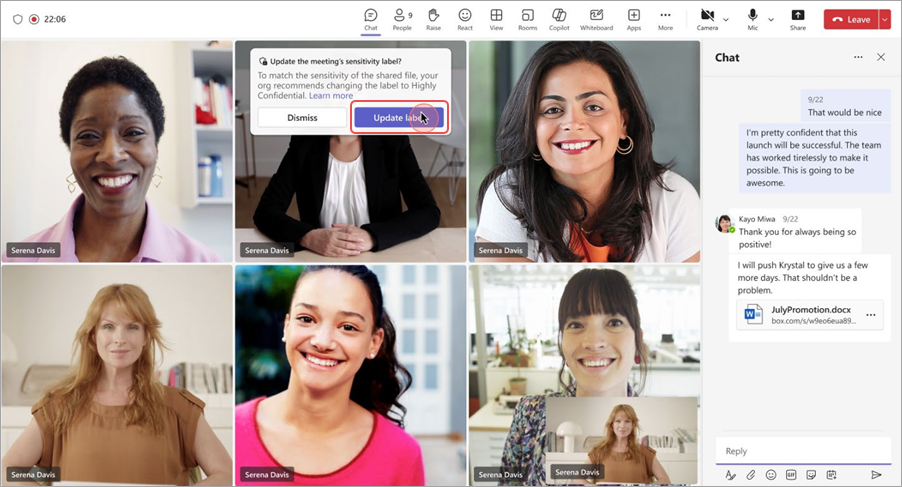
If a meeting’s sensitivity label updates during a meeting, no one will be removed from the meeting. The updated label will only affect future occurrences of the meeting.
Note
- Activity feed notifications for label recommendation are only supported in Teams for desktop and web.
- If you don’t see label recommendation notifications when sensitive files are shared, your org might have enabled automatic sensitivity label updates. To learn more, contact your IT admin.