
| Untuk informasi tentang masalah CrowdStrike pada titik akhir (klien) Windows ini, lihat KB5042421. |
|---|
Ringkasan
Microsoft telah mengidentifikasi masalah yang memengaruhi Windows Server yang dihosting secara lokal yang menjalankan agen CrowdStrike Falcon. Server ini mungkin menemukan pesan kesalahan 0x50 atau 0x7E di layar biru dan mengalami status dimulai ulang terus menerus.
Kami telah menerima laporan pemulihan yang berhasil dari beberapa pelanggan yang mencoba beberapa kali menghidupkan ulang operasi di server Windows yang terpengaruh.
Kami bekerja sama dengan CrowdStrike untuk membantu menyediakan langkah-langkah remediasi terbaru kepada pelanggan untuk mengatasi masalah ini. Periksa kembali pembaruan tentang masalah yang sedang berlangsung ini.
Resolusi
Penting
Kami telah merilis alat USB untuk membantu mengotomatiskan proses perbaikan manual ini. Untuk informasi selengkapnya, lihat Alat pemulihan baru untuk membantu mengatasi masalah CrowdStrike yang memengaruhi perangkat Windows.
Untuk mengatasi masalah ini, ikuti instruksi ini untuk lingkungan server Windows Anda.
Untuk mengurangi masalah ini pada VM yang dihosting di host Hyper-V, ikuti langkah-langkah berikut:
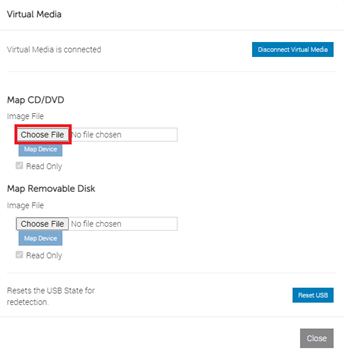
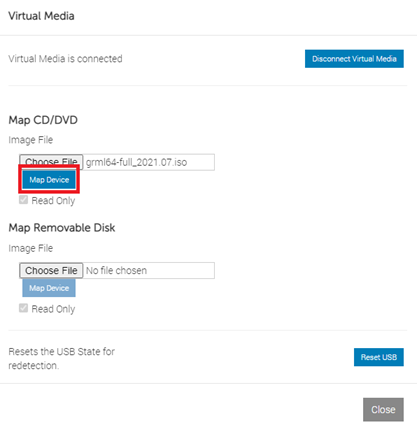
PENTING Untuk menyelesaikan langkah-langkah berikut, Anda harus menyimpan gambar pemulihan di DVD.
Matikan server yang terpengaruh dari konsol Manajemen Hyper-V. Klik kanan VM, lalu klik Pengaturan.
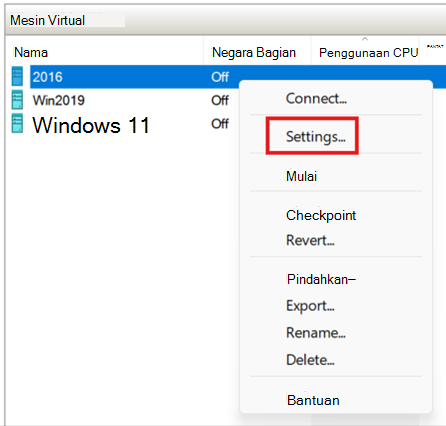
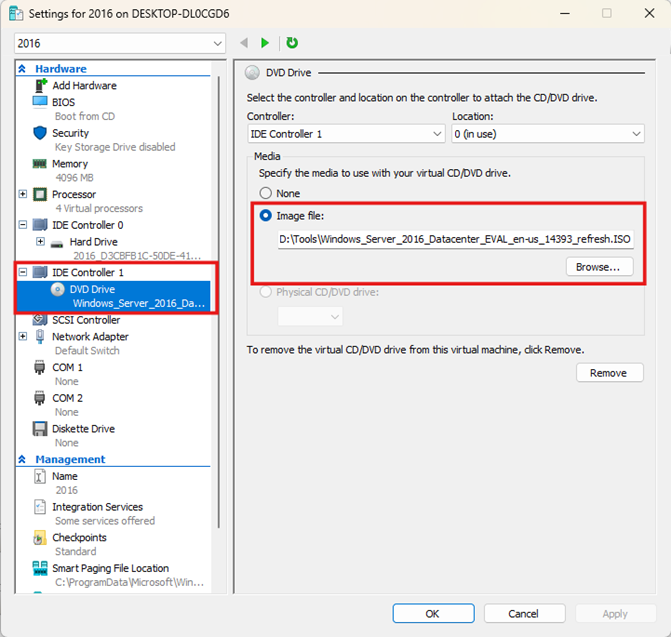
Di bawah pengontrol IDE di panel navigasi kiri, klik Drive DVD, lalu klik Telusuri untuk memilih ISO OS Windows Server. ISO harus memiliki versi Windows yang sama dengan server yang terpengaruh.
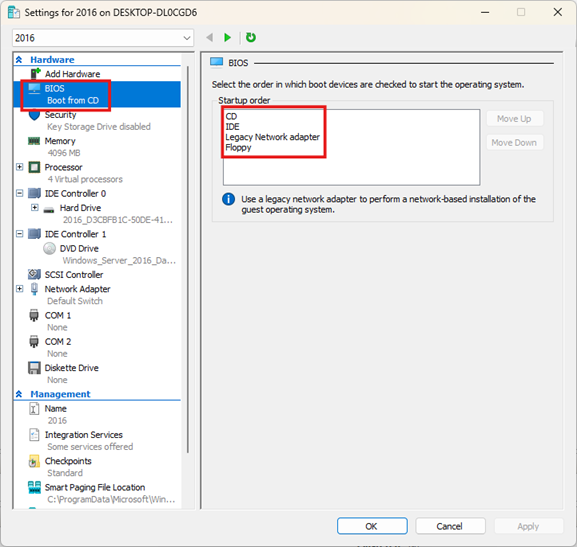
Setelah ISO dimuat, klik BIOS di panel navigasi kiri, lalu pindahkan CD ke bagian atas urutan Pengaktifan di panel sisi kanan.
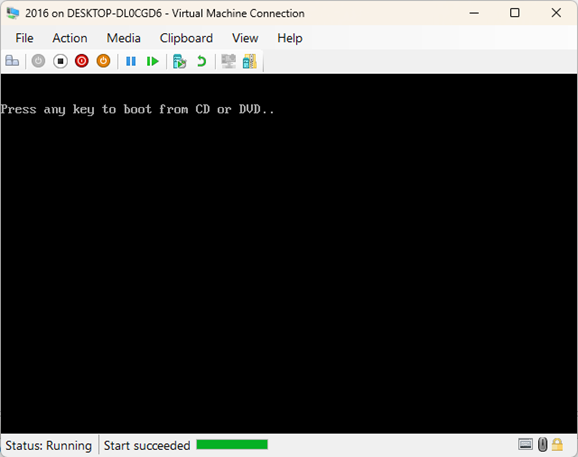
Mulai VM dari konsol, lalu tekan tombol apa pun setelah Anda berada di layar Tekan tombol apa saja untuk boot dari layar CD atau DVD . Ini akan memulai VM ke Lingkungan Pra-Penginstalan Windows.
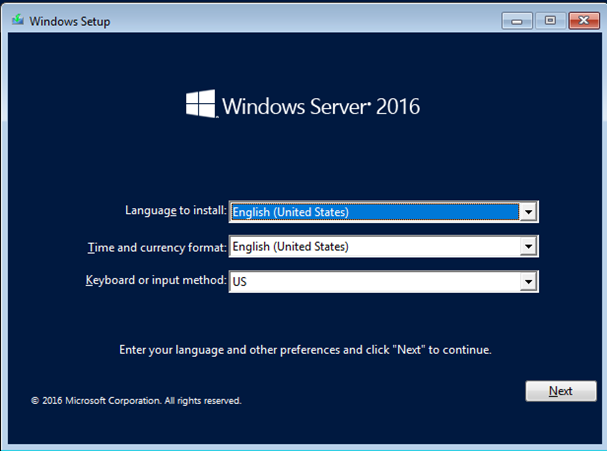
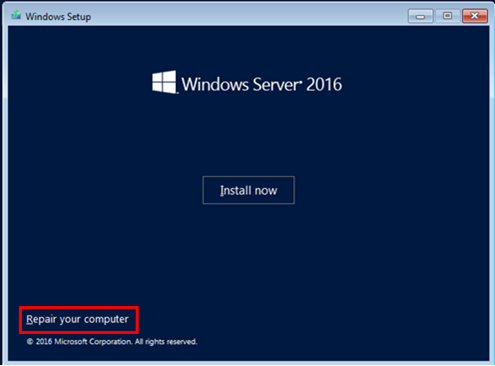
Di layar Tataan Windows , klik Berikutnya , lalu klik opsi Perbaiki komputer Anda .
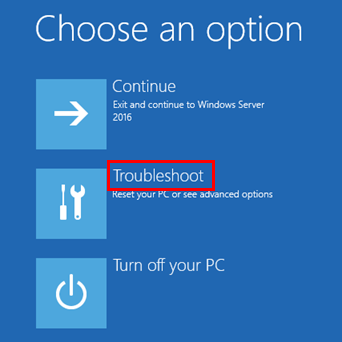
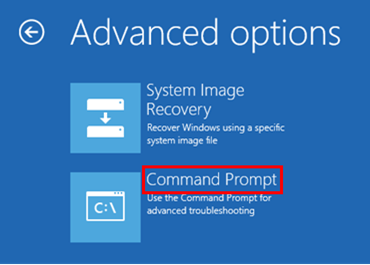
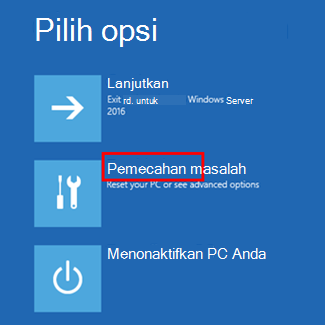
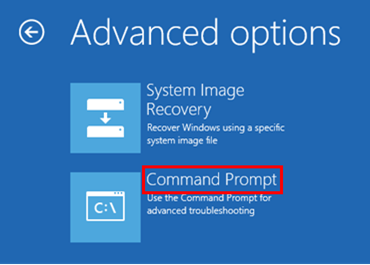
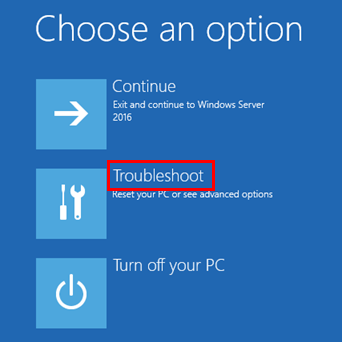
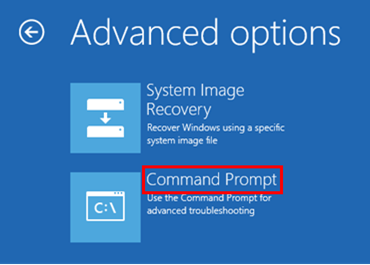
Di layar Pilih opsi , klik Pecahkan Masalah , lalu klik Prompt Perintah.
Jika Drive Sistem Anda berbeda dari C:\, ketik C: , lalu tekan Enter. Tindakan ini akan mengalihkan Anda ke drive C:\.
Ketik perintah berikut lalu tekan Enter:
Catatan
CD C:\Windows\System32\drivers\CrowdStrikecatatan Dalam contoh ini, C adalah drive sistem Anda. Ini akan berubah menjadi direktori CrowdStrike .
Setelah berada di direktori CrowdStrike , temukan file yang cocok dengan "C-00000291*.sys". Untuk melakukannya, ketik perintah berikut lalu tekan Enter:
Catatan
dir C-00000291*.sysHapus file yang ditemukan secara permanen. Untuk melakukannya, ketik perintah berikut lalu tekan Enter:
Catatan
del C-00000291*.sysMulai ulang perangkat.



Hubungi CrowdStrike
Jika setelah mengikuti langkah-langkah di atas, jika Anda masih mengalami masalah saat masuk ke perangkat Anda, silakan hubungi CrowdStrike untuk mendapatkan bantuan tambahan.
Referensi
Sanggahan informasi pihak ketiga
Catatan
- Produk pihak ketiga yang dibahas dalam artikel ini dibuat oleh perusahaan yang bukan merupakan bagian dari Microsoft. Kami tidak memberikan jaminan, baik tersirat maupun tersurat, terkait kinerja atau keandalan produk ini.
- Kami menyediakan informasi kontak pihak ketiga untuk membantu Anda menemukan dukungan teknis. Informasi kontak ini dapat berubah tanpa pemberitahuan. Kami tidak menjamin keakuratan informasi kontak pihak ketiga ini.