
Tampilkan konten di halaman klasik SharePoint Anda dengan mengonfigurasi kueri sederhana dan tingkat lanjut di Komponen Web Pencarian Konten.
Komponen web ini dirancang untuk halaman klasik. Jika Anda tidak menggunakan halaman klasik, lihat komponen web Konten yang disorot.
Tentang Komponen Web Pencarian Konten (CSWP)
Saat pengunjung menelusuri ke halaman yang berisi CSWP, Komponen Web secara otomatis mengeluarkan kueri. Hasil pencarian ditampilkan dalam CSWP. Biasanya, pengunjung bahkan tidak akan tahu bahwa teknologi pencarian digunakan untuk menampilkan konten yang mereka lihat. Bagi mereka, itu akan terlihat dan terasa seperti halaman web lainnya.
Dengan mengonfigurasi kueri dalam CSWP, Anda dapat menentukan konten mana yang akan dilihat pengunjung ketika mereka menjelajahi halaman yang berisi CSWP. Secara default, kueri di CSWP dikonfigurasi untuk menampilkan tiga item yang terakhir diubah di situs. Dengan mengonfigurasi kueri, Anda dapat mengubah jumlah item yang ditampilkan di CSWP dan konten mana yang ditampilkan. Misalnya, Anda dapat mengonfigurasi kueri sehingga CSWP akan menampilkan sembilan item daftar dari daftar tertentu, atau enam dokumen terakhir yang dibuat pengunjung di pustaka dokumen.
Menambahkan komponen web Pencarian Konten
- Pastikan Anda adalah anggota grup SharePoint Desainer di situs tempat Anda ingin menambahkan Komponen Web.
- Buka halaman tempat Anda ingin menambahkan Komponen Web.
- Dari Pengaturan
 , pilih Edit halaman.
 - Di Zona tempat Anda ingin menambahkan Komponen Web, pilih Tambahkan Komponen Web.
- Dalam daftar Kategori , pilih Rollup Konten.
- Di daftar Bagian, pilihTambahkan Pencarian>Konten.
Tampilkan konten dengan mengonfigurasi kueri sederhana di Komponen Web Pencarian Konten
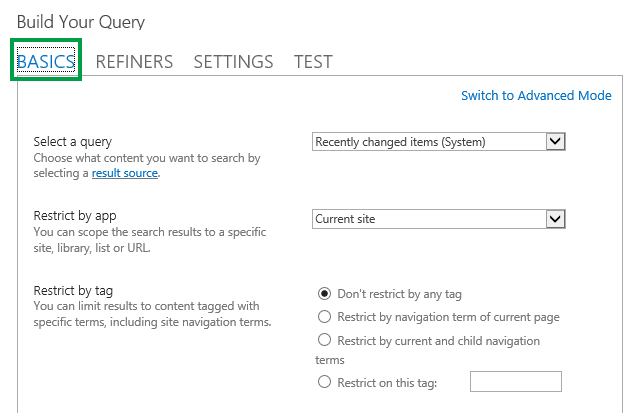
Jika kueri yang Anda inginkan untuk dikeluarkan CSWP sederhana, misalnya, jika Anda ingin membatasi hasil pencarian ke sumber hasil atau ke tag tertentu, Anda mungkin hanya perlu menggunakan opsi konfigurasi pada tab DASAR-DASAR.
- Pastikan Anda adalah anggota grup SharePoint Desainer di situs yang berisi CSWP.
- Buka halaman yang berisi CSWP yang ingin Anda edit.
- Dari Pengaturan , pilih Edit Halaman.
- Di Komponen Web, pilih panah > menu Komponen Web Pencarian Konten Edit Komponen Web.
- Di panel alat Komponen Web, di bagian Properti , di bagian Kriteria Pencarian , pilih Ubah kueri.
Kotak dialog seperti yang ditunjukkan pada gambar di atas akan terbuka. Di sini, Anda dapat mengonfigurasi kueri seperti yang dijelaskan dalam tabel berikut.
| Memilih kueri | Pilih Kelola sumber hasil untuk menentukan konten mana yang harus dicari. |
|---|---|
| Membatasi hasil berdasarkan aplikasi | Pilih opsi dari daftar untuk membatasi hasil ke situs, pustaka, daftar, atau URL tertentu. |
| Membatasi berdasarkan tag | Anda dapat membatasi hasil ke konten yang ditandai dengan istilah. Pilih salah satu dari berikut:Jangan batasi dengan tag apa punHasil pencarian tidak dibatasi oleh satu istilah. Membatasi berdasarkan istilah navigasi halaman saat iniHasil pencarian terbatas pada konten yang ditandai dengan istilah navigasi halaman saat ini. Istilah navigasi ditampilkan sebagai bagian terakhir dari URL yang mudah diingat. Opsi ini hanya berarti untuk situs yang menggunakan navigasi terkelola. Membatasi berdasarkan navigasi saat ini dan turunanHasil pencarian terbatas pada konten yang ditandai dengan istilah navigasi halaman saat ini (ditampilkan sebagai bagian terakhir dari URL yang mudah diingat), dan konten yang ditandai dengan sub-istilah dari istilah navigasi saat ini. Opsi ini hanya berarti untuk situs yang menggunakan navigasi terkelola. Catatan: Dalam skenario penerbitan lintas situs, pilihan ini hanya akan berfungsi ketika sumber hasil yang Anda pilih dari menu Pilih kueri adalah sumber hasil katalog yang dibuat saat Anda menyambungkan situs penerbitan ke katalog. Membatasi tag iniHasil pencarian terbatas pada konten yang ditandai dengan tag yang Anda ketikkan di dalam kotak. |
Tampilkan konten dengan mengonfigurasi kueri tingkat lanjut di Komponen Web Pencarian Konten
Jika kueri yang Anda inginkan untuk dikeluarkan CSWP adalah tingkat lanjut, misalnya Anda ingin menggunakan Referensi Sintaks Bahasa Kueri Kata Kunci (KQL), Anda harus menggunakan opsi konfigurasi yang tersedia dalam Mode Tingkat Lanjut pada tab DASAR.
Saat mengonfigurasi kueri dalam Mode Lanjutan, Anda juga dapat menggunakan variabel kueri . Variabel kueri adalah placeholder yang diganti dengan nilai saat kueri dijalankan. Contoh variabel kueri adalah {User.Name}, yang merupakan placeholder untuk nama pengguna yang melihat halaman, atau {URLToken.1}, yang merupakan placeholder untuk nilai pertama dalam URL yang dihitung dari kanan ke kiri.
- Pastikan Anda adalah anggota grup SharePoint Desainer di situs yang berisi CSWP.
- Buka halaman yang berisi CSWP yang ingin Anda edit.
- Dari Pengaturan , pilih Edit Halaman.
- Di panel alat Komponen Web, di bagian Properti , di bagian Kriteria Pencarian , pilih Ubah kueri.
- Di kotak dialog yang terbuka, pilih Beralih ke Mode Lanjutan.
- Konfigurasikan kueri Anda seperti yang dijelaskan dalam tabel berikut:
| Tab DASAR |
|---|
| Memilih kueri |
| Filter kata kunci |
| Filter properti |
| Teks kueri: |
| Tab PENYARING |
|---|
| Gunakan tab ini jika Anda ingin hasil pencarian Anda dibatasi pada item yang memiliki satu atau beberapa nilai penyalin. Properti terkelola yang diaktifkan sebagai penyaring dalam skema pencarian tercantum di bagian Pilih penyaring Anda . Pilih nilai penyaring dalam daftar, lalu pilih Tambahkan untuk menambahkannya ke kueri. Jika ingin hasil pencarian ditampilkan sebagai grup di satu atau beberapa properti terkelola, pilih Tampilkan selengkapnya. Hal ini berguna untuk menampilkan beberapa varian untuk item tertentu, dan ingin mengelompokkannya di bawah satu hasil. |
| TAB PENYORTIRAN |
|---|
| Di tab ini, Anda dapat menentukan bagaimana Anda ingin hasil pencarian diurutkan. Properti terkelola yang diatur sebagai dapat diurutkan dalam skema pencarian tercantum dalam daftar menurun Urutkan menurut . Dari daftar ini, pilih properti terkelola, lalu pilih Menurun atau Naik. Untuk menambahkan lebih banyak tingkat pengurutan, pilih Tambahkan tingkat pengurutan. Jika memilih Peringkat dari daftar Urutkan menurut , Anda dapat menambahkan aturan dan ketentuan lainnya dengan memilih Tambahkan aturan pengurutan dinamis. |
| Tab PENGATURAN |
|---|
| Aturan kueri |
| Penulisan ulang URL |
| Perilaku memuat |
| Prioritas |
| Pembuatan cache |
| Tab UJI | Deskripsi |
|---|---|
| Di tab ini, Anda dapat melihat pratinjau detail kueri yang dikirim oleh CSWP. | |
| Teks kueri: | Memperlihatkan kueri yang akan dijalankan oleh CSWP. |
| Pilih Tampilkan selengkapnya untuk menampilkan informasi tambahan. | |
| Templat kueri | Menampilkan konten templat kueri yang diterapkan ke kueri. |
| Disempurnakan menurut | Memperlihatkan penyaring yang diterapkan ke kueri seperti yang ditentukan pada tab PENYEMPURNA. |
| Dikelompokkan menurut | Memperlihatkan hasil pencarian yang dikelompokkan berdasarkan properti terkelola seperti yang ditentukan dalam tab REFINERS . |
| Aturan kueri yang diterapkan | Memperlihatkan aturan kueri mana yang diterapkan ke kueri. |
| Variabel templat kueri | Memperlihatkan variabel kueri yang diterapkan ke kueri, dan nilai variabel ini saat diterapkan ke halaman saat ini. Untuk melihat pratinjau hasil, pilih Kueri Uji. |
| Untuk menguji cara kerja kueri untuk berbagai istilah segmen pengguna, pilih Tambahkan istilah segmen pengguna . Untuk melihat pratinjau hasil, pilih Kueri Uji. | |
| Teks kueri | Memperlihatkan kueri yang akan dikeluarkan oleh CSWP. |
Mengontrol cara konten ditampilkan di Komponen Web Pencarian Konten
Untuk mengontrol bagaimana konten ditampilkan di CSWP, Anda harus menyesuaikan templat tampilan. Untuk mempelajari cara membuat templat tampilan kustom, lihat Templat tampilan SharePoint 2013 Design Manager
Tips tentang cara mengonfigurasi Komponen Web Pencarian Konten untuk mengurangi waktu muat halaman
CSWP menawarkan banyak fleksibilitas untuk mengonfigurasi kueri. Namun, jika Anda mengonfigurasi Komponen Web untuk menggunakan kueri yang sangat kompleks, SharePoint harus bekerja lebih keras untuk mengatasi kueri tersebut, yang sekali lagi dapat menyebabkan peningkatan waktu muat halaman. Dalam jargon pencarian, ini sama dengan peningkatan latensi kueri.
Tips berikut dapat membantu Anda mengurangi kompleksitas kueri dan waktu muat halaman:
- Hindari menggunakan beberapa operator OR. Operator OR meningkatkan kompleksitas kueri lebih banyak daripada operator AND. Jika kueri Anda berisi operator OR, coba ubah kueri untuk menggunakan operator AND.
- Hindari menggunakan operator wildcard (*). Sebagai gantinya, coba konfigurasi kueri untuk menggunakan pencocokan persis.
- Hindari penggunaan frasa kata kunci. Sebagai gantinya, cobalah untuk menggunakan satu kata kunci.
- Hindari penggunaan variabel kueri yang berisi properti Pengguna atau properti Istilah dan kumpulan istilah. Lihat Variabel kueri di SharePoint Server 2013 untuk informasi dan contoh properti ini.
- Hindari menambahkan pengurutan kustom seperti tingkat pengurutan dan aturan pengurutan dinamis. Sebagai gantinya, coba gunakan opsi pengurutan default dari menu tarik-turun Urutkan menurut pada tab PENGURUTAN
- Jika Anda tidak menggunakan aturan kueri, pilih Jangan gunakan Aturan Kueri dari tab Pengaturan .
- Jika Anda tidak menggunakan CSWP untuk menampilkan konten dari katalog produk, pilih Jangan tulis ulang URL dari tab Pengaturan .