
Choose your Dragon Copilot desktop view
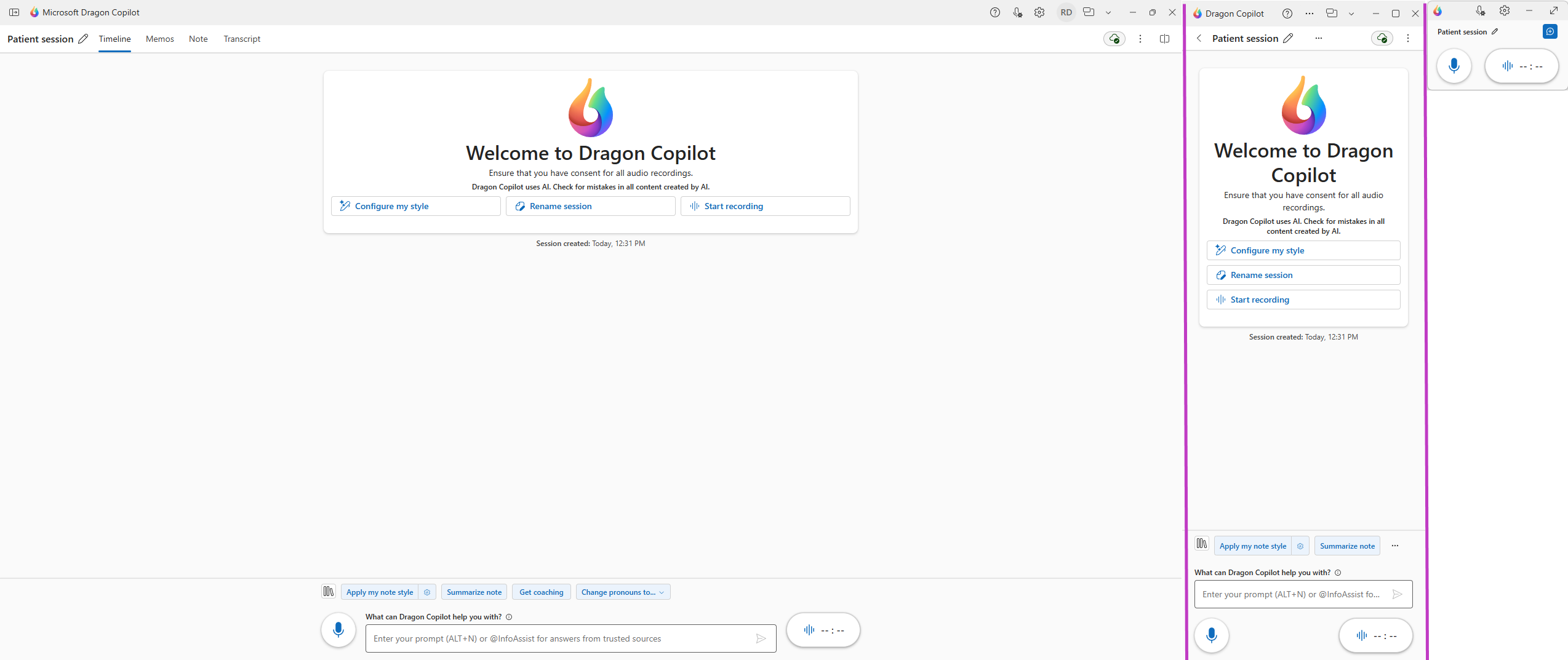
Choose between different views of the Dragon Copilot desktop app to help you use Microsoft Dragon Copilot in a way that works best for your workflow. The following views are available:
- Standard view: Dragon Copilot occupies all or most of your screen.
- Narrow view: Dragon Copilot is resized to a bar and docked to the right side of the screen. All other apps are resized and moved to the left of Dragon Copilot.
- Compact view: Dragon Copilot is resized to a small window that contains only the most essential session creation and recording functionality and is displayed on top of your other apps. Compact view is the most similar to a Dragon Medical One experience.
How to switch views
From standard to narrow view
- Select the compact view icon
 on the upper right to switch to compact view.
 - Select the down arrow icon
 on the upper right to switch to standard or narrow view.
From compact view
- Select the minimize icon
 on the upper right to minimize the app to the taskbar.
 - Select the expand icon
 on the upper right to return to the previous view (narrow view or standard view).